












































Create an API key in the dashboard, choose scopes, exchange it for a 15-minute token, store it safely and revoke it when needed – step by step.
An API key is how your programs get into the LinkHarbor API. It belongs to a workspace, not to a person, and can do exactly what you allow it via scopes. For the actual calls, you exchange the key for a short-lived access token.
Who can create API keys?
- Owners and admins of the workspace – editors and viewers only see the “Connected apps” card under “Callback & API”
- From Creator Pro; in Creator Free the card says “API keys are available from Creator Pro.”
- Active at the same time: up to 5 keys in Creator Pro, up to 20 in Creator Agency, up to 50 in Enterprise
Once the limit is reached, creating a key fails with 409 limit_reached. Delete a key you no longer need first.
Create an API key
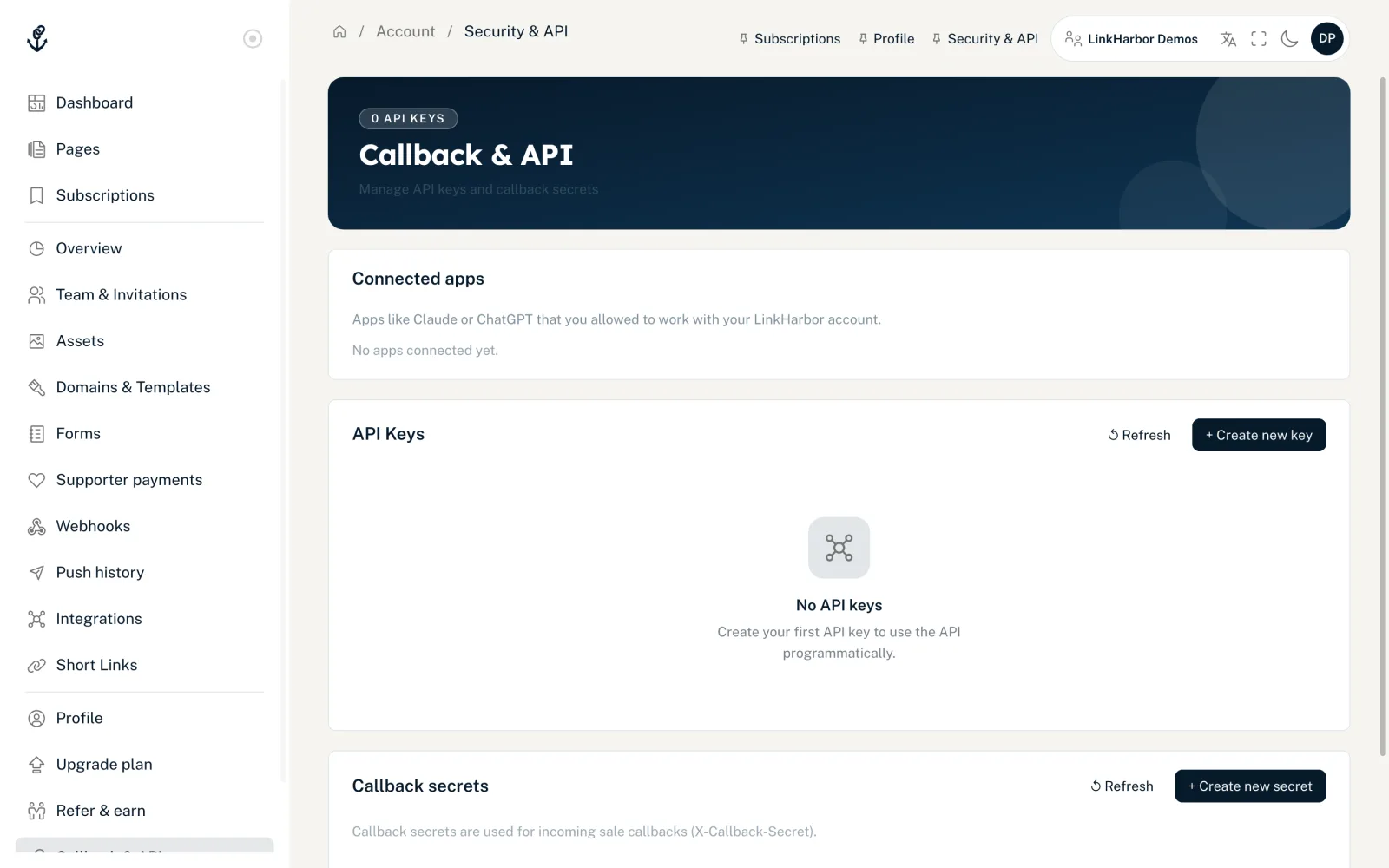
- Open “Callback & API” in the navigation
- In the “API Keys” card, click “+ Create new key”
- Under “Name (optional)”, enter a name you will recognise the key by later, for example “CI/CD Pipeline” or “Shop sync”
- Under “Scopes”, choose “Read” or “Write” for each area
- Click “Create key”
- Copy the “Key secret (private)” straight away and store it somewhere safe
- Close the dialog – you can find the key ID in the list at any time
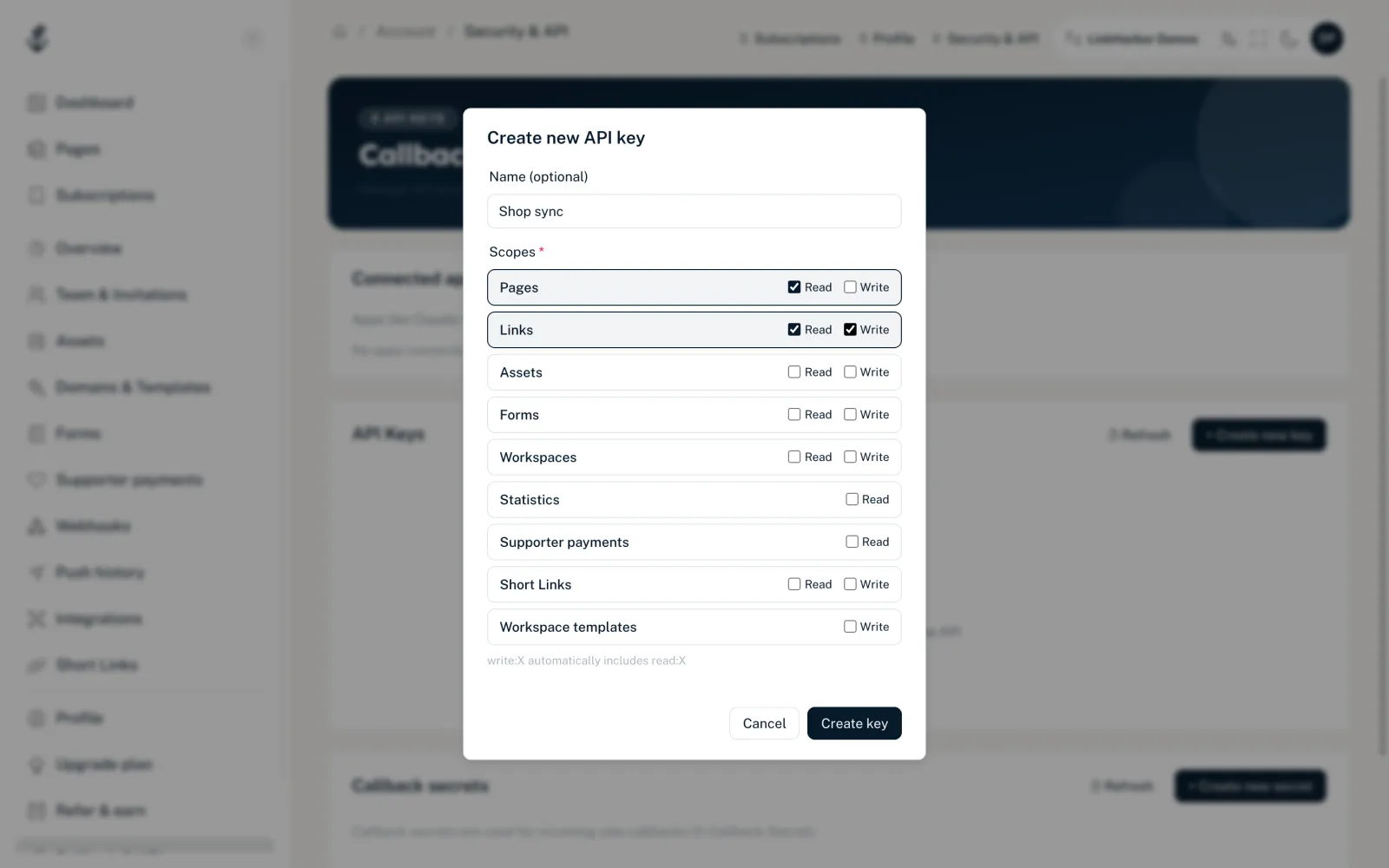
- “Name (optional)”
- Up to 64 characters. Without a name, the key appears in the list as “API key #ID”.
- “Scopes”
- At least one is required. “Write” automatically includes “Read” for the same area. Statistics and supporter payments are read-only, workspace templates write-only. All scopes are explained in Scopes in detail.
- “Key secret (private)”
- Starts with lt_ and is shown exactly once (“⚠️ Only visible once — copy now!”). LinkHarbor only stores a hash of it and cannot show it to you again later.
- “Key ID:”
- 16 characters made of digits and the capital letters A–F, for example 6F668EA6598B0692. It is not secret and appears in the list with a copy button.
The key list
Each active key shows its name, the status “Active”, the key ID, its scopes, “Created:” and “Last used:” or “Not yet used”. The time of last use is updated on every call made with the key, at most once a minute. “↺ Refresh” reloads the list.
Exchange the key for an access token
curl -X POST https://dock.at-harbor.com/v1/token \
  -H "Content-Type: application/json" \
-d '{"key_id":"6F668EA6598B0692","key_secret":"lt_…"}'{ "token": "eyJhbGciOiJIUzI1NiIs…", "expires_in": 900 }- token
- The access token. You send it with every request as Authorization: Bearer <token>.
- expires_in
- Validity in seconds: 900, i.e. 15 minutes. There is no refresh token – once it expires, simply get a new token with the key ID and secret.
The token stands for the workspace and carries exactly the key's scopes. It has no role the way a person does: endpoints that the dashboard reserves for owners and admins (members, billing, managing domains, webhooks, workspace settings) are always refused for tokens from API keys. The exceptions are short links and workspace templates, which work with the matching scope, and reading callback secrets (without the plain-text secret) with read:workspaces.
Failed attempts and lockout
| Situation | Response |
|---|---|
| Wrong key ID or secret, or key deleted | 401 invalid_api_key |
| 5 failed attempts for one key ID from the same IP | 429 api_key_locked, locked for 60 seconds |
| 10 failed attempts | 429 api_key_locked, locked for 5 minutes |
| 20 failed attempts | 429 api_key_locked, locked for 30 minutes |
| 50 failed attempts from one IP within 10 minutes | 429 rate_limited, IP blocked for 1 hour |
With api_key_locked, the remaining time is in details.retry_after_sec. A successful exchange resets the counter.
Delete and replace a key
- Click “Delete” next to the key
- Type DELETE to confirm
- Click “Delete permanently”
The key stops working immediately – access tokens that were already issued also stop working from that moment and get 401 invalid_token. There is no rotate button. To switch keys, create a new key, move your program over to it and then delete the old one.
When the plan goes down
If the workspace moves to Creator Free, all API keys are revoked. If it moves to a plan with fewer keys, the newest ones are kept and the rest are revoked. Revoked keys do not come back after a later upgrade – you create new ones then. Owners get an e-mail listing the disabled features. More in Cancel and downgrade.
Keeping it safe
- Only keep the secret in a secrets manager or in environment variables, never in source code or a Git repository
- Never use it in code that runs in the browser or in an app on the user's device
- Create a separate key for each application, with as few scopes as possible
- Delete keys you no longer need straight away
- If you suspect a leak: delete the key and create a new one
You might also find this useful
Nothing found?
Tell us what you need, and our support team will help you personally.