












































Bring a form into the Page Builder with the form block, set layout and colours, publish and test it – including protection against spam.
A form from the workspace appears on your page through the “Form” block in the Page Builder. The block is one of the Pro blocks and is available from Creator Pro. Editors, admins and owners can add it.
What you need
- Creator Pro or higher
- At least one form in the workspace, see Create a form
- A free slot in your page's block limit
If there is no form yet, the Page Builder refuses the block with a notice. In that case, create one under “Forms” first.
Add the form block
- Open the page in the Page Builder
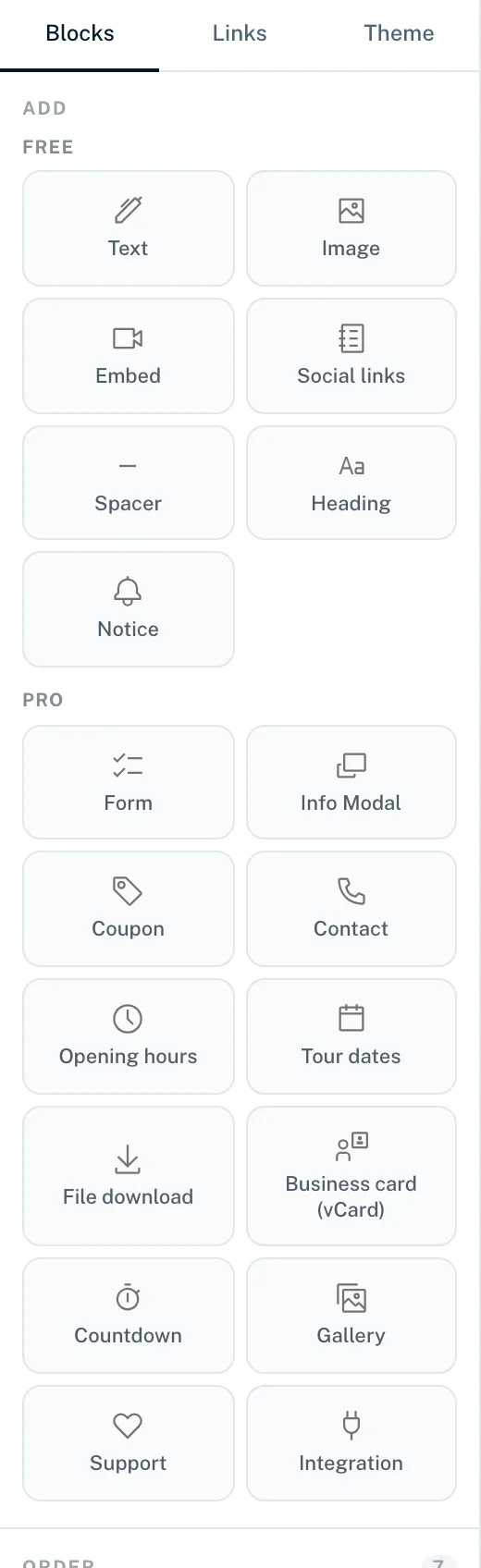
- On the left, in the “Blocks” tab under “Pro”, choose the “Form” card
- On the right, in the “Content” area under “Form”, select the form you want
- Adjust the look under “Display options”
- Drag the block to the right position in the “Order” list
- Publish the page
Set the look
Under “Layout” you choose between “Simple”, “Middle” and “Maximal”. Depending on the layout, a different number of options is available.
| Option | Simple | Middle | Maximal |
|---|---|---|---|
| “Button text”, “Button color”, “Button text color” | Yes | Yes | Yes |
| “Heading”, “Text color” | – | Yes | Yes |
| “Description”, “Card background”, “Corner radius” | – | – | Yes |
Colour fields you leave unset take the colours of your theme (“Default (from theme)”). The button text can be up to 60 characters long.
What visitors experience
- The form appears right on the page with all the fields you created
- Required fields have to be filled in before the form can be submitted
- After submitting, your success message appears; without one, “Thank you! Your message has been sent.”
- If it doesn't work, “Sending failed. Please check your entries and try again.” appears below the form
- Hidden fields are sent along invisibly
- Each entry can be up to 4,000 characters long
Protection against spam
LinkHarbor accepts at most 10 submissions per hour from the same IP address. Anyone who sends more sees “Too many submissions — please wait a moment and try again.” This slows down automated spam without bothering normal visitors.
Test it
- Open the published page in a private browser window
- Fill in the form and submit it
- In the dashboard, check under “Forms” → “Submissions” whether the submission has arrived
Common problems
- The block shows nothing
- Check that the form is set to “Active” and that the block is visible. A disabled form doesn't accept submissions.
- The block no longer appears after a downgrade
- Pro blocks stay saved but aren't shown on Creator Free. After an upgrade they're back.
- Submitting fails even though everything is filled in
- Forms only accept submissions on published, public pages. Submitting doesn't work on a private or password-protected page, or in a draft only. Also check whether a field contains more than 4,000 characters.
- The form can't be deleted
- As long as a form block uses it, deleting is blocked, in drafts too. Remove the block first.
You might also find this useful
Nothing found?
Tell us what you need, and our support team will help you personally.