












































How the draft and the live version fit together, what is checked before publishing and how to bring back an older version.
LinkHarbor separates the draft you work on from the published version that visitors see. This article explains what happens when you publish, where you publish and how to use versions to bring back an earlier one. You can publish and restore versions from the editor role up; all roles can view the versions.
Draft and live version
Everything you change in content and design in the Page Builder or the page editor is saved to the draft automatically: links, blocks, texts, images, colours, template, custom CSS and SEO. Visitors see none of it until you publish. You can see the draft at any time in the builder's preview or via “Preview ↗”.
These, on the other hand, take effect immediately, without publishing:
- The page title
- Handle: the address changes immediately
- Visibility: public, private or password protected
- Activating or deactivating the page through a plan change
Publishing in the Page Builder
In the Page Builder you'll find the “Publish” button at the top right. One click creates a new version and puts it live straight away. If it says “Live”, everything is published. As soon as the draft contains something that isn't live yet, the button says “Publish” again. Clicking “Live” (“Republish”) publishes again anyway and creates a new version.
Publishing in the page editor
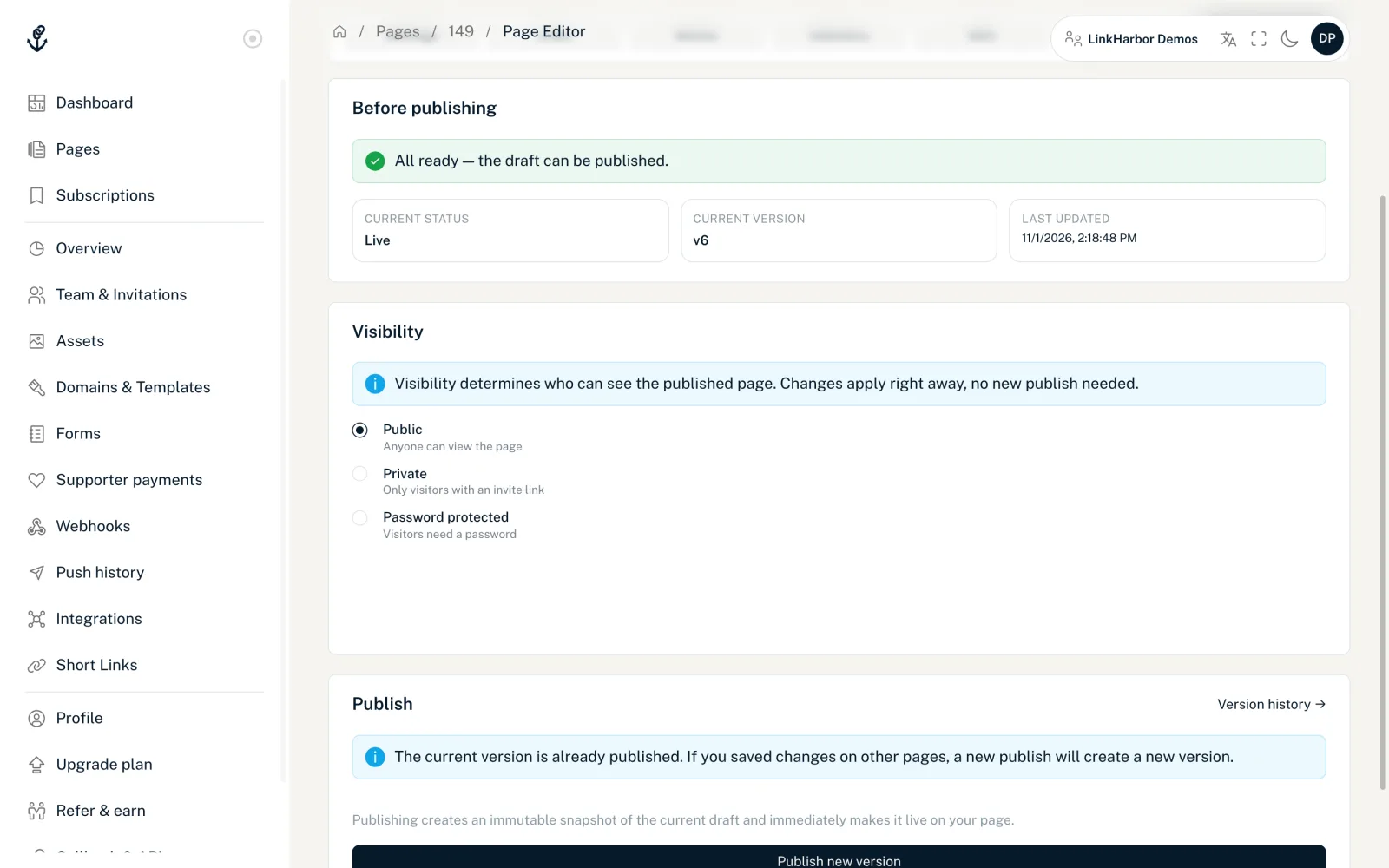
The “Publish” tab in the page editor shows more detail:
- Before publishing
- The draft is checked automatically. If everything is fine, it says “All ready — the draft can be published.” Otherwise LinkHarbor lists the problems with field and message, and the publish button stays disabled.
- Status tiles
- “Current status” (Live or Draft), “Current version” (or “Never published”) and “Last updated”.
- Visibility
- Who can see the published page, see Visibility.
- Publish
- The button is called “Publish for the first time” or “Publish new version”. After you click it, “Published successfully” appears with the version number and date.
If an image the template strictly requires is missing, such as the profile photo, the check reports “A required image slot is still empty: …” with the name of the image slot. Upload it in the Page Builder under “Page settings” and check again. The other messages of the check – for example about unknown image slots, missing or mismatched pictures, a missing template or invalid template settings – also appear in your language and name what to fix.
If the page is already live and unchanged, the tab points this out. Publishing again still creates a new version.
What happens when you publish
- LinkHarbor creates an unchangeable snapshot of the current draft
- The snapshot is saved as a new version: v1, v2, v3 …
- From now on, the page shows this version at its address
- If you've set up a webhook for the page.published event, it is notified
The draft is kept. You simply carry on working and publish the next version when it's ready. If you don't see a change on the page after publishing, see Changes are not showing on your page.
Viewing versions
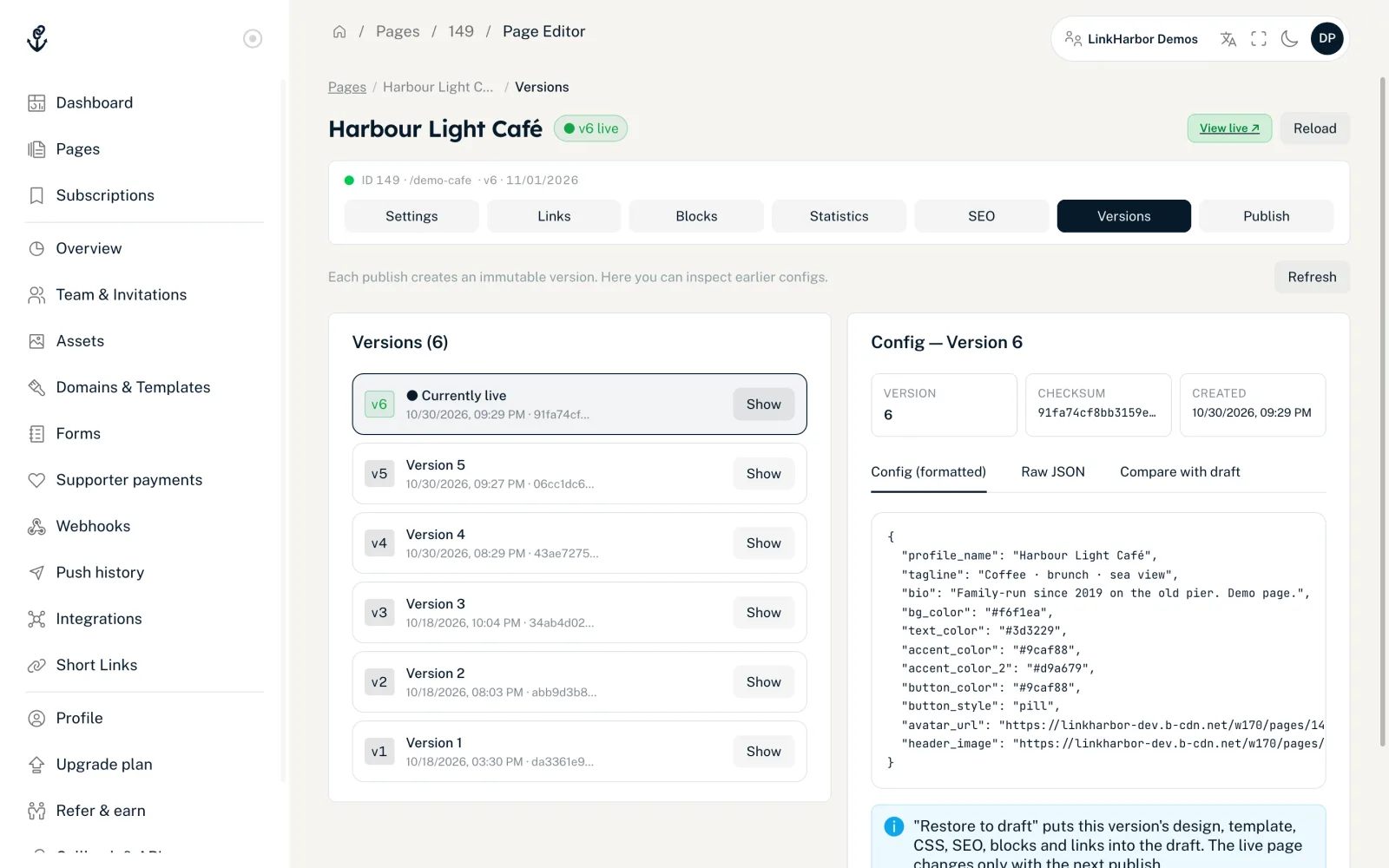
In the “Versions” tab you see the list of all published versions on the left. The one that is currently visible is marked “● Currently live”. “Show” opens the details on the right:
- Version, Checksum, Created, Template
- The key facts of the version.
- Config (formatted)
- The version's settings, laid out so they're easy to read.
- Raw JSON
- The same data as JSON, for developers, for example.
- Compare with draft
- Puts “This version” and “Current draft” side by side so you can see what has changed since.
There is no limit on the number of stored versions.
Restoring an older version
- Open the “Versions” tab
- Click “Show” next to the version you want
- Click “Restore to draft” and confirm
- Check the draft in the preview
- Publish to make the version live
The version's design, template, custom CSS, SEO, blocks and links are restored. Title, handle and visibility aren't part of a version and stay as they are. The live page only changes the next time you publish, which in turn creates a new version. So you can undo a restore the same way.
If the version used a custom workspace template that has since been deleted, you'll see “The workspace template of this version has been deleted. The draft now uses the page's built-in template.” In that case, choose a suitable template in the builder before you publish.
Versions and your current plan
When you restore a version, your plan today always applies, not the plan you had when it was published:
- If the version needs something your plan no longer includes, such as a Pro template, Pro blocks, geo or device targeting, scheduling or strict bot protection, the restore is rejected completely
- If the version contains more links or blocks than your plan allows per page, the extra ones are deactivated in page order
You might also find this useful
Nothing found?
Tell us what you need, and our support team will help you personally.