












































Visitors support you through your own Stripe account: connect Stripe, set up the block, no platform fee, statistics and disconnecting.
With the “Support” block, visitors can support you with an amount of their choice. The money goes straight to your own Stripe account; LinkHarbor takes no platform fee. The feature is available from Creator Pro and is based on the Stripe integration.
How it works
- You connect your Stripe account in the workspace
- You add the “Support” block in the Page Builder
- Visitors enter an amount and pay on a Stripe payment page
- Afterwards they return to your page
- The money lands in your Stripe account; payouts, taxes and queries are handled through Stripe
Connecting Stripe
Owners and admins set up the connection.
- In the menu under Workspace, open “Integrations”
- Click “Connect” next to “Stripe”
- Sign in to Stripe or create a new Stripe account
- Allow LinkHarbor access
- Back in the dashboard, Stripe is listed under “Connected integrations”
Stripe doesn't show a widget of its own on your page. It is solely the basis for the “Support” block. Like every integration, the Stripe connection counts towards your plan's limit. How integrations work in general is explained in Connect, renew and disconnect integrations.
Adding the “Support” block
- Open the page in the Page Builder
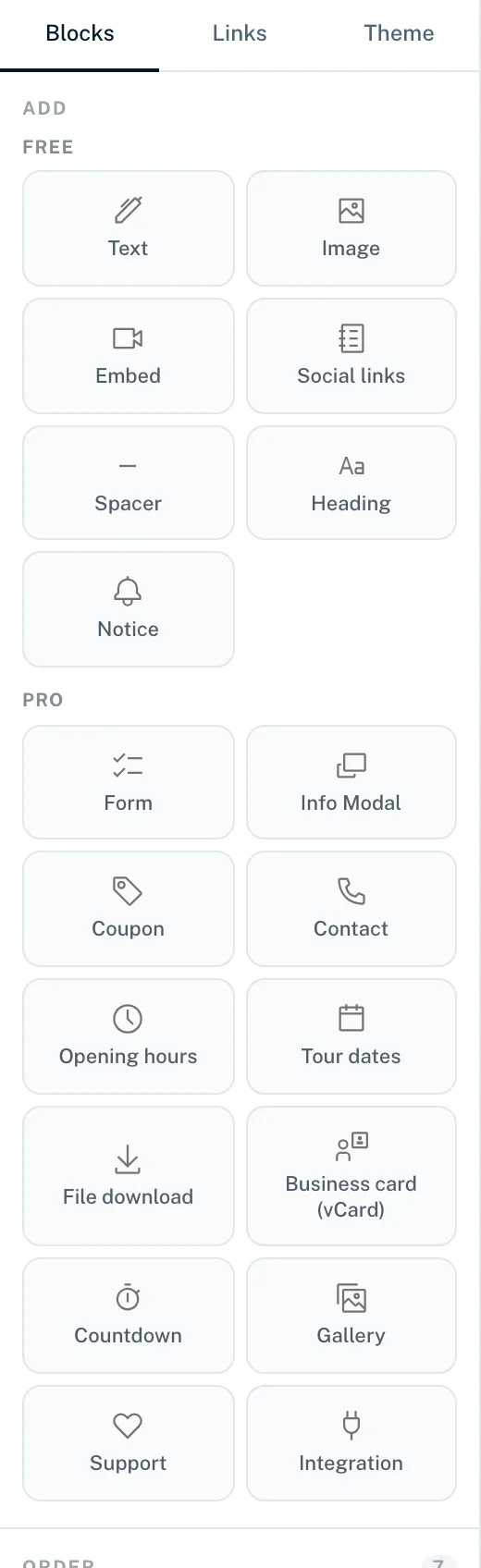
- In the “Blocks” tab, click “Support” in the “Pro” group
- In the dialog, choose your Stripe account and click “Add block”
- On the right, set the button text, currency, minimum and maximum amount, message and thank-you text
- Publish the page
Without an active Stripe connection, the dialog explains that Stripe has to be connected first and takes you to the integrations. We deliberately say “Support” rather than donation: for anyone who isn't a non-profit organisation, calling it a donation is legally tricky. On Stripe's payment page the button may still say “Donate”; Stripe sets that text.
What the button can do
- Amount
- Visitors choose the amount freely, within your minimum and maximum. Amounts from 1.00 to 1,000,000.00 in the button's currency are allowed.
- Currency
- One currency per button, for example EUR.
- Button text
- The label of the button, at most 80 characters.
- Message
- If you switch on “Allow a message” in the block, visitors can send up to 280 characters along with their payment. LinkHarbor stores the messages; they don't go to Stripe. You read them under “Supporter payments”, see below.
- Thank-you text
- Appears when the visitor returns to your page after paying, at most 280 characters.
Money, fees and data
- The payment runs directly through your Stripe account; you are the seller towards the person supporting you
- LinkHarbor takes no fee; only the usual Stripe fees apply
- You handle payouts, identity verification, taxes and disputes with Stripe
- LinkHarbor stores no data about supporters such as name or e-mail address, only the optional message
Support payments in the statistics
Every confirmed payment counts as a conversion and appears in the “Conversions” and “CVR” tiles and in the conversion reports. A refund removes the conversion again. More in Attributing conversions and sales.
All payments at a glance
Owners and admins find all payments made through the button under “Supporter payments” in the menu. At the top is “Received in the last 30 days” with a total per currency, below it the history with 25 payments per page.
- Per payment
- Amount, status, date, the page (“via …”) and the visitor's message. Without a message, it says “No message”.
- Status filter
- The default is “Received”. There are also “Refunded”, “Disputed”, “Open (payment not completed)” and “All”.
The list doesn't show supporters' names or e-mail addresses because LinkHarbor doesn't store them. You find these details in your Stripe account.
When no payments are possible
The button doesn't accept payments if the Stripe connection isn't active, the workspace is suspended or the plan doesn't include integrations. To prevent abuse, there is also a maximum of 10 payment attempts per minute from the same IP address and 30 per page.
Disconnecting Stripe
If you disconnect Stripe under “Integrations”, LinkHarbor also revokes its access at Stripe. If, the other way round, you disconnect the app in your Stripe account, the integration is disconnected at LinkHarbor as well. A downgrade to Creator Free disconnects Stripe automatically. In all cases the “Support” block stops accepting payments until you connect Stripe again.
You might also find this useful
Nothing found?
Tell us what you need, and our support team will help you personally.