












































All push notifications sent from your workspace with status, recipient count and date – and what the statuses Pending, Sent and Failed mean.
The push history shows all push notifications of your workspace – manual ones, announcements and automatic ones from push rules. All roles can see it. Only owners and admins can send new notifications.
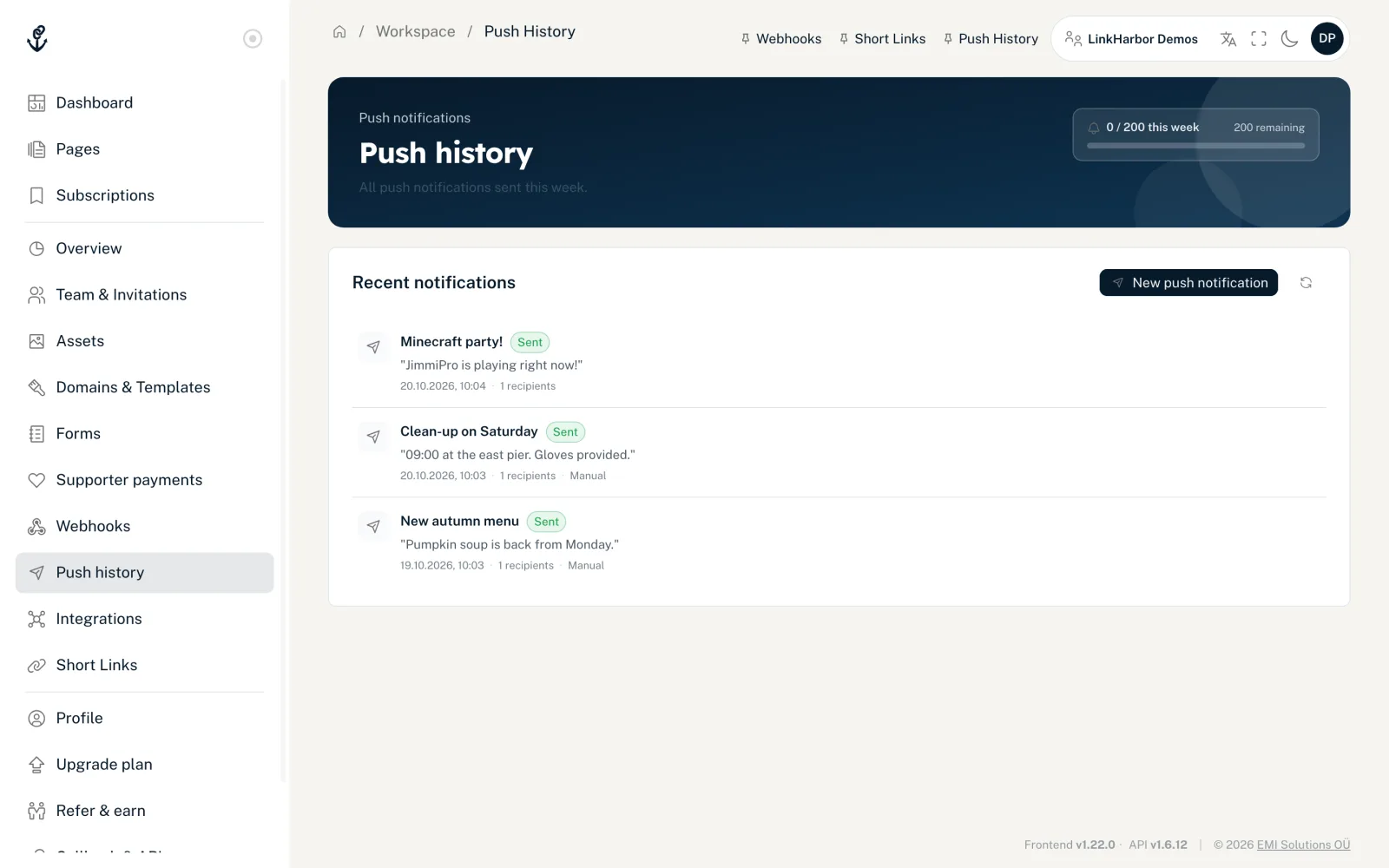
How the page is laid out
In the menu under Workspace, open “Push history”. At the top is the usage meter with your count for the week, for example “3 / 7 this week”. Next to it you find “New push notification” (disabled when the limit is reached) and a refresh button.
The subtitle talks about notifications sent “this week”. The “Recent notifications” list, however, shows the entire history, newest first, 20 per page.
What each row shows
- Title and message
- The text your followers received.
- Date
- When the notification was sent; while it is still waiting, when it was created.
- Recipients
- How many devices the notification went to, for example “128 recipients”. Someone who uses the app on two devices counts twice.
- Type
- Manual notifications carry the label “Manual”. Announcements and notifications from push rules have no label.
- Status
- Where the notification currently stands, see below.
The statuses
| Status | Meaning |
|---|---|
| Pending | The notification is waiting to be sent |
| Delivering | The notification is being delivered to devices |
| Sent | Sending is complete |
| Failed | Sending did not work |
If the list is empty
If it says “No push notifications sent yet.”, your workspace has not sent anything yet. Send a manual notification or set up push rules.
Fetch the history via the API
Developers can fetch the history and the weekly count with an API key that has the “Read · Statistics” permission, for example to feed them into their own reporting. Push notifications cannot be sent with an API key. See API endpoints.
You might also find this useful
Nothing found?
Tell us what you need, and our support team will help you personally.