












































Add a connected integration to your page with the “Integration” block, pick catalogue entries and adjust the layout and widget settings.
A connected integration appears on your page through the “Integration” block in the Page Builder. It shows live data from the platform – your Twitch status, the latest release, products from your shop or upcoming dates – and updates by itself. The block is available from Creator Pro. Editors, admins and owners can add it.
Requirements
- Creator Pro or higher
- An active integration in the workspace, see Connect an integration
- A free slot in your page's block limit
Add a widget
- Open the page in the Page Builder
- In the “Blocks” tab, choose the “Integration” card under “Pro”
- In the “Add integration block” dialog, pick a connected integration under “Choose integration”
- For catalogue platforms, click “Browse catalog” and pick entries
- Check the “Live preview” and click “Add block”
- Publish the page
Only active integrations can be selected. If there are none, you see “No active integrations” with a “Go to Integrations” link.
Pick catalogue entries
For Shopify, WooCommerce, Eventbrite, YouTube and Spotify, you decide which products, events, videos or releases the widget shows. “Selected items” lists your selection. Use “Change selection” to adjust it later.
Appearance
- “Layout”
- “Simple”, “Middle” or “Maximal” – from a compact single line to a large card with all the details.
- “Show provider badge”
- Shows or hides the platform's logo.
- Colours
- “Card background”, “Text color” and button colours. Without your own settings, your theme's colours apply.
- “Custom button text”
- Your own button label, from the “Middle” layout upwards.
Widget settings per platform
The “Widget settings” section has options that fit the platform. A few examples:
| Platform | Options |
|---|---|
| Twitch | “Show viewer count”, “Show game” |
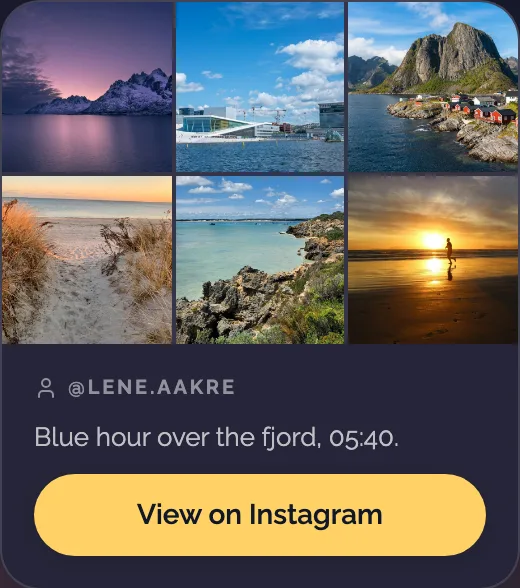
| “Post grid” with “Posts in the grid” (3, 6 or 9), from “Middle” “Show caption”, with “Maximal” also “Show followers” | |
| YouTube | “Show views” (from “Middle”) |
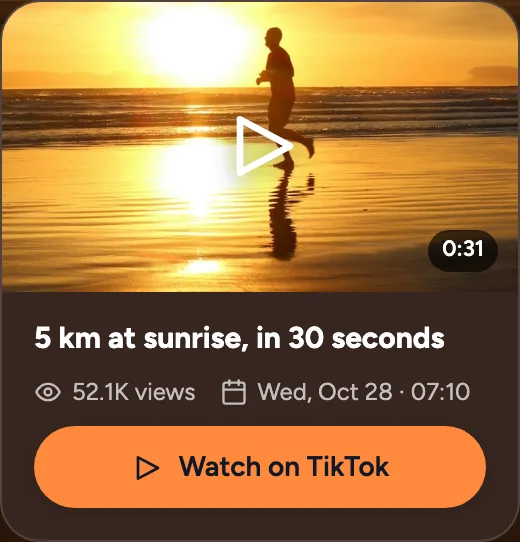
| TikTok | “Show views” (from “Middle”), with “Maximal” also “Show followers” |
| Spotify | “Show release type” |
| Shopify, WooCommerce | “Show price”, “Show description” |
| Eventbrite | “Show venue”, “Show ticket info” |
| Google Places, Yelp | “Show address”, “Show photo” |
| Ticket Tailor, Ticketmaster, Calendar (iCal) | “Show venue” |
| Careers Page | “Show department” |
| Calendly | “Free times per type” (3, 6 or 9), “Show description” |
| Match Day | “Show competition”, “Show next match”, “Next matches”, “Show last result”, “Button link (tickets, club site)” |
| Custom (API) | “Show player count”, “Show player names”, “Show server address” or “Show value” |
This is how visitors see the Instagram and TikTok widgets in the “Middle” layout – here with sample data:
How up to date is the widget?
The widget updates automatically. How often depends on the platform: Twitch, GitHub, GitLab, Shopify, WooCommerce, Custom (API) and – with the webhook added – Eventbrite report changes instantly; others are checked every 15 or 30 minutes, hourly or once a day. The exact intervals are listed in Integrations overview.
If the widget shows nothing
- Connection expired
- The block shows “The connection has expired — reconnect the integration so the block shows data again.” with the “Reconnect” button.
- Integration not active
- The block shows nothing until the integration is active again.
- Switch turned off
- If “Show widget on the page” is off on the integration card, the block stays empty.
- Integration disconnected
- The widget disappears from the page. Connect the platform again and select it in the block again.
- After a downgrade
- On Creator Free, integration blocks are not shown, and all integrations are disconnected.
Track clicks
Clicks on integration widgets count towards your page's clicks and appear in the statistics under “Blocks & widgets”, not under “Top Links”. See Page statistics.
You might also find this useful
Nothing found?
Tell us what you need, and our support team will help you personally.