












































Notify followers automatically when your stream starts, a release comes out or your club plays – with variables, pause and batch window.
Push rules automatically send a notification to your followers when something happens in a realtime integration – for example when your Twitch stream starts or a new release appears on GitHub. You set the text and timing once; LinkHarbor does the rest. Owners and admins can create and change push rules from Creator Pro.
Which integrations support rules
| Integration | Event in the editor | Meaning |
|---|---|---|
| Twitch | stream.started · stream.ended · channel.updated | Stream starts · stream ends · title or game changed |
| GitHub | repository.release · repository.starred | New release · new star |
| GitLab | repository.release | New release |
| RSS / Podcast | content.published | New episode or new post |
| Match Day | match.started · match.score · match.finished | Kick-off · goal · final whistle |
| Google Places, Yelp | rating.updated | Star rating or number of reviews has changed (checked once a day) |
| Custom (API) | Any name you like, for example player.joined or state.updated | Whatever your own tool reports |
| Instagram, TikTok | content.published | New post or new video (checked every 15 minutes) |
There are no rules for catalogue integrations such as Shopify, WooCommerce, Eventbrite, YouTube and Spotify. There you announce something new with an announcement.
Create a rule from a suggestion
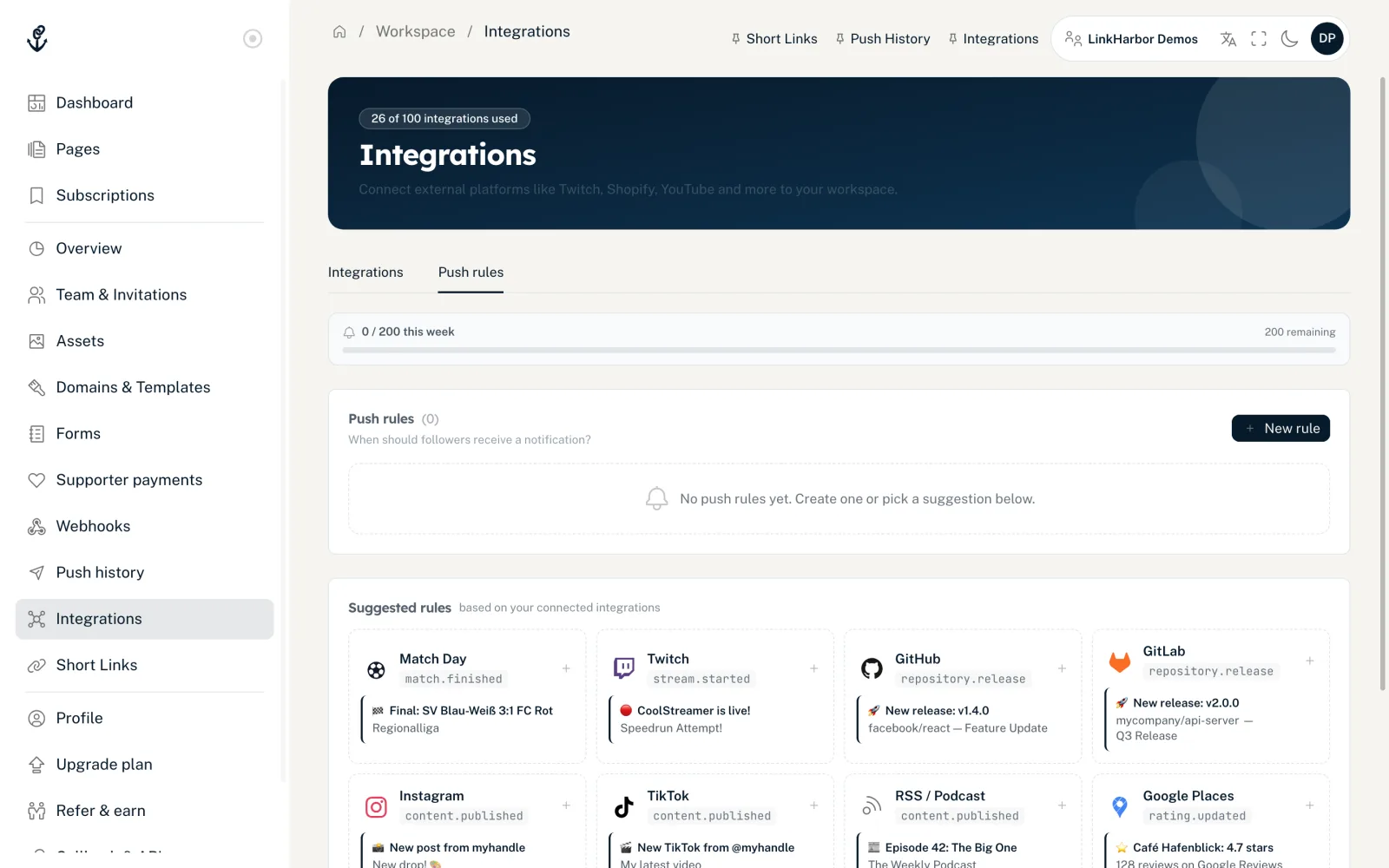
Under “Suggested rules”, LinkHarbor shows rules that fit your connected integrations and do not exist yet, such as Twitch stream.started or Match Day match.finished. One click opens the editor, fully pre-filled. Also switch on “Send push to followers” on the integration's card – without this switch, no rule sends anything.
Create a rule yourself
- Open “Integrations” and switch on “Send push to followers” on the integration's card – without this switch, no rule sends anything
- Go to the “Push rules” tab
- Click “New rule”
- Choose the “Provider” and “Event type”
- Write the title and body
- Set the pause and batch window under “Timing”
- Leave “Enabled” switched on and save
“New rule” is disabled as long as no integration that supports push is connected. There is exactly one rule per provider and event type. It applies to all connected accounts of that provider, for example two connected GitHub repositories. If you try to create a second one, you see “A rule for this provider and event type already exists.”
Title, body and variables
The “Title” can have up to 255 characters, the “Body” up to 1024. The variable chips insert values from the event, such as a stream's title or the score. Click a variable to insert it. The “Preview” uses “sample data” to show what the notification will look like.
Timing
- “Minimum pause”
- 0–10,080 minutes (up to 7 days). At most one push every X minutes for this rule; events in between are skipped. 0 means no pause.
- “Batch window”
- 0–1440 minutes (up to 1 day). Collects events for X minutes and sends them as one notification. 0 means every event goes out immediately.
- “Title (batched)” and “Message (batched)”
- Appear when the batch window is above 0. The text for the combined notification, with the placeholders {count} for the number and {player_list} for a list. The “Preview (batched, 3 events)” shows the result.
Manage rules
Each rule has a card with a switch, “Edit” and “Delete”. Notes such as “batches 15 min” or “pause 60 min” show the timing; “paused” marks a switched-off rule. When editing, the provider and event type are locked.
When you delete a rule, LinkHarbor asks “Delete rule?” The rule is then gone for good; notifications already sent are not affected.
If no notification arrives
- Check on the integration card that “Send push to followers” is switched on; without this switch, all rules of the integration are skipped
- If the weekly limit is reached, automatic notifications are silently skipped
- Events within the minimum pause are left out
- The integration's event history shows whether the event arrived
Automatic rules go to the followers of all pages in your workspace. More in Followers and push notifications.
You might also find this useful
Nothing found?
Tell us what you need, and our support team will help you personally.