












































You changed something but visitors don't see it? The most common reasons, from drafts and link rules to the WhatsApp preview, and what helps.
You changed something in the Page Builder, but none of it shows up on your page, or a visitor sees something different from you. It is almost always one of the reasons in this article. Work through the sections in order.
Quick check
- Does the top right of the Page Builder say “Live”? If it says “Publish”, your change has not been published yet
- Open the real page with “View live ↗” and reload it
- If only a single link is missing, check whether it is active and which rules it has
- Check that you are opening the right address: the current handle or your custom domain
- If it is about the preview in a messenger or social network, read the section on that further down
The change is still in the draft
Everything you change in content and design (links, blocks, texts, images, colours, template, custom CSS and SEO) is saved to the draft first. Visitors only see it once you click “Publish”. This creates a new version that goes live straight away.
Only the page title, handle and visibility take effect without publishing. Everything else stays invisible until you publish.
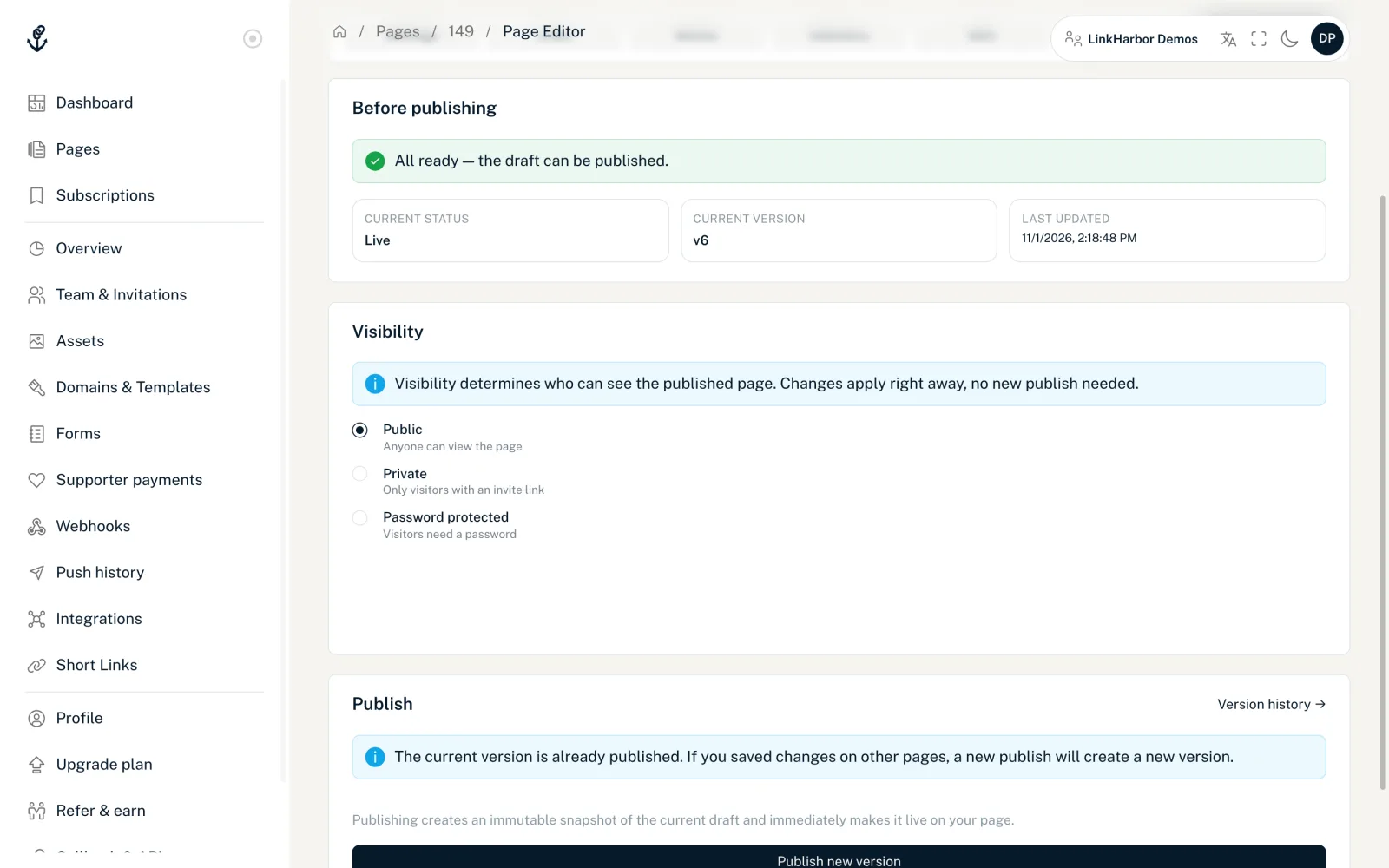
In the page editor, the “Publish” tab shows under “Current status” whether the page is live or a draft is waiting. If the automatic check finds a problem, such as a missing required template image, the button stays locked until you have fixed it. In the “Versions” tab, the version currently visible is marked “● Currently live”.
After publishing
A new version is on your page within a few seconds. A normal reload in the browser is enough: LinkHarbor makes the browser ask on every visit whether there is a newer version. You do not need to clear a cache, and there is no waiting time like with some other services.
If you still see the old state after a minute, open the “Versions” tab and check whether your new version is marked “● Currently live”. If it is not, publishing did not work, so try again.
Single links or blocks are missing
If only part of the page is missing, it is usually not about publishing but about a rule or your plan:
- Link deactivated
- A link with the “Inactive” badge is hidden, not deleted. Switch it back on with “Active” in the link editor.
- Scheduling
- A link with a start or end date only appears within that period. Check whether the period has already started or is already over.
- Geo-targeting
- If a link is limited to certain countries, visitors from other countries do not see it. You may then see something different from a visitor abroad.
- Device targeting
- Links can look different or lead somewhere else depending on the device. So test the page on your phone as well.
- Plan limit
- On Creator Free a page shows at most 5 links and 5 blocks, including the Links block. After a downgrade, links and blocks above the limit are hidden according to their order, and Pro blocks do not appear on Creator Free at all.
The badges in the link list of the page editor show which rules a link has. Everything about the rules is in Rules per link, and the limits are in Plans compared.
You are looking at a different address
- “Preview ↗” shows the draft, not the live page; the share button, follow banner and footer are also missing there
- If you changed the handle, the page is only reachable at the new address; the old address does not redirect
- On your own domain the page only appears if the domain is “active” and the routing mode fits: “Root only” shows only the root page, “Handle only” only pages under their handle
- Bookmarks, QR codes or short links may still point to an old address
How domains and routing work together is explained in Connect your own domain.
Preview in WhatsApp, Facebook and others
When you share your page in a messenger or social network, that service creates a preview with a title, description and image. The service stores this preview on its side and refreshes it by its own rules, often only after hours or days. LinkHarbor cannot clear this cache.
- You set the title, description and preview image in the “SEO” tab, see SEO and social media preview
- Changes in the “SEO” tab also only take effect when you publish
- Messages that have already been sent keep their old preview
- Some networks offer their own tools that let you refresh the preview of an address
Still not solved?
Write to our support. So we can help quickly, please include the address of the page, what you changed, when you published and which device and browser you open the page with. A screenshot helps too.
You might also find this useful
Nothing found?
Tell us what you need, and our support team will help you personally.