












































SEO title, description, canonical URL, noindex and Open Graph image: decide how your page looks in Google and when it is shared.
In the page editor's “SEO” tab you decide how your page appears in search engines and which preview is shown when someone shares the link on WhatsApp, Instagram, LinkedIn or elsewhere. Members from the editor role up can edit it. The tab is available on all plans.
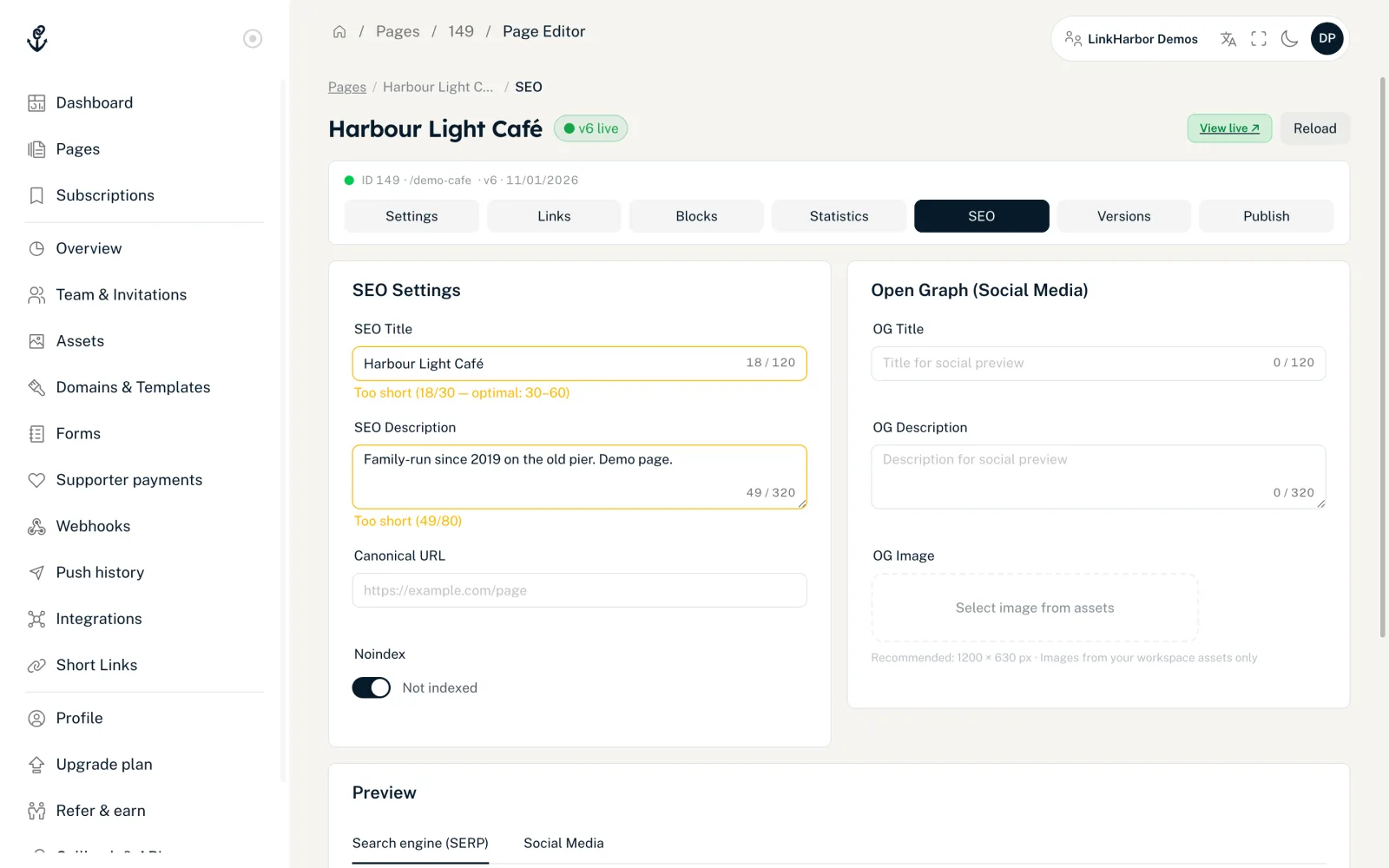
“SEO Settings” card
- SEO Title
- The title in search results and in the browser tab, up to 120 characters. 30 to 60 characters is ideal; the counter shows “Good length”, “Too short” or “Too long”. If you leave the field empty, LinkHarbor uses the page title or the profile name.
- SEO Description
- The short text below the title in search results, up to 320 characters. 80 to 160 characters is ideal. If the field is empty, your page's bio is used.
- Canonical URL
- Optional. Tells search engines which address is the right one when the same content can be reached under several addresses. The default is the page's own address. It must start with http:// or https://; if it's invalid, you can't save.
- Noindex
- When the switch is set to “Not indexed”, we ask search engines not to include the page in their results and not to follow the links on it. A canonical URL is then not output.
“Open Graph (Social Media)” card
These details define the preview card when your link is shared.
- OG Title
- Up to 120 characters. If it's empty, LinkHarbor uses the SEO title; if that's empty too, the page title.
- OG Description
- Up to 320 characters. If it's empty, the same order applies as for the SEO description.
- OG Image
- Click “Select image from assets”. 1200 × 630 pixels is recommended. Without an image of your own, your profile photo is used. “Change” and “Remove” swap or clear the selection.
The OG image must be in your assets; you can't upload it directly here. If there are no images yet, you'll see “No image assets found. Upload images under Workspace → Assets.” With an image, the preview appears as a large image card on platforms such as X.
“Preview” card
The preview shows in two tabs how your details come across: “Search engine (SERP)” for the search result and “Social Media” for the shared card. If noindex is active, it also says “Noindex active — not indexed.” The display is an approximation; every platform cuts off texts slightly differently.
Save and publish
- Fill in the fields
- Click “Save SEO”; “SEO saved.” appears
- Publish the page so the details go live
The SEO details are part of the draft: “Changes take effect on the next publish.” “Reset” discards unsaved input and reloads the saved values.
SEO in the Page Builder
You'll also find the most important fields in the Page Builder: with nothing selected, the right-hand column shows the “SEO” section under “Page settings”, with SEO title, description and noindex. These fields are saved when you leave the field, the noindex switch immediately. Open Graph, canonical URL and the preview are only available in the “SEO” tab.
Search in the LinkHarbor app
Whether your page shows up in the LinkHarbor app's search is controlled by a separate switch: “Listed in public search” in the page settings. Noindex only affects external search engines.
The “First steps” checklist ticks off “Set up SEO” as soon as an SEO title has been saved.
You might also find this useful
Nothing found?
Tell us what you need, and our support team will help you personally.