












































Show and hide links on a schedule, target them by country or device, add an age check and protect them from bots.
Each link can have its own rules: when it is visible, which countries it applies to, where it leads on which device, whether visitors have to confirm their age and how strictly bots are kept out. You set the rules per link, and they apply from the next publish.
Overview
| Rule | Where to set it | Plan |
|---|---|---|
| Scheduling | Builder (link editor) and page editor | From Creator Pro |
| Geo-targeting, allowed countries only | Builder and page editor | From Creator Pro |
| Geo-targeting, blocked countries | Page editor only | From Creator Pro |
| Device targeting | Page editor only | From Creator Pro |
| Age-gate 18+ or 21+ | Page editor only | All plans |
| Bot protection per link | Page editor only | “Strict” from Creator Pro |
In the page editor you find all rules in the “Edit link” dialog (“Links” tab, “Edit” button). Scheduling, geo and device targeting sit there in the collapsible “Scheduling & Rules” section. On Creator Free the Pro sections are locked with a note such as “Scheduling is available from Creator Pro.”
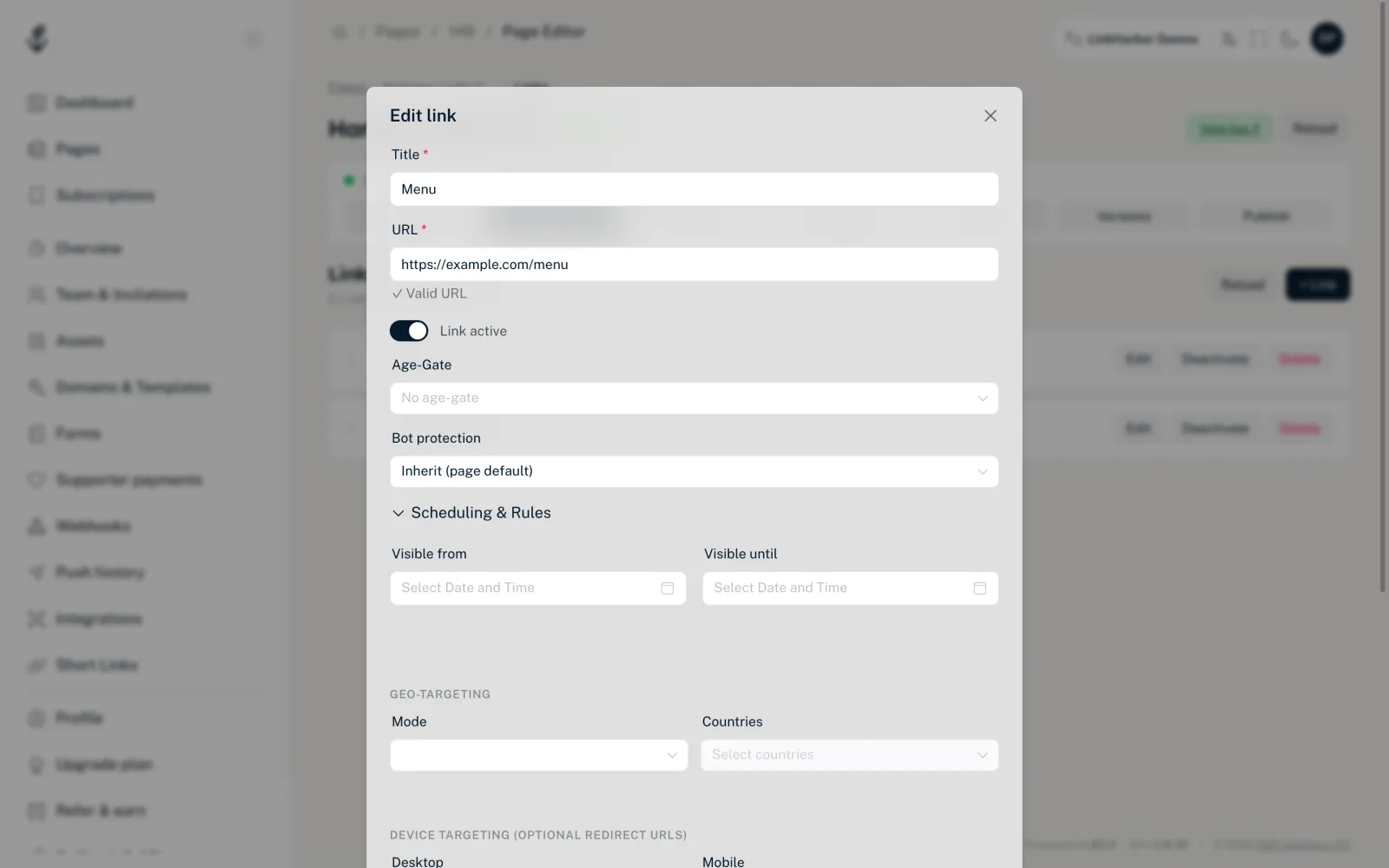
Scheduling
- “Visible from”
- Date and time from which the link appears on the page. Empty means: right away.
- “Visible until”
- Date and time after which the link disappears. Empty means: no end.
Outside this period the link is missing from the page, and a directly shared link does not redirect either. In the builder you still see scheduled links in the preview, with the note “Preview only · goes live …” or “Preview only · ended …”
Geo-targeting
With geo-targeting you show a link only to visitors from certain countries or hide it for certain countries. The country is determined from the visitor's connection.
- For blocked visitors the link is missing from the page
- If someone opens the link directly anyway, for example via an address copied earlier, they see the “Link not available” page with your “Block message” or, without your own message, “This link isn't available in your region.” Below it, “← Back to the page” leads back to your page
- This page appears in the visitor's language; your own block message is shown exactly as you entered it
In the page editor
- “Mode”
- “No geo-targeting”, “Allowlist (allowed only)” or “Denylist (except blocked)”. With the allowlist only visitors from the selected countries see the link, with the denylist everyone except them.
- “Countries”
- Multiple selection of the countries the mode applies to.
- “Block unknown origin”
- Also blocks the link for visitors whose country cannot be determined. This includes visitors coming through the Tor network.
- “Block message (optional)”
- Your own text, up to 200 characters, that blocked visitors see on the “Link not available” page.
In the builder
The builder's link editor only offers “Allow countries”, in other words an allowlist. If you clear the selection, the rule is removed again. If a link has a denylist from the page editor, the field is locked in the builder so nothing gets overwritten.
Device targeting
Under “Device targeting (optional redirect URLs)” you set a different destination URL for individual device types, for example the App Store for iPhones and Google Play for Android. Fields: Desktop, Mobile, Tablet, iOS, iPhone, iPad and Android.
- Empty fields mean: this device gets the link's normal URL
- If several fields match, the most specific one wins, in this order: iPhone, iPad, iOS, Android, Tablet, Mobile, Desktop. So an iPhone with only “Mobile” filled in gets the mobile address
- iPads with Safari usually identify as a computer and then get the desktop address. The iPad address only applies when the device identifies itself as an iPad
- In a link's share dialog the preview shows the destination for the visitor's device, but the link's normal URL is always what gets shared
- Every address follows the same URL rules as normal links
Age-gate
With “Age-Gate” (“No age-gate”, “18+ (Adult)” or “21+”) visitors have to confirm they are old enough before they are redirected. The age-gate applies per link, not to the whole page, and is available on all plans.
After the click, visitors see the “Age Verification” page with a note on the minimum age, a button to confirm (such as “I am 18 or older”) and “Go back”. The browser remembers the confirmation so visitors are not asked again on every click. In the page editor such links carry the badge “18+” or “21+”.
Bot protection per link
Bot protection keeps automated access out. You set the default for all links in the page editor under “Settings” → “Bot Protection”, and for the whole workspace in the workspace overview. You can override it per link; without its own level a link uses the page's level, and without a page level the workspace's:
- “Inherit (page default)”
- The link takes over the page's level. This is the default setting.
- “Off”
- No protection. Only recommended for testing.
- “Standard”
- Basic protection against known bots and crawlers. On all plans.
- “Strict (block datacenters)”
- Also blocks access from data centres and known bot networks. From Creator Pro.
Spotting rules in the link list
In the page editor every row shows badges for the active rules: “Inactive”, “18+” or “21+”, “🕐 Scheduling”, “🌍 Geo”, “📱 Device” and the bot protection level (“Standard” or “Strict”). That way you see at a glance which link behaves differently.
After a downgrade
If you switch back to Creator Free, features above your plan are switched off but not deleted. How this affects your pages is explained in Cancelling and downgrading. An older version with scheduling, geo or device targeting cannot be restored on Creator Free.
You might also find this useful
Nothing found?
Tell us what you need, and our support team will help you personally.