












































Protect your account with a code from an authenticator app: set it up, save recovery codes, generate new codes and turn it off.
With two-factor authentication (2FA), every sign-in needs a 6-digit code from an authenticator app on your phone in addition to your password. Even someone who knows your password can't get into your account. 2FA is free on all plans and also applies when you sign in with Google or Facebook. We recommend it for everyone, especially admins and owners.
What you need
- An authenticator app, for example Google Authenticator, Authy or 1Password
- Your current LinkHarbor password
- A safe place for your recovery codes
Setting up 2FA
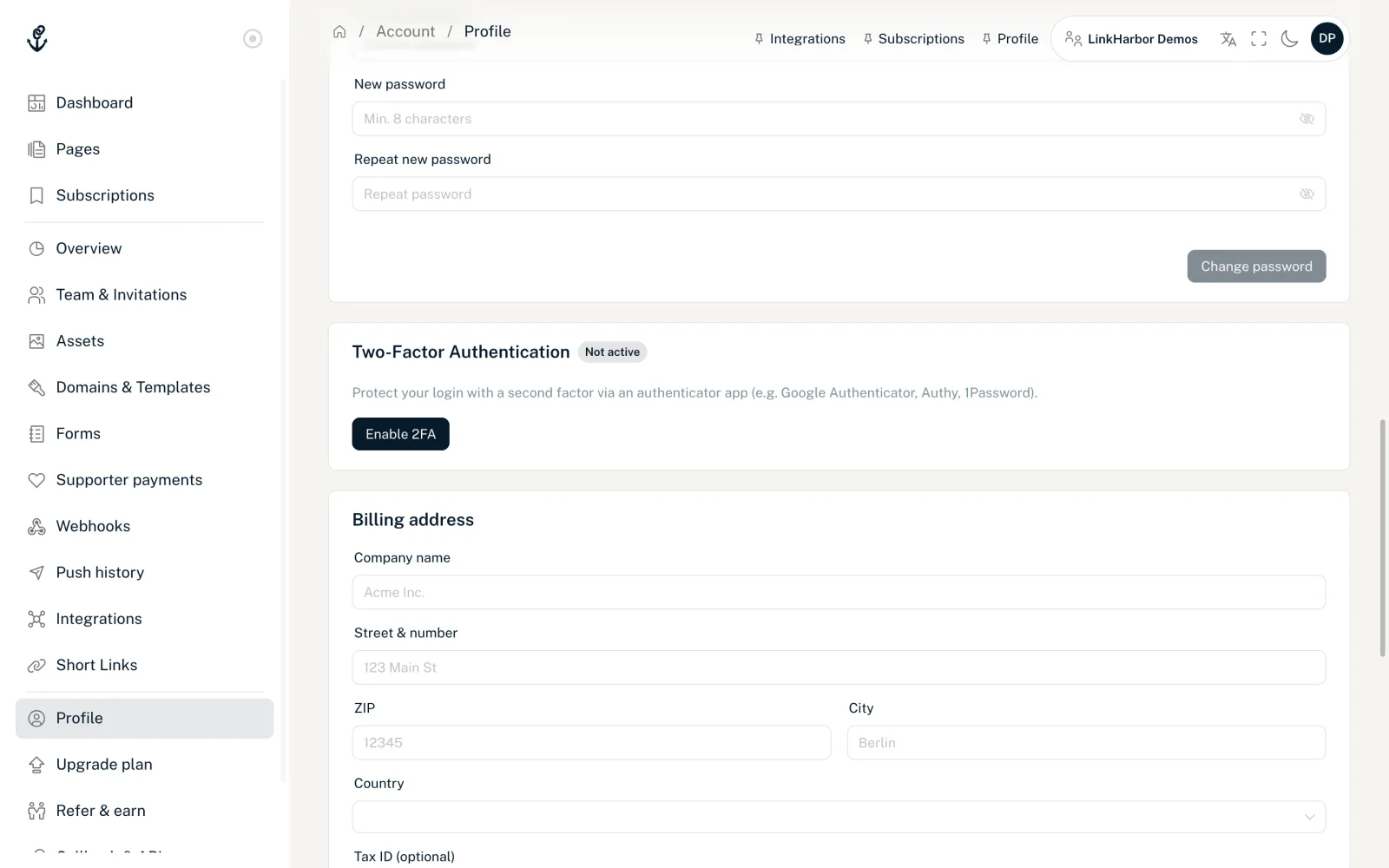
- Open “Profile” and click “Enable 2FA” in the “Two-Factor Authentication” card
- Enter your current password under “Confirm your password” and click “Next”
- Scan the QR code with your authenticator app, or type in the key shown under “Or enter this code manually:”
- Enter the 6-digit code under “Enter the 6-digit code from your app” and click “Verify”
- Save the recovery codes shown, tick “I have saved my recovery codes” and click “Done”
“2FA successfully enabled.” appears, and the card shows the status “Active”. From your next sign-in, LinkHarbor asks for the code.
Recovery codes
When you set it up, you get 10 recovery codes. With each of them you can sign in once if you don't have your phone to hand.
- Each code works exactly once
- The card shows how many codes are left
- Below 3 codes, a notice tells you to generate new ones
Generating new codes
Click “Generate new recovery codes” and confirm with your password. You get 10 new codes; all previous ones become invalid immediately. Again, keep the new codes somewhere safe.
Signing in with 2FA
After your password, the “Two-Factor Verification” page appears. Enter the current code from your app or choose “Use a recovery code instead”. What happens with wrong or expired codes is explained in Sign in, forgotten password, two-factor.
New phone
When you switch phones, transfer the entries with your authenticator app's export feature or use an app with a backup. Alternatively, sign in with a recovery code, turn 2FA off and set it up again on the new phone.
Turning 2FA off
- Click “Disable 2FA” in the card
- Enter your password
- Enter a code from your authenticator app or a recovery code
- Confirm, and “2FA has been disabled.” appears
After that you sign in with just your password again. LinkHarbor doesn't send an e-mail when you turn 2FA on or off.
Lost your phone and your codes
If you have neither access to your authenticator app nor a recovery code, you can't sign in yourself. In this case, contact our support team.
You might also find this useful
Nothing found?
Tell us what you need, and our support team will help you personally.