












































Where to sign out in the dashboard, how to sign out of all devices at once and what happens to connected apps and API keys.
If you've worked on someone else's or a shared computer, you should sign out afterwards. There are two places for this in the dashboard. Here you'll also learn how to sign out on all devices at the same time.
Signing out in the dashboard
- Navigation → “Logout”
- The last entry in the navigation on the left. It also ends your session on our server and takes you to the sign-in page. This is the most thorough way.
- Avatar menu → “Sign out”
- Click your initials at the top right and choose “Sign out”. This removes your sign-in from this browser and takes you to the sign-in page.
Signing out only applies to the browser you do it in. In other browsers, on other devices and in the app you stay signed in.
Signing out on all devices
If you want to sign out everywhere at once, for example because you've lost a device, change your password. This ends all sessions on all devices, including the app. See Change and reset your password.
All devices are also signed out when you:
- reset your password via “Forgot password”
- confirm a new e-mail address
- delete your account
Connected apps
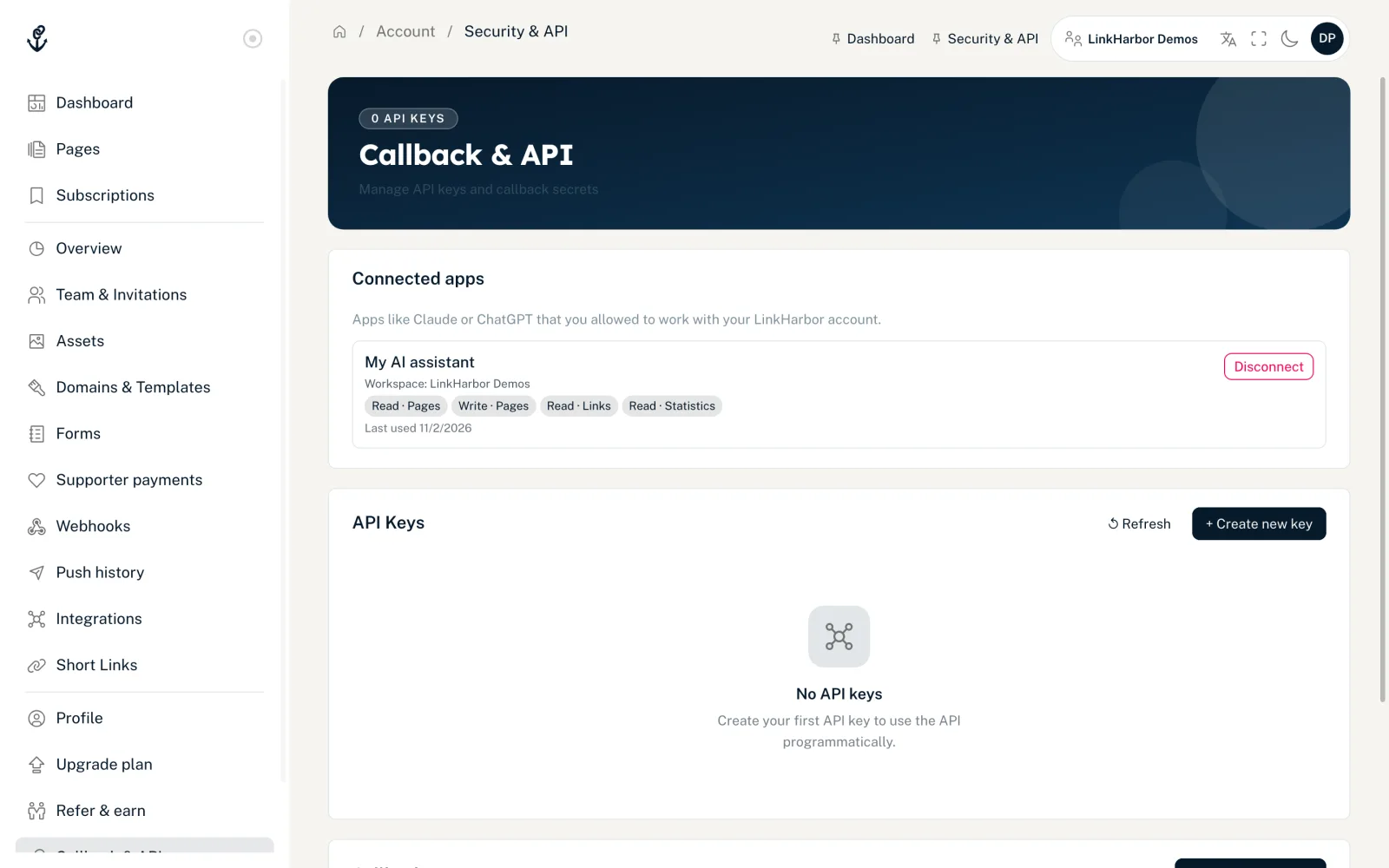
Apps such as Claude or ChatGPT that you've given access to your LinkHarbor account are managed separately from your sign-in. You find them under “Callback & API” in the “Connected apps” card. Each app shows the workspace, its permissions and when it was last used. With “Disconnect”, the app loses access immediately. More in AI assistants: permissions, security and limits.
API keys
API keys belong to the workspace, not to your sign-in. They work regardless of whether you are signed in. If you no longer need a key or it has fallen into the wrong hands, admins or the owner delete it under “Callback & API”. See API keys and access tokens.
After a role change
If the owner changes your role, an admin or the owner removes you from the workspace, or the workspace is transferred to someone else, your sessions in that workspace are ended. Just sign in again, and you continue with your new role.
You might also find this useful
Nothing found?
Tell us what you need, and our support team will help you personally.