












































How to sign in to the dashboard, what happens after too many failed attempts, how to reset a forgotten password and enter your 2FA code.
You reach the dashboard at deck.linkharbor.com. There you sign in with your e-mail and password or with Google or Facebook. This article explains what happens on the login page, how to reset a forgotten password and what to do when LinkHarbor asks for a two-factor code.
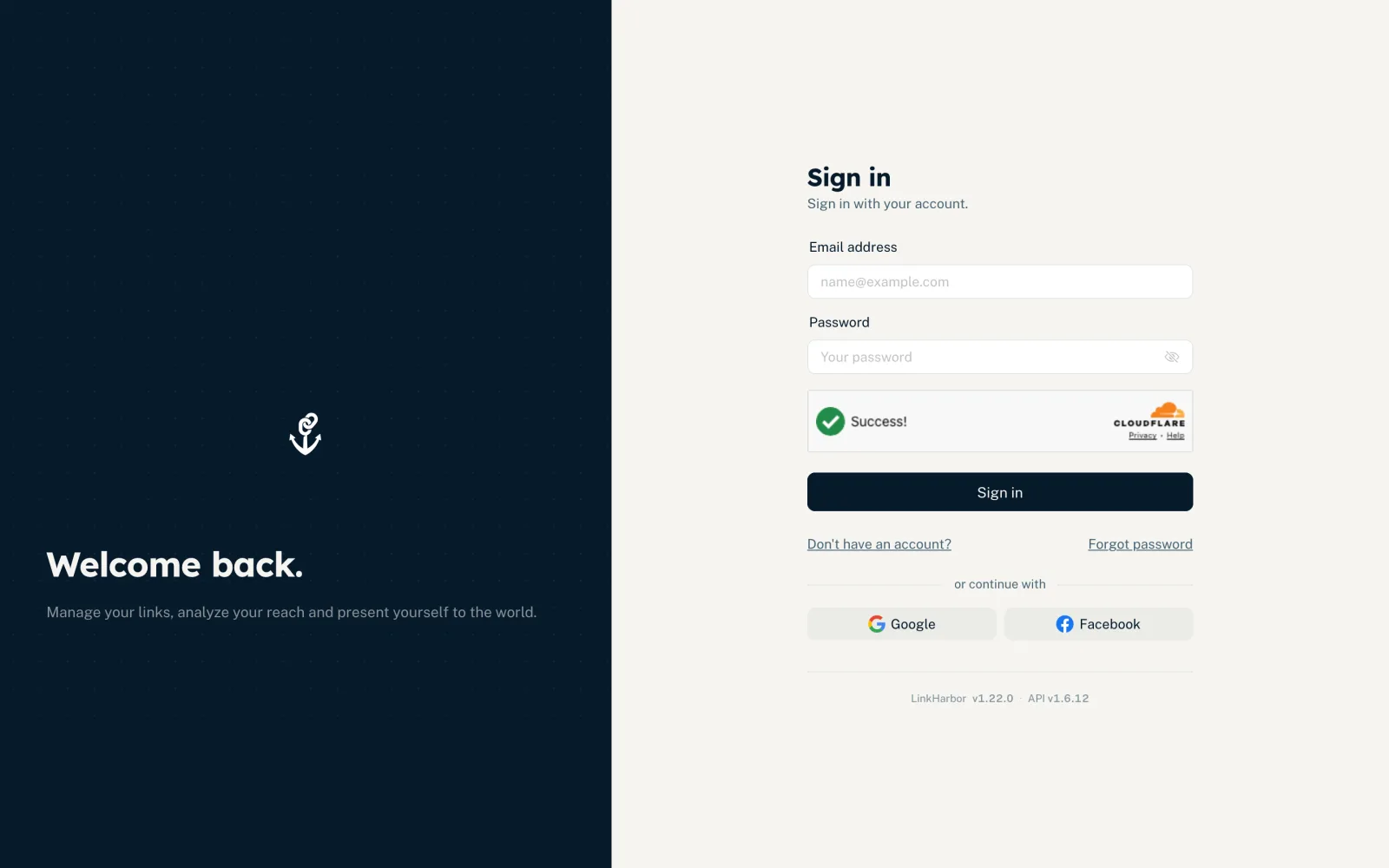
Sign in with e-mail and password
- Enter your “Email address” and your “Password” – the eye icon makes the password visible
- Wait until the automatic security check has finished
- Click “Sign in”
You then land on the dashboard. If your workspace has no page yet and you are its owner or an admin there, the setup wizard opens instead. If you came via a link from a team invitation, the invitation is accepted straight after you sign in.
The security check protects the login from automated attacks. It usually runs invisibly. If it has not finished yet, you see “The security check isn't complete yet. Wait a moment and try again.”
Sign in with Google or Facebook
Under “or continue with” you find the “Google” and “Facebook” buttons. You are taken to the provider, confirm there and come back automatically. If there is no LinkHarbor account with this e-mail address yet, one is created. Details are in Create an account.
If signing in does not work
| Message | Meaning and solution |
|---|---|
| “Incorrect email or password.” | The e-mail or password is wrong – check the spelling or reset your password |
| “Please verify your email address first.” | You have not confirmed your e-mail address yet – click the link in the confirmation e-mail |
| “Too many login attempts. Please wait a moment.” | Too many failed attempts in a short time – wait, then try again |
| “The password is too long.” | Passwords have at most 200 characters |
| “Your account has been blocked. Please contact support.” | LinkHarbor has blocked your account – contact support |
| “Your account is deactivated. If you did not expect this, please contact support.” | The account is not active, for example after it was deleted – sign up again or contact support |
If your account is blocked while you are signed in, the dashboard signs you out and shows “You have been signed out because your account was blocked. Please contact support.” Why accounts are blocked and how to appeal is explained in Reporting content, suspension and appeals.
Protection against too many failed attempts
After several wrong passwords for the same e-mail address from the same network, LinkHarbor blocks further attempts for a while. The block gets longer with every further failed attempt:
| Failed attempts | Waiting time |
|---|---|
| 5 or more | 1 minute |
| 10 or more | 5 minutes |
| 20 or more | 30 minutes |
The counter resets after one hour without further failed attempts. If you are sure the password is right and signing in still fails, use “Forgot password” rather than carrying on guessing.
Forgot password
- On the login page, click “Forgot password”
- Enter your e-mail address and click “Request link”
- Open the e-mail “Reset your password” and click the link
- Under “New password”, enter a new password with at least 8 characters and repeat it
- Click “Reset password” – you are taken to the login page after two seconds
If the page says “This link has expired or has already been used.”, request a new one with “Request a new link”. Everything else – how long the link is valid, limits and what happens afterwards – is in Change and reset your password.
Two-factor check
If you have turned on two-factor authentication, the “Two-Factor Verification” page comes after the password (or after the Google or Facebook sign-in).
- Open your authenticator app
- Enter the current 6-digit code for LinkHarbor
- Click “Verify”
If you do not have your phone to hand, click “Use a recovery code instead” and enter one of your recovery codes. Each code works only once. “Back to authenticator code” switches back.
- “Code incorrect. Please try again.”
- The code was wrong or had already expired. Wait for the next code in the app. If this keeps happening, check that the time on your phone is set automatically.
- “The session has expired. Please sign in again.”
- The check is valid for 5 minutes and allows 5 attempts. After that, sign in with your password again.
- “Too many wrong codes. Two-factor sign-in is locked for your account. …”
- After 10 wrong codes within 15 minutes, the two-factor check is locked for your account for 15 minutes. The message shows the minutes remaining; try again after that.
You might also find this useful
Nothing found?
Tell us what you need, and our support team will help you personally.