












































Which permissions an AI assistant gets depending on your role, how you choose the workspace and disconnect, and which limits apply to MCP.
An AI assistant always works in LinkHarbor on your behalf and never with more permissions than you have yourself. Here you can find out how the permissions are made up, how to disconnect a connection again and which limits apply.
One workspace per connection
On the consent page, you choose exactly one workspace under “Workspace”. The connection then applies only to you and that workspace. If you want to work with the assistant in a second workspace, connect it once more and choose the other workspace there. Suspended workspaces are not offered.
What your role allows
The permissions on the consent page depend on your role in the chosen workspace. Everything your role allows is preselected; you cannot tick the rest.
| Role | Permissions allowed | Usable tools |
|---|---|---|
| Viewer | Read only, without forms and short links | Read pages, block types, templates, versions, preview and statistics |
| Editor | Everything except “Write · Workspaces”, short links and workspace templates | All 25 tools |
| Admin | All | All 25 tools |
| Owner | All | All 25 tools |
If your role changes later, that applies to the connection too: if you are downgraded, the assistant loses the permissions your new role no longer has on its next call. If you are removed from the workspace, access ends completely. More on roles in Roles and permissions.
Which boxes make sense
| You want to … | These permissions |
|---|---|
| Just ask questions and analyse | Read · Pages, Read · Links, Read · Statistics |
| Maintain links | plus Write · Links |
| Change design, blocks and SEO, and publish | plus Write · Pages |
| Let it choose templates | plus Read · Workspaces |
| Analyse form submissions | plus Read · Forms |
Disconnect a connection
You find all connections in the dashboard under “Callback & API” in the “Connected apps” card. Every member sees this card, whatever their role and plan – it only shows your own connections.
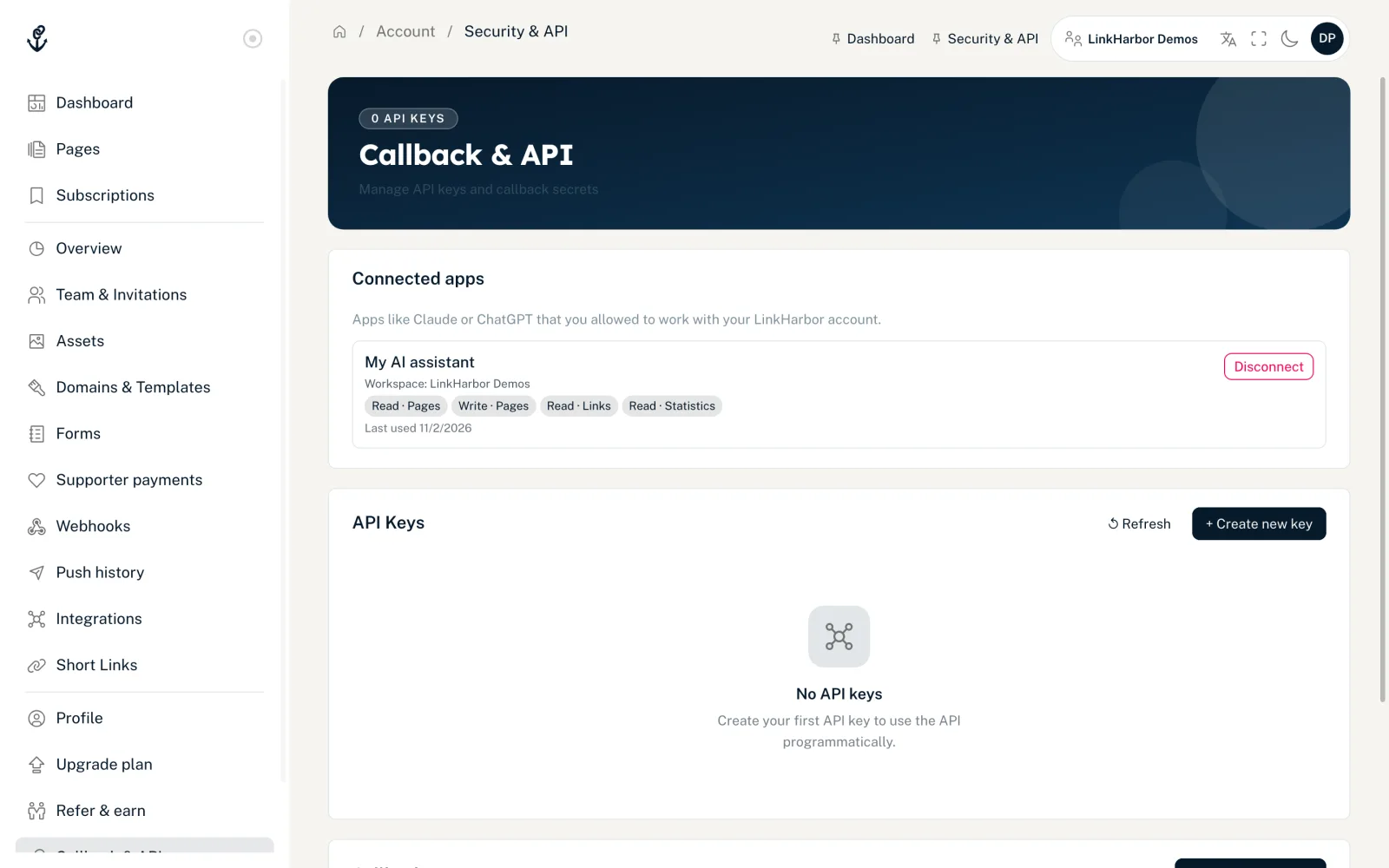
- Name
- The app's name, for example Claude or ChatGPT.
- “Workspace: …”
- The workspace the connection applies to.
- Permission tags
- The permissions granted, such as “Read · Pages”.
- “Last used …”
- When the app last accessed your account, or “Not used yet”.
- “Disconnect”
- Ends the connection after the question “Disconnect …? The app loses access immediately.”
To change a connection's permissions, disconnect it and connect the assistant again.
When connections end automatically
- When you change or reset your password
- When you delete your account or it is suspended
- When you are removed from the workspace
- When a connection has not been used for 90 days
Security
- The assistant never gets your password or an API key, but a token of its own that only works with the MCP server
- Every action goes through the same checks as in the dashboard: role, permission, plan and input validation
- All calls that change something are logged with the person, workspace and tool
- Changes land in the draft and can be undone through versions
- Texts from pages and form submissions count as data for the assistant, not as commands
Limits
| Limit | Value | Applies per |
|---|---|---|
| Requests to the MCP server | 120 per minute | Connection (access token) |
| Size of a request to the MCP server | At most 2 MB | Request |
| Internal API calls by the tools | 600 per minute | Workspace, shared with all API keys |
| Sign-in and token renewal | 300 per minute | IP address |
| Approval on the consent page | 10 minutes | Sign-in request |
One tool can trigger several API calls internally – get_page four, for example, and the statistics tools two each. With normal use in chat, you will practically never reach these limits. Details on all limits are in Rate limits.
You might also find this useful
Nothing found?
Tell us what you need, and our support team will help you personally.