












































Images, videos, audio and files for your pages: allowed file types, 10 MB per file, limits per plan and what happens when you delete.
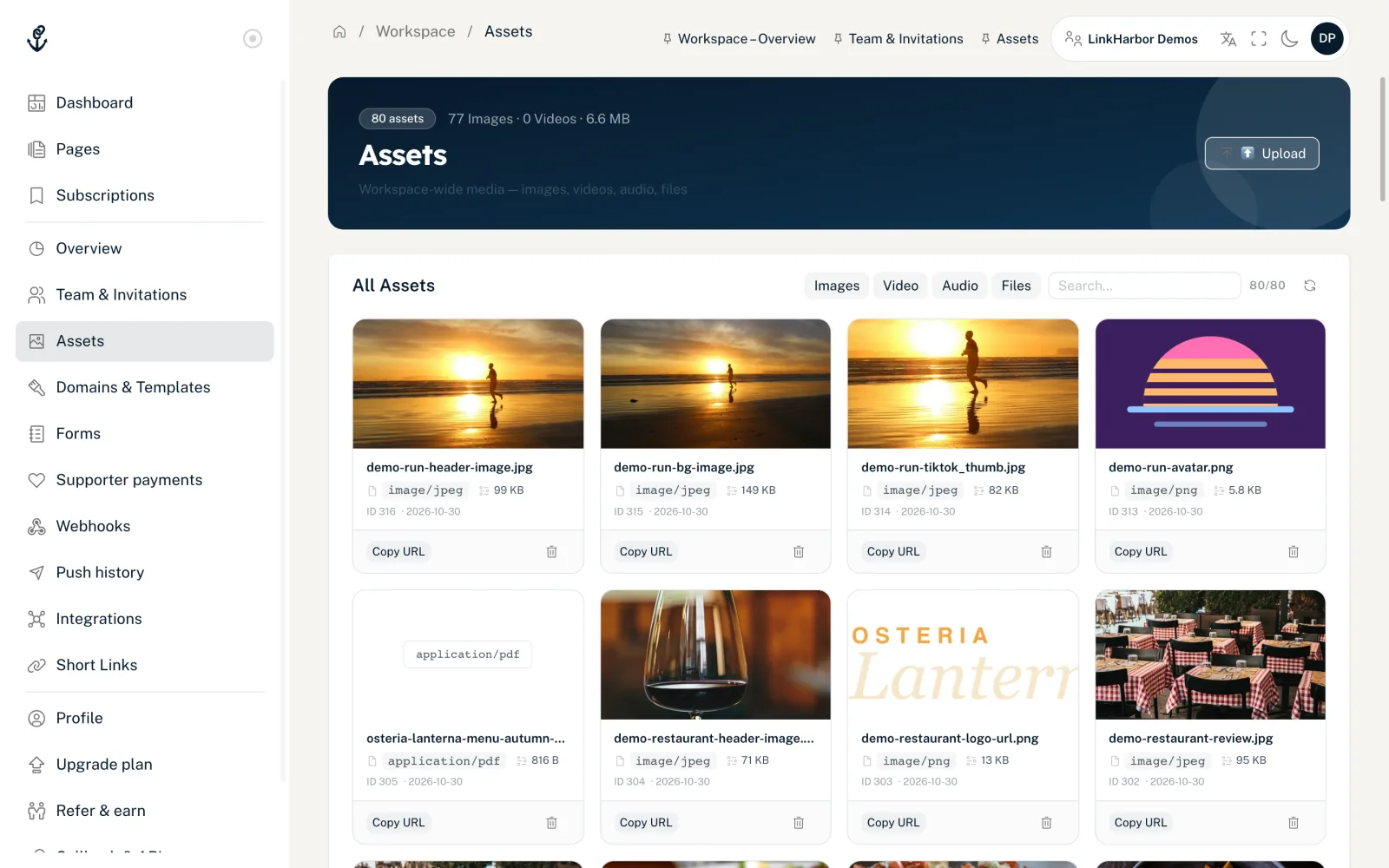
Assets are the files of your workspace: images, videos, audio, PDFs and ZIP files. Everything you show on your pages (profile photo, header, gallery, background video, file download or social media preview image) lives here and is available to all pages in the workspace. All roles can view assets; uploading and deleting needs the Editor role or higher.
Upload a file
- Open “Assets” in the navigation
- Click “⬆ Upload”
- Drag a file into the field or click it to choose one
- Click “Upload”
After “Successfully uploaded!” you can copy the file's address, choose the next file with “Upload another” or close the dialog. The file name is used as the title.
In the Page Builder you can also upload images straight into an image field and crop them, for example with “Choose from device”. These images also end up in your assets. Cropping is only available in the builder, see Images.
Allowed file types
| Type | Formats |
|---|---|
| Images | JPG, PNG, WebP, GIF |
| Video | MP4, WebM, MOV |
| Audio | MP3, M4A, WAV, OGG, WebM |
| Documents | PDF, ZIP |
Each file can be at most 10 MB. LinkHarbor checks the actual content of the file, not just the extension, so a renamed file is detected and rejected. SVG graphics are not supported for security reasons; convert them to PNG first.
- “File is larger than 10 MB.”
- Make the file smaller. For images, 2000 pixels wide is usually enough; compress videos with a video program.
- “This file type is not supported.”
- The format is not in the list above. Save the file in an allowed format.
Limits per plan
| Plan | Number of assets | Storage |
|---|---|---|
| Creator Free | 25 | 25 MB |
| Creator Pro | 250 | 100 MB |
| Creator Agency | 2,500 | 250 MB |
| Enterprise | 10,000 | 1 GB (adjustable) |
You see how much you already use at the top of the Assets page and in the workspace overview. Once one of the limits is reached, you cannot upload anything until you delete files or upgrade.
Find and use assets
- Narrow down the list with the Images, Video, Audio and Files filters
- The search field searches titles and file types
- Each card shows a preview, file type, size and date
- “Copy URL” puts the address of the file on your clipboard
In the image fields of the Page Builder, for the OG image in the SEO tab and in blocks such as Gallery or File download, you pick files straight from this library. “Manage ↗” in the builder opens the Assets page.
Delete an asset
Click the bin icon on a card and confirm in the “Delete asset?” dialog. The asset disappears from the library immediately and can no longer be chosen in pickers.
If the file is still in use, the dialog is called “Asset still in use” and lists the places, such as a page with “draft and live: design”, a form or a short link. You can still delete it; check first whether you want to replace the file in those places. A preview image for social networks disappears from the page immediately.
As the dialog says, pages that still show the file keep it for a grace period, so no empty spots suddenly appear there. It is only removed for good after a grace period, and only if it is no longer used on any page or in any block, link, form or short link.
Image sizes for templates
Profile photo, header and background images have fixed aspect ratios and minimum sizes so they look good on every device. Which sizes you need and how cropping works is in Images.
You might also find this useful
Nothing found?
Tell us what you need, and our support team will help you personally.