












































What a workspace is, how to read the plan, usage and limits on the overview page and how to switch between several workspaces.
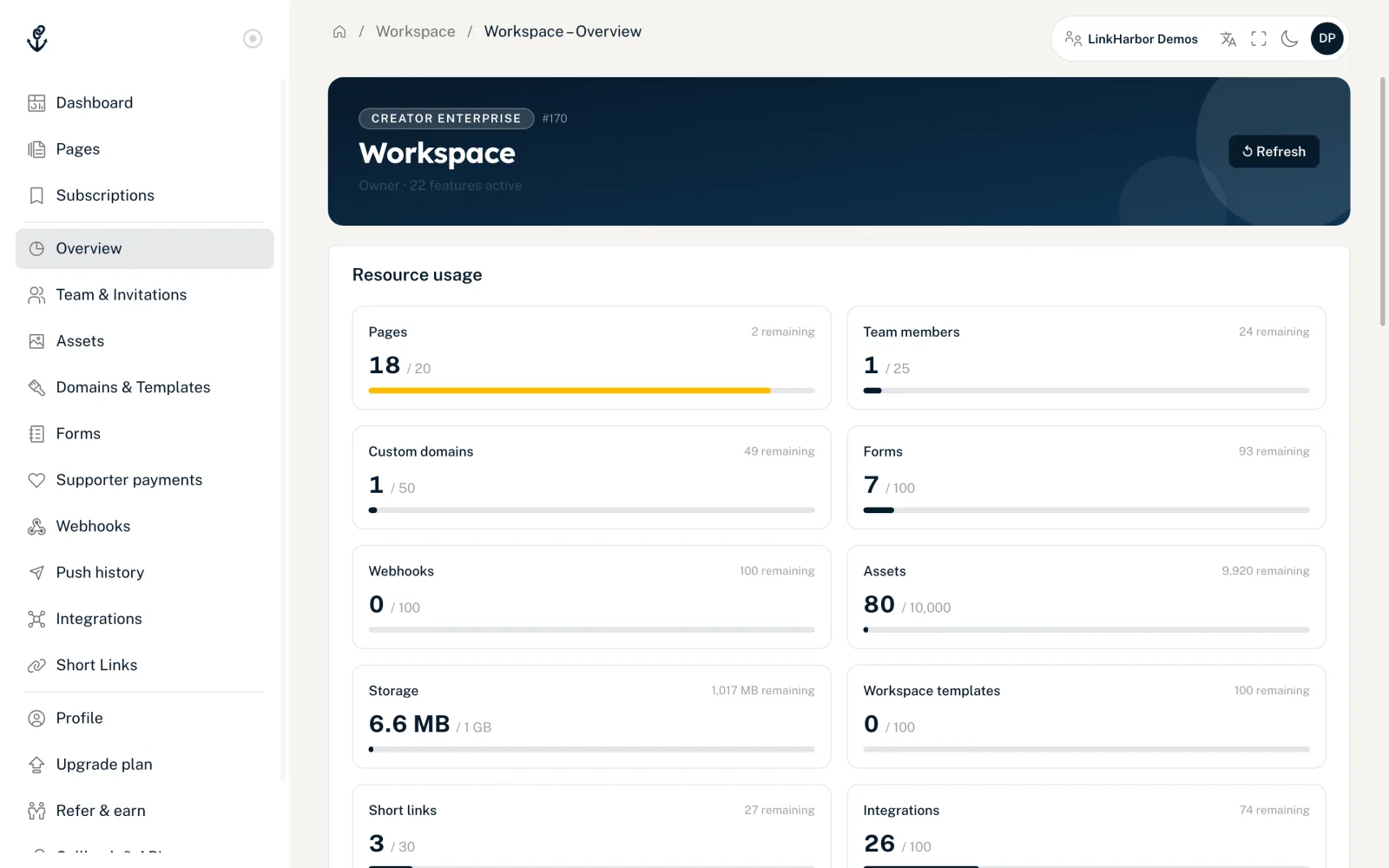
A workspace brings together everything that belongs together: pages, assets, forms, short links, integrations, domains, webhooks and the team. The plan belongs to the workspace too, so an upgrade applies to all pages in it and to all members. Under “Overview” in the navigation you see which plan is active, how much of it you use and which features are included. The page is open to all roles.
Your personal workspace and other workspaces
- When you sign up you get a personal workspace in which you are the owner
- If someone invites you to their team and you accept, their workspace is added, with the role you were given
- You cannot create further workspaces of your own; new workspaces are only added through invitations
How to join another workspace's team and invite others to yours is explained in Invite members.
Switch between workspaces
The name of the active workspace is shown on the right of the header. If you only have one workspace, it is just a label. If you are a member of several, a click opens the “Workspace” list:
- Each entry shows the name, the type (“Personal” or “Team”) and your role there
- The active workspace is marked with a tick
- Clicking another workspace switches to it and opens the dashboard
- On narrow screens you only see the icon
After switching, every area (pages, statistics, assets, team, plan) refers to the new workspace. If “You are not a member of this workspace.” appears, you have since been removed from the workspace.
The top of the overview
At the top you see the name of the plan (for example “Creator Pro”), the workspace number, your role and the number of active features. “↺ Refresh” reloads the numbers.
The “Resource usage” card
For every countable resource you see a tile showing used / limit and a bar:
| Resource | What is counted |
|---|---|
| Pages | All pages in the workspace, including drafts and deactivated ones |
| Team members | Members with access; pending invitations don't count here but still take up a seat |
| Custom domains | All domains you have added, including pending and deactivated ones |
| Forms | Forms you have created |
| Webhooks | Webhooks you have set up |
| Assets, storage | Number of files and the storage they use, for example “2.5 MB / 250 MB” |
| Workspace templates | Your own templates under “Domains & Templates” |
| Short links | Short links you have created |
| Integrations | Connected platform accounts |
The bar turns yellow from 80% and red when the limit is exceeded. Below it you see “{n} remaining”, “⚠ Limit reached”, “∞ unlimited” or “Not included in plan” if your plan does not include this resource at all.
The “Bot protection” card
Owners and admins set the bot protection for the whole workspace here: “Standard” (basic protection against known bots and crawlers), “Off” (recommended for testing only) or “Strict” (also blocks datacenter IPs and known bot networks, from Creator Pro). The card adds: “Applies to every page and link in this workspace. A page or link with its own level takes precedence.” Save with “Save”. More about the levels is in Page settings.
The “Features” card
This lists every feature a plan can unlock. The active ones are at the top with a tick, the rest are dimmed. So you can quickly see whether, for example, “Geo targeting”, “Page password protection”, “Webhooks” or “Custom short links” are included in your plan. At the top, the card shows how many features are active.
The “Plan Limits” card
The card lists the numeric values of your plan, for example “Max pages”, “Max short links”, “Max push per week” or “Aggregate retention (days)”, which is how far back your statistics go. Unlimited values appear as ∞. “Max protection tier” shows the highest bot protection level: “Standard” on the Free plan, “Strict” from Creator Pro.
The “Session” card
Shows the workspace ID, your role, the plan and your user ID. You copy either ID with one click. You need them, for example, when you contact our support or work with the API.
More room in your workspace
If a limit is no longer enough, an upgrade helps. Admins and the owner compare and change plans under “Upgrade plan”. What each plan includes is in Plans compared and on the Pricing page.
You might also find this useful
Nothing found?
Tell us what you need, and our support team will help you personally.