












































Under “Subscriptions” you follow other LinkHarbor pages, sort them into collections and stop following them again.
Under “Subscriptions” in the navigation you manage the pages you follow yourself, just like in the LinkHarbor app. So this is about your own reading list, not about the followers of your pages. The page belongs to your account and is available in every role.
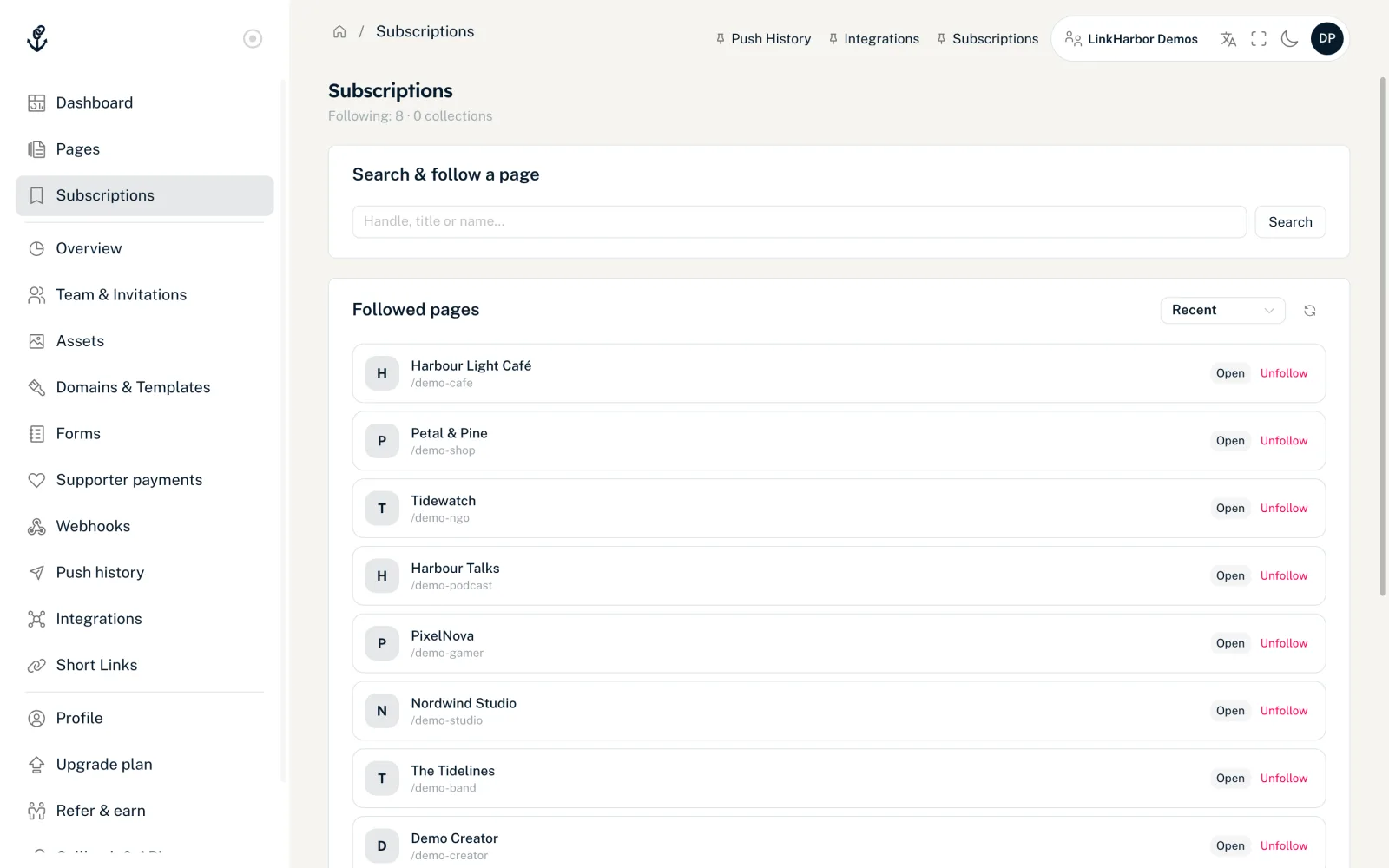
Follow a page
- Open “Subscriptions” in the navigation
- In the “Search & follow a page” card, type a handle, title or name
- From 2 characters, up to 10 results appear, or click “Search”
- Click “+ Follow” next to the result you want
“You now follow this page.” appears, and the page is in the “Followed pages” list. Pages you already follow no longer show up in the search results.
Only pages that are published and public, and whose owner has allowed them in public search, can be found. You cannot follow private and password-protected pages.
Pages you follow
The “Followed pages” card shows up to 50 pages. You can sort by “Recent”, “Opened” or “A – Z”.
- “Open”
- Opens the page in a new tab and remembers that you opened it.
- “Unfollow”
- Stops following after the question “Really unfollow this page?” Then “You no longer follow this page.” appears.
Collections
With collections you organise your subscriptions by topic, for example “Favourite cafés” or “Music”.
- In the “Collections” card, enter a name under “New collection…”
- Click “Create”
- Click the collection to expand it
- Enter the number of a page under “Page ID” and click “Add”
With “Remove” you take a page out of the collection again. Collections cannot currently be renamed or deleted in the dashboard.
Following in the LinkHarbor app
You can follow in the dashboard and in the LinkHarbor app. But you only get push notifications when a page you follow announces something new through the app. On public pages, the “Follow this page” banner invites visitors to do exactly that. How this works in the app is in Follow pages and control push notifications.
- To follow, you need a free LinkHarbor account
- Page owners do not see the e-mail address of their followers
- Subscriptions from the app and from the dashboard belong to the same account
Followers of your own pages
You do not manage the people who follow your pages here. How to reach your followers with push notifications and how often that is possible is explained in Followers and push notifications. What visitors see on your page around following is in Your page from a visitor's point of view.
You might also find this useful
Nothing found?
Tell us what you need, and our support team will help you personally.