












































Setting and cropping your profile photo, header and background images: all image sizes, file types, upload limits and tips.
Images on your page always come from your workspace's assets. In this article you learn where to set the profile photo, header image, logo and background images, which sizes they need and how cropping works.
The template's image slots
Every template has fixed image slots, such as “Profile photo” and “Header image”. You find them in the builder on the right under “Page settings” → “Profile” when no block and no link is selected.
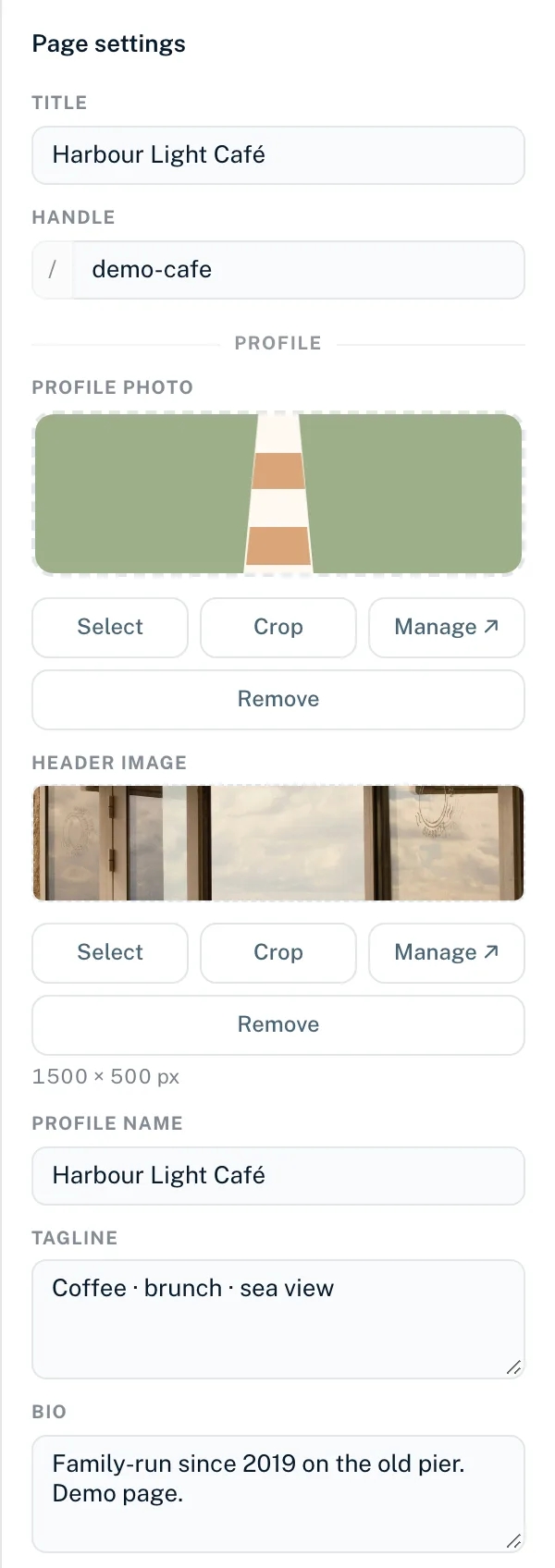
- “Select”
- Opens your assets. If the image is the right size, it is set straight away.
- “Crop” or “Choose from device”
- Opens the crop tool. There you crop an image to fit or choose a file from your device.
- “Manage ↗”
- Opens the workspace's assets page in a new tab.
- “Remove”
- Takes the image out of the slot after the question “Really remove this image?”. The asset itself is kept.
Below every image slot except the profile photo you see the target size, such as “1500 × 500 px”. Image slots are saved immediately and go live the next time you publish.
Image sizes
| Image slot | Crop in the builder | Accepted |
|---|---|---|
| Profile photo | 256 × 256 px, round crop | Square, 128–512 px |
| Header image | 1500 × 500 px | 600–2400 px wide, aspect ratio 2:1 to 4:1 |
| Background image, background 1–5 | 1920 × 1080 px | 1280–2560 px wide, aspect ratio 1.5:1 to 2:1 |
| Background portrait (Social) | 1080 × 1920 px | 1280–2560 px high, aspect ratio 1:2 to 2:3 |
| Logo (Agency) | 600 × 200 px, whole logo visible | At least 48 px high, at most 1200 × 600 px, aspect ratio 1:1 to 6:1 |
| Page background in the theme | Desktop 1920 × 1080 px, mobile 1080 × 1920 px | Cropped to this size when you select it |
In the builder, the crop tool opens automatically for every image that is not exactly the target size. Images that already have exactly the target size are used without a copy. The Accepted column applies when images are set via the API or an AI assistant: if an image doesn't fit these limits there, it is rejected, for example with “The picture is 1920×1080 px and does not fit this image slot. A picture of 256×256 px works best.”
Cropping an image
- Click “Crop” or “Choose from device” on the image slot
- If needed, choose a file (PNG, JPEG, WebP or GIF) with “Choose from device”
- Drag the image to move the visible area. Zoom up to 4x with the slider or the mouse wheel
- “Show all” fits the whole image, “Fill” fills the area
- Click “Apply”
The result is saved as a new asset and set: as a PNG if the image has transparent areas, otherwise as a JPEG. Your original image stays unchanged in the assets.
Profile photo as preview image
The profile photo is also the preview image when your page is shared in messengers or on social networks. If you want to show a different image there, set an “OG Image” (recommended 1200 × 630 px) under “SEO” in the page editor, see SEO and social media preview.
Images in blocks and links
- Image block and gallery: images from your assets with “Select from assets” or “Add image”
- Links: “Icon” in the Middle layout and “Link image” in the Maximal layout, set in the link editor
- Highlighted links: “Highlight card image”
- Page background: in the Theme tab under “Background” → “Image”, see Design
These pickers only show images that are already in your assets. Upload new images under Workspace → “Assets”. “No images — upload assets first.” means there are no images in the workspace yet.
Uploads and storage
- Up to 10 MB per file
- Images: JPEG, PNG, WebP, GIF. SVG is not supported
- Videos (for the video background): MP4, WebM, MOV
- Audio (for the file download): MP3, M4A, WAV, OGG, WebM
- Documents (for the file download): PDF, ZIP
- The file type is detected from the file's content, not its extension
| Plan | Assets | Storage |
|---|---|---|
| Creator Free | 25 | 25 MB |
| Creator Pro | 250 | 100 MB |
| Creator Agency | 2,500 | 250 MB |
| Enterprise | 10,000 | 1 GB |
Every crop creates a new asset and counts towards the limit. More about the assets library in Assets.
After switching templates
When you switch templates, all image slots are reset, including the header image, logo and background images. Your images stay in the assets, though; you only need to select them again. More in Templates.
You might also find this useful
Nothing found?
Tell us what you need, and our support team will help you personally.