












































The page editor with its tabs and the “Settings” tab: title, handle, discoverability in search, page content and bot protection.
Besides the Page Builder, every page has the page editor. It shows the same data as forms spread across tabs, and it holds a few settings that only exist here. You open it from the pages list via “Settings” or by clicking a page's card. You can edit from the editor role up.
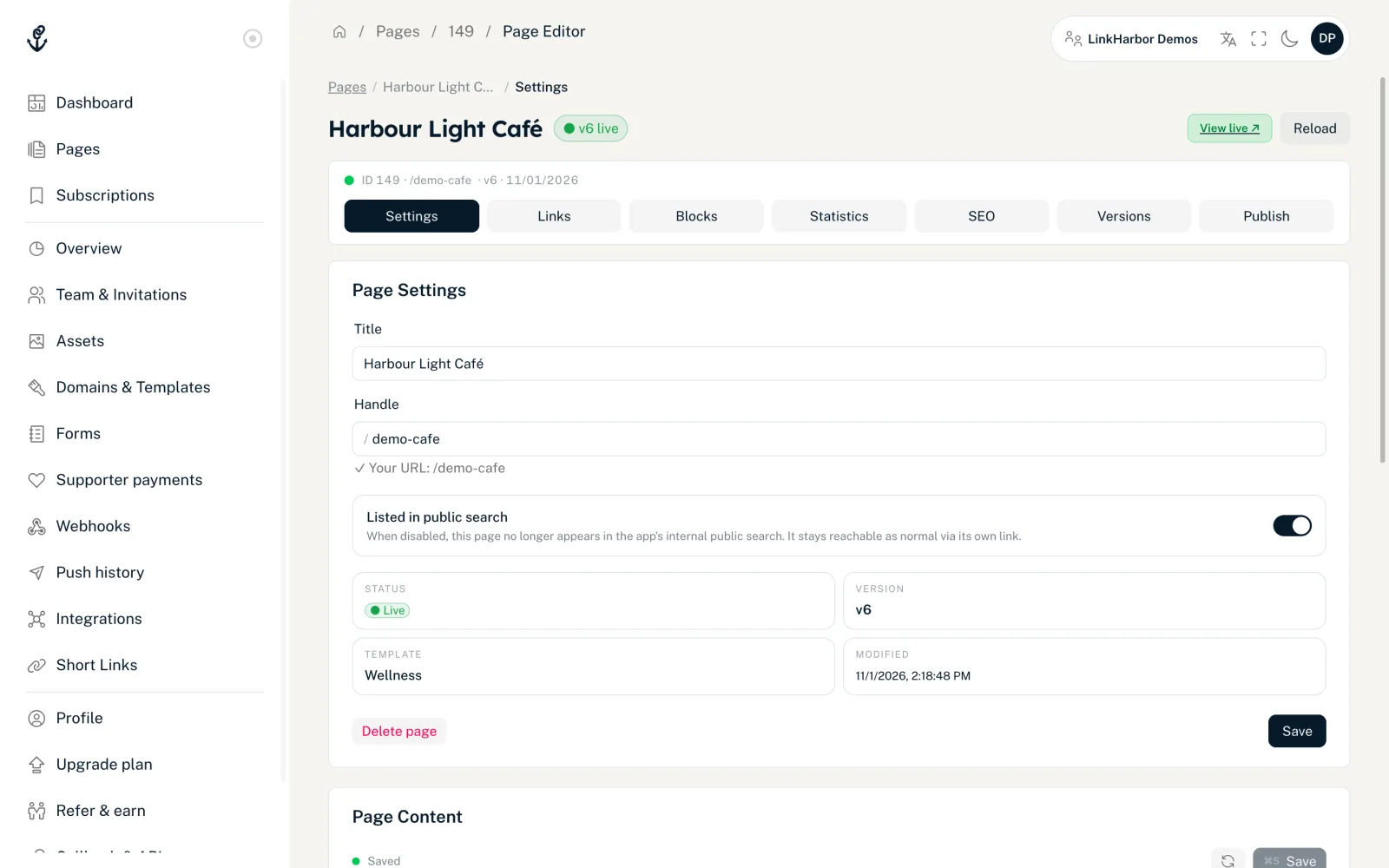
The page editor header
At the top you see the page's title and status:
- “● v3 live”
- The page is published; version 3 is live.
- “○ Draft (was v3)”
- There is a published version, but the page isn't live right now, for example because it was deactivated after a downgrade.
- “○ New – never published”
- The page has never been published.
On the right, “View live ↗” opens the published page and “Preview ↗” the draft; “Reload” fetches the current state, for example after changes in the Page Builder. The line below shows ID, handle, version and date; clicking the handle copies it.
The tabs at a glance
| Tab | Content | Role |
|---|---|---|
| Settings | Title, handle, discoverability, page content, bot protection | Editor and up |
| Links | Link list with all options, see Links | Editor and up |
| Blocks | Technical view of the blocks; for designing, use the Page Builder | Editor and up |
| Statistics | Views and clicks of the page, see Page statistics | All roles |
| SEO | Search engines and social media preview, see SEO | Editor and up |
| Versions | View and restore published versions, see Versions | All roles |
| Publish | Check, visibility and publishing, see Visibility | Editor and up |
For new pages, the “First steps” checklist appears above the tabs; it's explained in The dashboard at a glance.
“Page Settings” card
- Title
- Up to 120 characters. The title appears in the pages list and in the dashboard.
- Handle
- Your page's address. The same rules apply as when creating a page: 2 to 64 characters, lowercase letters, digits and hyphens.
- Listed in public search
- When the switch is off, the page no longer appears in the LinkHarbor app's search or in the dashboard under “Subscriptions”. It stays reachable as normal via its address. This switch has nothing to do with search engines such as Google; for those, there is “Noindex” in the SEO tab.
Below that you see status, version, template and the date of the last change. “Save” applies your changes, and “Settings saved.” appears.
Only pages that are published and public, and that have the “Listed in public search” switch turned on, appear in the public search.
“Page Content” card
This card holds the template's text fields, for example profile name, bio or slogan. The fields come from the template; the dashboard shows their names in your language, such as “Profile name”. Longer texts such as a bio or description get a multi-line field. Design fields such as colours, font or images are deliberately missing here; you set those in the Page Builder.
- The status display shows “Unsaved changes” or “Saved”
- Save with the “Save” button or with ⌘S (Mac) or Ctrl+S (Windows)
- Under “Advanced — Raw JSON” you see all values as JSON, with “Copy” and “Format”
- If you leave the page with unsaved changes, the dashboard asks first
These changes go into the draft and only become visible the next time you publish. It's more convenient to edit the same fields in the Page Builder on the right under “Page settings”, with a live preview.
“Bot Protection” card
Bot protection is the default for all links on this page. Without a level of its own, the page uses the workspace level, which owners and admins set in the workspace overview. Individual links can have a different level, see Rules per link.
| Level | Effect | Plan |
|---|---|---|
| Same as workspace | Uses the workspace level (“Inherited” badge) | All plans |
| Standard | Basic protection against known bots and crawlers | All plans |
| Off | No protection, recommended for testing only | All plans |
| Strict | Also blocks datacenter IPs and known bot networks | From Creator Pro |
On the Free plan, “Strict” is locked and leads to the upgrade. “Strict” makes sense when you need accurate click counts, for example for giveaways or paid campaigns. For most pages, “Standard” is enough.
You change bot protection and page content in the draft; they become visible the next time you publish.
You might also find this useful
Nothing found?
Tell us what you need, and our support team will help you personally.