












































The right address for your bio, measuring visits per platform, what “Open in browser” does and how to create a QR code for your page.
Your page only works its magic once it is linked – usually in the bio of your social media profiles. This article shows which address to enter there, how to see which platform your visitors come from, and what happens when someone opens your page in an app's built-in browser.
The right address
- linkharbor.com/your-handle
- The standard address of every page. It works as soon as you publish.
- Your own domain
- From Creator Pro, for example links.your-brand.com. See Connect your own domain.
- A short link under lhbr.co
- Useful if the target might change later: you can switch a short link's target at any time without touching the bio. See Create short links.
Measure visits per platform
Apps like Instagram or TikTok often don't pass on where a visitor came from. Such visits then show up in your statistics as “Direct”. With UTM parameters you still know:
- Add a parameter to the address in your bio, for example linkharbor.com/your-handle?utm_source=instagram&utm_medium=bio
- Use a different utm_source value for each platform, such as tiktok or youtube
- The visits appear in your page's statistics in the “UTM” tab under “Source / Medium”
It's easier with the link wizard under “Short Links”: you pick the source with a click, and LinkHarbor builds the address and shortens it. On Creator Free, however, a short link's UTM parameters are not passed on to the target. More about the reports in Page statistics.
In an app's built-in browser
When someone taps your link in Instagram, TikTok and many other apps, your page opens in the app's built-in browser. It works normally there. Some things, though – such as saved passwords or sharing – are more convenient in the regular browser. That's why LinkHarbor shows the “Open in browser” button at the top of the page in these apps.
LinkHarbor recognises the built-in browsers of Instagram, Threads, Facebook, Messenger, TikTok, Snapchat, LinkedIn, Pinterest, X, LINE and WeChat, as well as other in-app browsers on Android and iPhone. What happens when the button is tapped depends on the device:
| Device | What happens |
|---|---|
| iPhone with iOS 17 or later | The page opens in Safari |
| Android | The page opens in the default browser; if the LinkHarbor app is installed, pages under linkharbor.com open there |
| Other devices, or if nothing happens | A notice explains the way through the app's menu, with a button to copy the address |
The notice reads: “Tap ⋯ or ⋮ at the top right and choose the option to open in your browser. Or copy the link and paste it into your browser.”
A QR code for your page
For flyers, business cards or your shop window you need a QR code. There are two ways to get one:
- QR code generator
- At linkharbor.com/qr-code you enter your handle and download the code as PNG, SVG or JPEG, optionally with the LinkHarbor logo in the middle. The code contains the address linkharbor.com/your-handle and stays valid as long as your handle stays the same. You don't need an account for it.
- The page's share dialog
- On your published page, “Share” opens a dialog with a QR code. See Your page from a visitor's point of view.
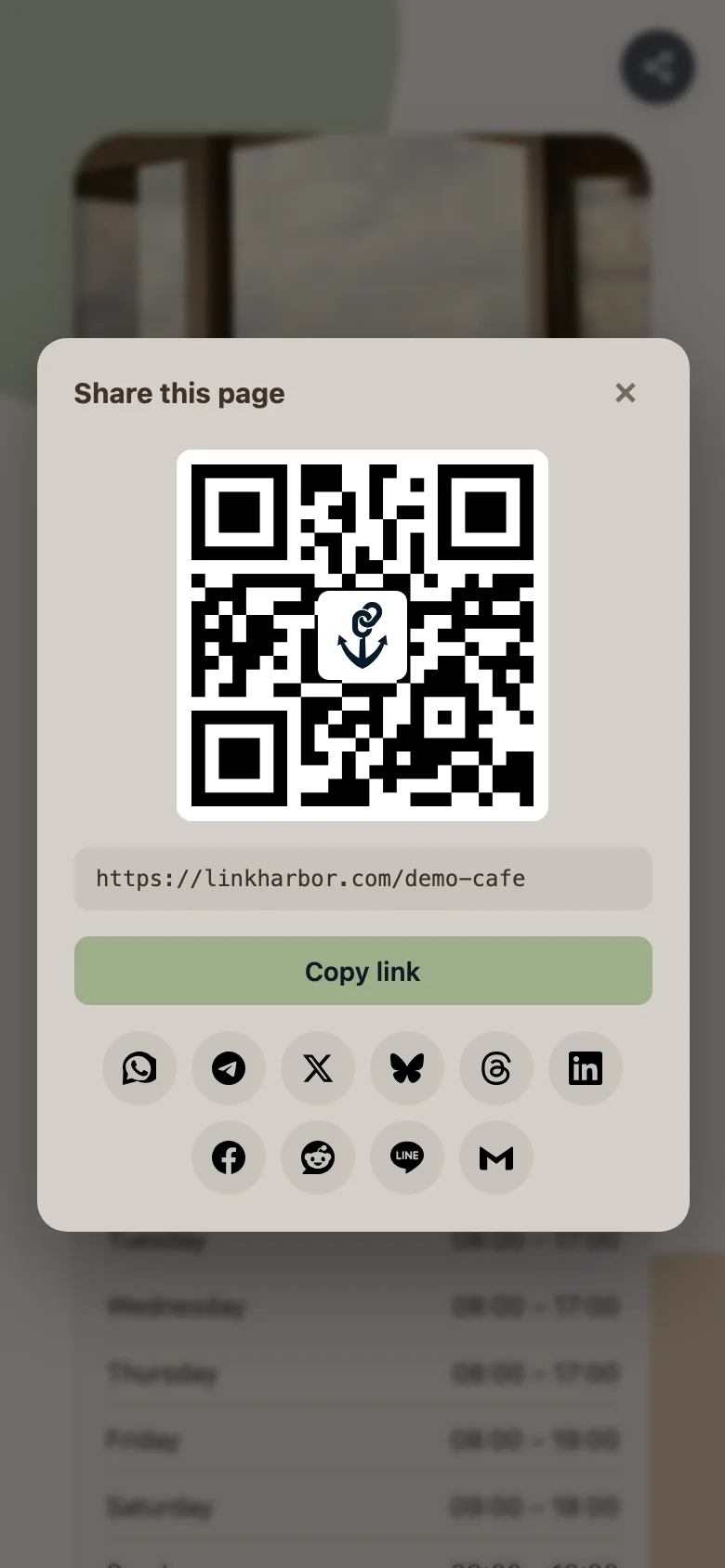
If you want to know how often a particular printed code was scanned, create a short link with the source “QR code” and turn that into the QR code. Short links count every scan as a click. A scan of the code from the generator, on the other hand, shows up like any other visit as a view of your page.
Checklist before you add it
- Page published and checked via “View live ↗”
- All links tapped once on your phone
- Title, description and preview image set in the “SEO” tab, see SEO and social media preview
- Address prepared with UTM parameters or as a short link
- Address copied into the bio and tapped once from inside the app
You might also find this useful
Nothing found?
Tell us what you need, and our support team will help you personally.