












































Decide who can see your page: everyone, only people with an invite link, or only people with the password. Changes apply immediately.
Visibility decides who can open your published page. You set it in the page editor in the “Publish” tab, in the “Visibility” card. Members from the editor role up can change it. Unlike content and design, visibility applies immediately; you don't need to publish again.
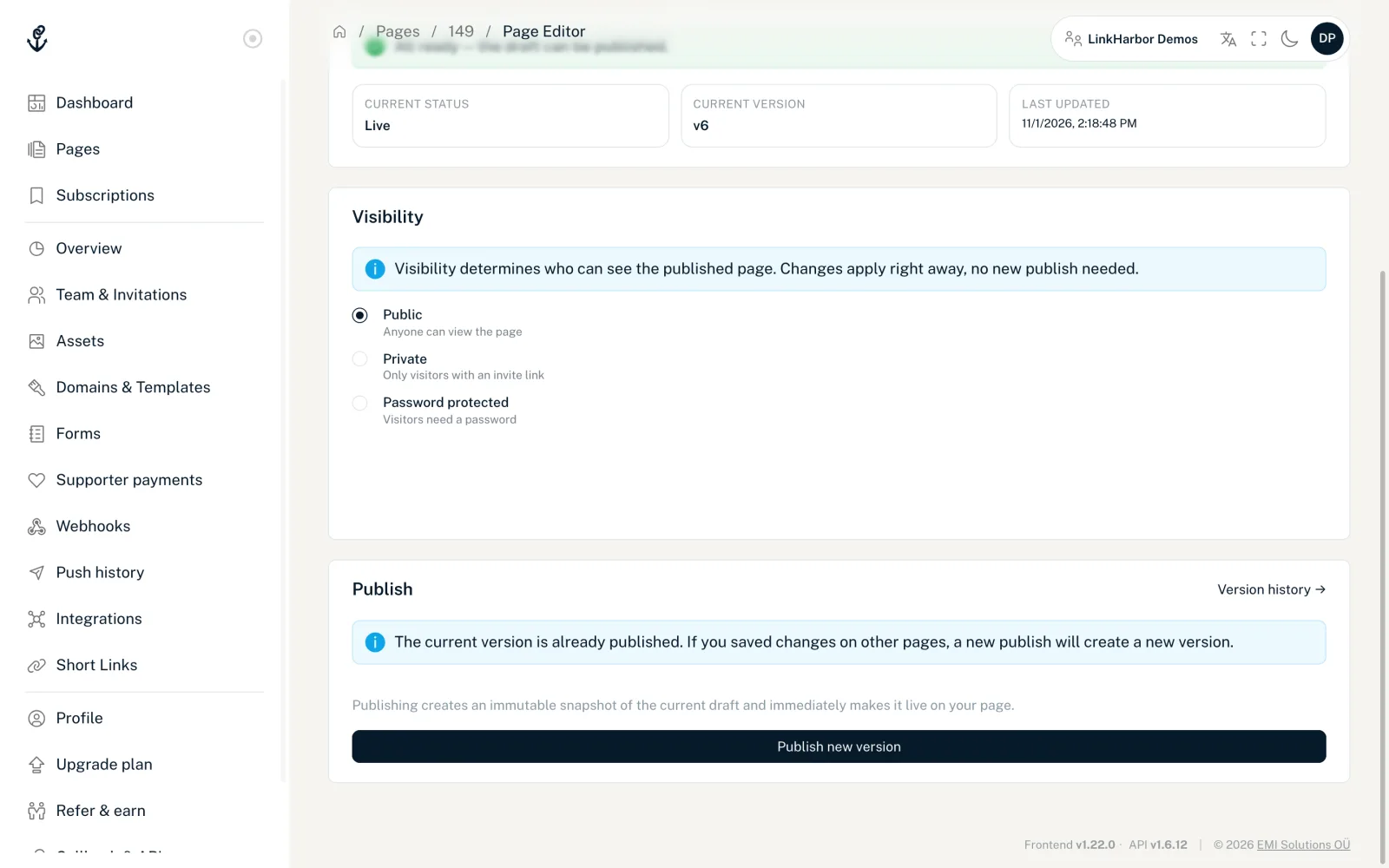
The three options
| Option | Who sees the page | Plan |
|---|---|---|
| Public | Anyone who knows the address | All plans |
| Private | Only people with a valid invite link | All plans |
| Password protected | Only people who enter the password | From Creator Pro |
“Public” and “Private” are saved as soon as you click them, and “Visibility saved” appears. For password protection, you save with “Set password”.
Only public pages appear in the LinkHarbor app's search, and only they can be followed. A private or password-protected page doesn't show up there.
Private page with invite link
A private page can only be reached through invite links that you create yourself. Handy for a preview for clients, a page just for club members or content that shouldn't be public yet.
- Publish the page at least once; before that, you can't create invite links
- In the “Visibility” card, choose the “Private” option
- Under “Valid for (days)”, set how long the link should be valid: 1 to 30 days, 7 by default
- Click “Create invite link”
- Copy the link with “Copy” and pass it on
Below the link, “Valid until” shows the expiry date. You can create as many links as you like with different durations, for example one per person.
What visitors see
- With a valid link, the page opens as normal; the browser then stays unlocked for 24 hours
- Without a link, visitors see the message “Private Page” with a note that they need a valid link
- With an expired link, “Link expired” appears
All messages visitors can see, and what they mean, are explained in Visitors see an error page.
Invalidating all links
“Invalidate all invite links” blocks all links created so far for this page in one go, for example if a link has fallen into the wrong hands. Then “All earlier invite links are now invalid.” appears. This also affects links that visitors passed on via the private page's share button. You can create new links again right away.
Password-protected page
Password protection is available from Creator Pro. On the Free plan the option is locked with the note “Page password protection is available from Creator Pro.”
- Choose “Password protected”
- In the “Password” field, enter a password of 4 to 72 characters
- Click “Set password”
Instead of the page, visitors see the note “This page is password-protected. Enter the password to continue.” and the “Unlock” button. With the right password, the page stays unlocked in that browser for 7 days. With a wrong password, “Incorrect password. Please try again.” appears.
- To prevent guessing, at most 8 attempts in 2 minutes are allowed; after that, “Too many requests” appears
- The password is only stored as a check value; not even we can show it to you
- If you've forgotten it, simply set a new one
- If you switch to “Public” or “Private”, the password is deleted
After a downgrade
If your workspace drops back to Creator Free, password protection is no longer available. In that case, plan ahead and set the page to “Private” if it shouldn't be public. More in Cancelling and downgrading.
Age check
There is no age check for the whole page. You can, however, mark individual links with “18+” or “21+”, see Rules per link.
You might also find this useful
Nothing found?
Tell us what you need, and our support team will help you personally.