












































How to create a new page: choose a handle, add a title, pick a template. With all the rules for handles and the limits per plan.
You create a page in the pages list. You need at least the editor role in the workspace. Right after you create it, the Page Builder opens, where you design the content and look. The page starts out as a draft; visitors only see it once you publish it.
The pages list
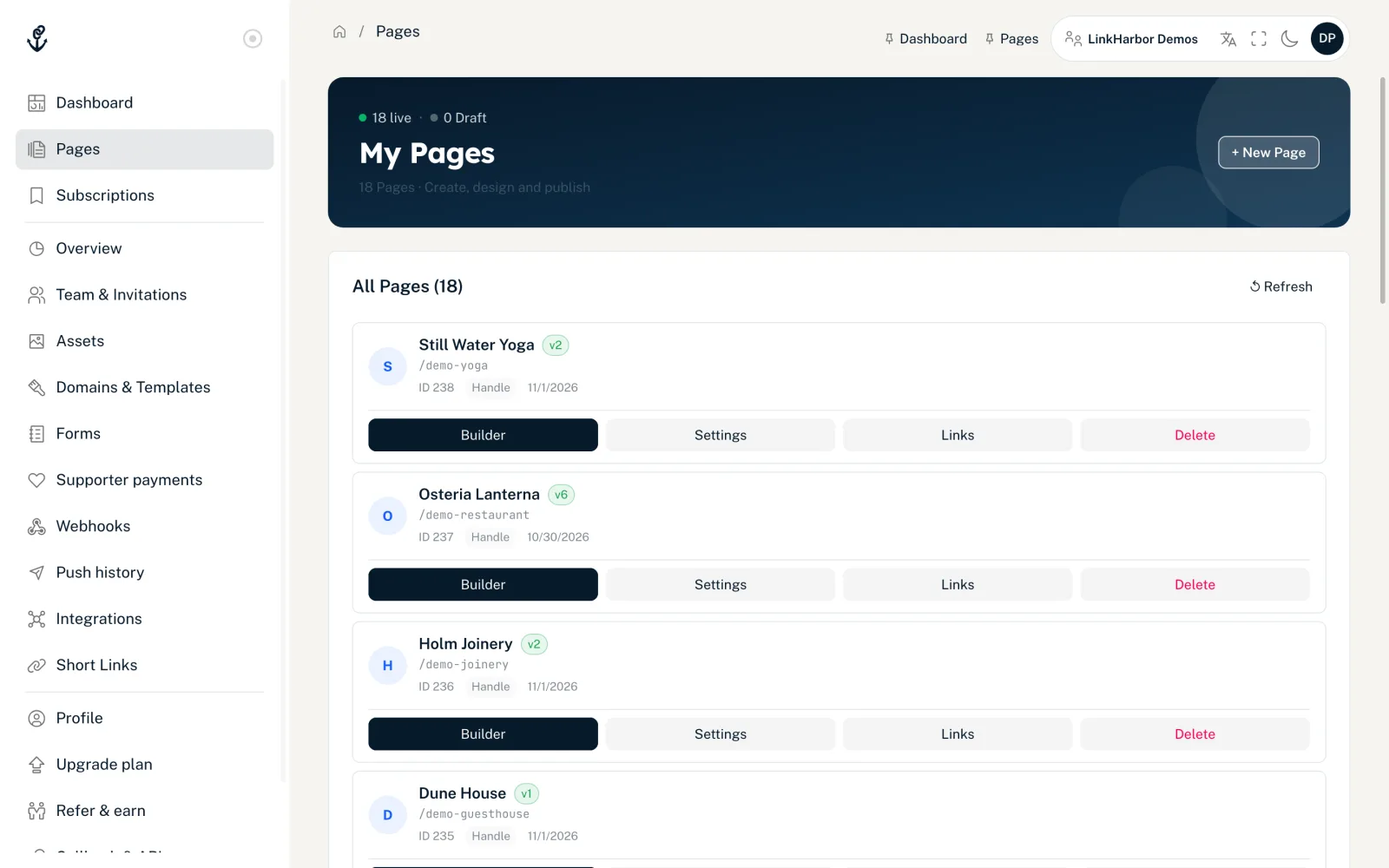
Under “Pages” in the navigation you see all pages of the active workspace. At the top, a counter shows how many of them are live and how many are still drafts. Each card shows the title, the status (“v3” for the published version or “Draft”), the address /handle, the ID and the date of the last change. “Handle” copies the handle to the clipboard.
- “Builder”
- Opens the Page Builder, your tool for content and design.
- “Settings”
- Opens the page editor with title, handle, bot protection and the other tabs, see Page settings.
- “Links”
- Opens the page's link list in the page editor.
- “Delete”
- Only for admins and the owner, see Delete a page.
With the viewer role you only see “Statistics” instead of these buttons; the settings don't open for viewers. From the editor role up, clicking the card itself opens the settings.
Create a page
- In the pages list, click “+ New Page”
- Enter a handle
- Optionally enter a title
- Choose a template from the list
- Click “Create page”
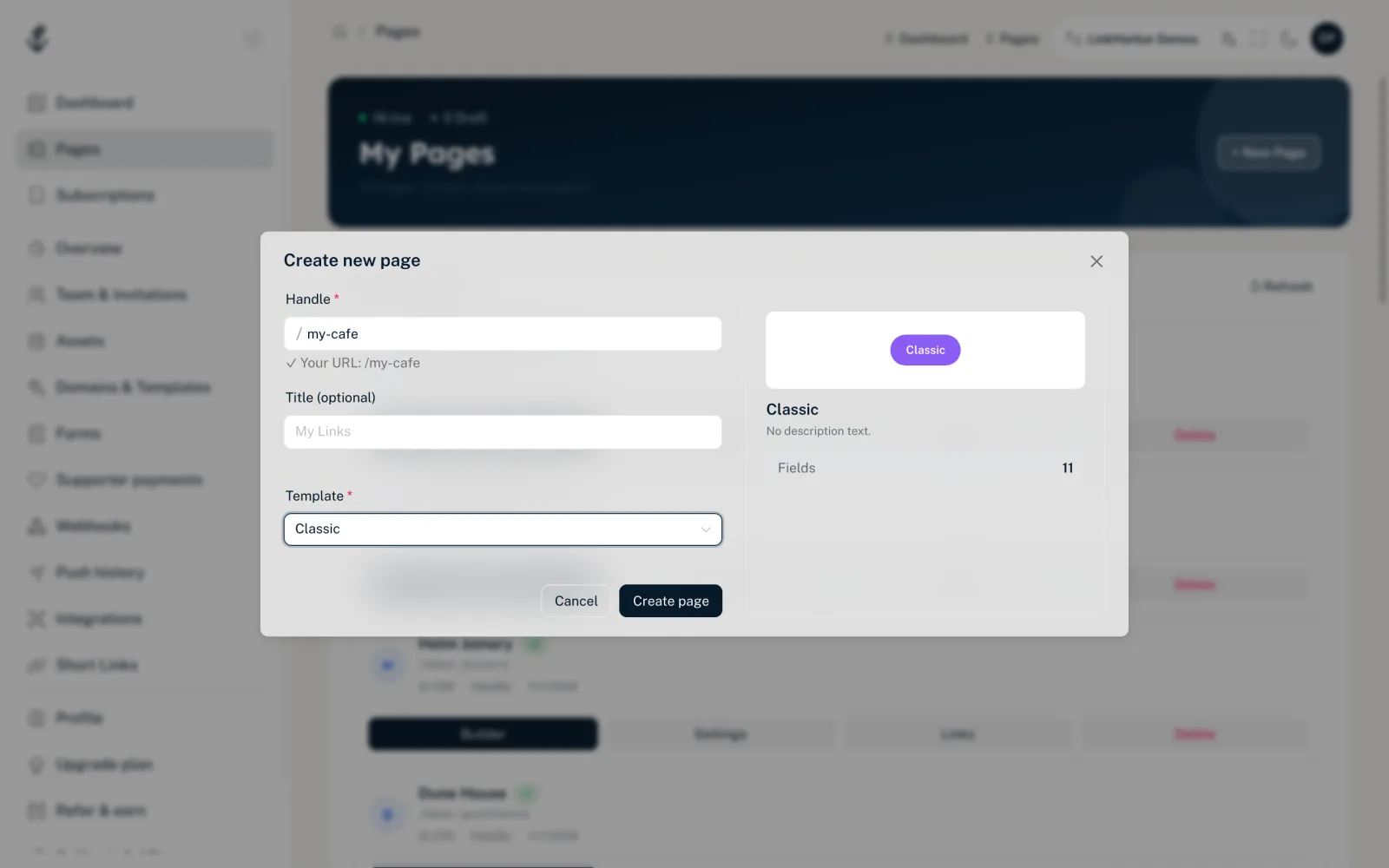
After the message “Page created!”, the Page Builder opens with your new page.
The fields in the dialog
- Handle
- Required. The handle forms your page's address: linkharbor.com/your-handle. Capital letters are lowercased automatically, and spaces and special characters are removed. When everything is fine, the dialog shows “✓ Your URL: /your-handle”.
- Title (optional)
- Up to 120 characters. The title appears in the pages list and is used as the name on the page if the template has a placeholder name. If you leave it empty, the handle is used as the title.
- Template
- Required. Use the search to find the template you want quickly. On the right you'll see a preview with a picture, a description and the number of fields and starter blocks.
Rules for the handle
- 2 to 64 characters
- Only lowercase letters a–z, digits 0–9 and hyphens
- Must not start or end with a hyphen
- Must still be free on the domain
- Some terms are reserved on linkharbor.com, for example login, admin, pricing, support, help, search, follow, docs, api, legal or privacy, plus all handles that start with preview-. This restriction doesn't apply on a custom domain
- The handle of a deleted page stays taken
The error messages in the dialog tell you exactly what's wrong with the format, such as “At least 2 characters” or “Must not start or end with a hyphen”. LinkHarbor only checks whether the handle is still free when you click “Create page”. If it's already taken, you'll see “This handle is already taken.”; for a reserved term, “This handle is reserved for LinkHarbor’s own pages (e.g. privacy, support). Please choose another one.” In that case, choose a variant, for example with a place name or a hyphen.
Templates and plan
On the Creator Free plan you can choose the Basic, Compact and Simple List templates. The other 14 templates (for example Business Card, Portfolio, Creator or Streamer) are available from Creator Pro. They're at the end of the list with a lock and the suffix “· Pro”. If you select one of them on the Free plan, “Paid plans only” appears and the “Create page” button stays disabled.
The template is only the frame of your page. You set colours, font, background and buttons in the Page Builder. More in Choosing and switching templates.
How many pages you can create
| Plan | Pages per workspace |
|---|---|
| Creator Free | 1 |
| Creator Pro | 3 |
| Creator Agency | 10 |
| Enterprise | By arrangement |
All pages of the workspace count, including drafts and pages that were deactivated after a downgrade. Once the limit is reached, you can't create another page, and you'll see “You have reached the maximum number of pages for your plan.” For an overview of all limits, see Plans compared and the Pricing page.
What happens when you create a page
- The page is created under linkharbor.com, with the status “Draft”
- It gets the fixed “Links” block, which shows all of the page's links
- The template brings starter blocks and starter links that you can adjust or remove
- Visibility is set to “Public”, but the page only becomes visible after you publish it for the first time
- The page is listed in the public search of the LinkHarbor app; you can turn this off in the settings
If you also want to show the page under your own address, connect a custom domain. What comes after creating the page is explained in The Page Builder at a glance. Moving your links over from another service? Read Switch from Linktree or other services.
You might also find this useful
Nothing found?
Tell us what you need, and our support team will help you personally.