












































What visitors see on your page: share dialog with QR code, follow banner, video consent, protection against embedding, and cookies.
To visitors, your published page looks a little different from the preview in the Page Builder. LinkHarbor adds a few elements that only appear on the real page: a share button with a QR code, a prompt to follow and a footer. Here you'll find out what visitors experience and what LinkHarbor does to protect them.
Sharing and QR code
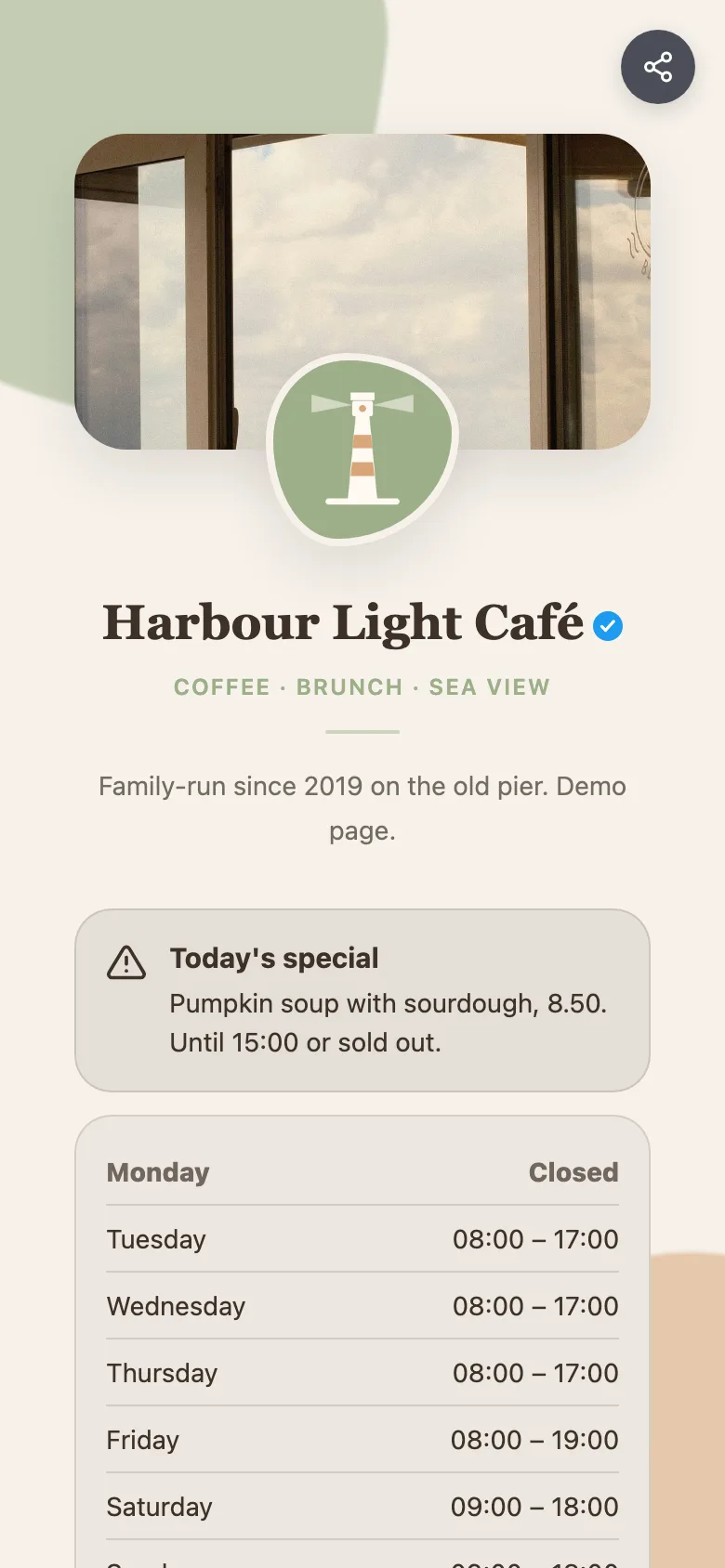
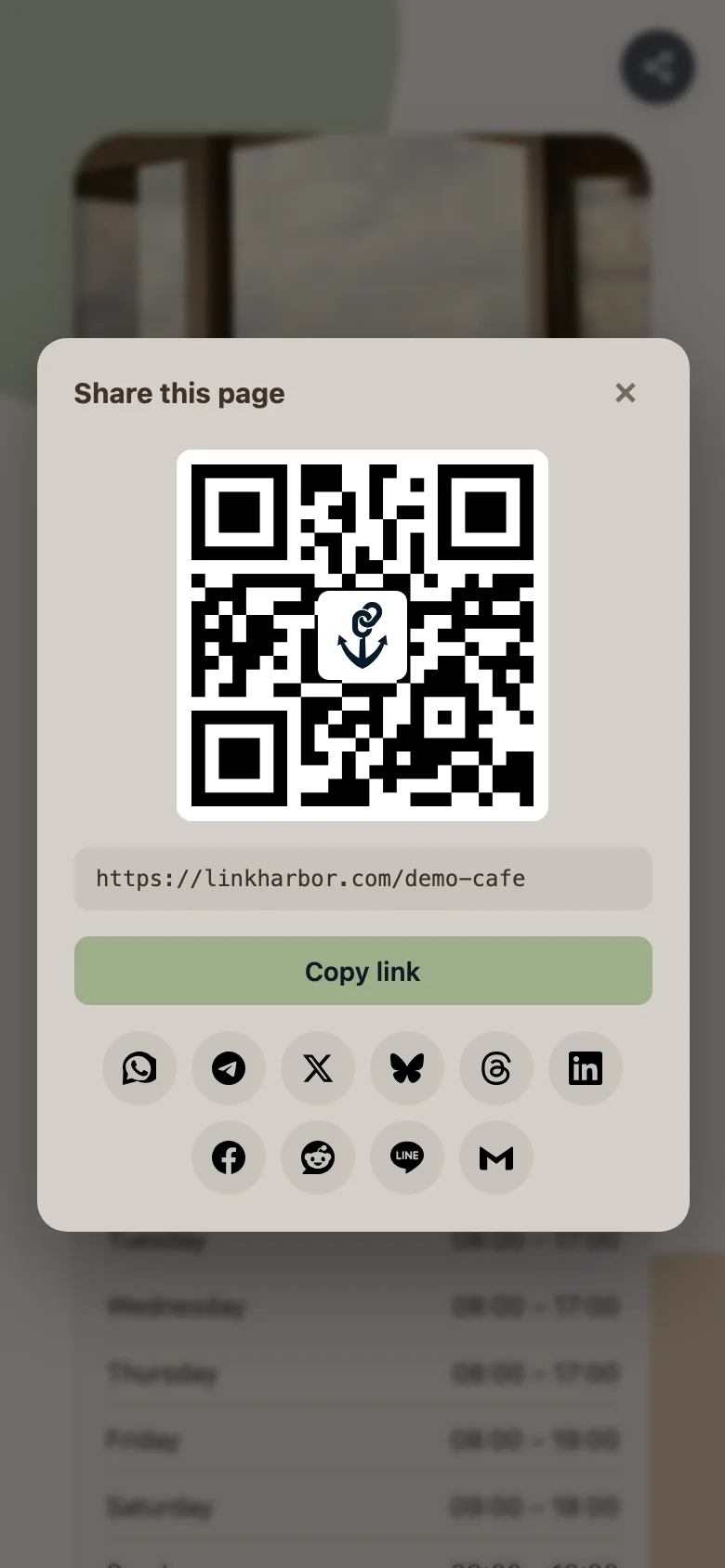
At the top right of every page there is a round “Share” button. It opens the “Share this page” dialog:
- A QR code of the page with the LinkHarbor logo in the middle, for scanning or for a screenshot
- “Copy link” puts the address on the clipboard
- “Share…” opens the device's share menu, if the browser offers one
- Direct buttons for WhatsApp, Telegram, X, Bluesky, Threads, LinkedIn, Facebook, Reddit, LINE and e-mail
- On phones, SMS as well
Every single link also has a small share button. Visitors use it to share exactly that link, with a preview, copying and buttons for X, Facebook and WhatsApp.
Follow banner
On public pages, a “Follow this page” banner appears at the bottom after about a second. It invites visitors to follow your page in the LinkHarbor app and get push notifications. “See how it works” explains the way into the app, and “Maybe later” hides the banner for 48 hours.
- Following is free and needs a LinkHarbor account, in the app or in the dashboard under “Subscriptions”; push notifications are only available in the app
- You don't get to see your followers' e-mail addresses
- Only public, published pages can be followed
- The banner doesn't appear in the app itself or in the Page Builder preview
How to reach your followers is explained in Followers and push notifications. How following works from your visitors' point of view is described in Follow pages and control push notifications.
Videos only after consent
Embedded videos from YouTube, Vimeo or Loom don't load automatically. Visitors first see a placeholder with a note that loading the video connects them to the provider, which may set cookies. Only a click on “Load video” loads it. With “Remember my choice on this page”, they only have to confirm this once on your page. That keeps your page privacy-friendly without you having to set anything up.
Age check and protected pages
- Links with “18+” or “21+” show the “Age Verification” prompt before redirecting; the browser remembers the confirmation, see Rules per link
- Private pages show “Private Page” without a valid invite link
- Password-protected pages show a password field with “Unlock”, see Visibility
- Links that are blocked in the visitor's country are missing from the page. If someone opens such a link directly anyway, “Link not available” appears
All error pages visitors can see are explained in Visitors see an error page.
Other elements on the page
- LinkHarbor button
- At the top left. It opens a short info panel about LinkHarbor with ways to the app and to sign-up.
- Footer
- With LinkHarbor, “Privacy”, “Terms”, “Report” and the location the page was served from. What happens after a report is described in Reporting content, suspension and appeals.
- “About this page”
- In the footer. Shows how long the page has been on LinkHarbor, whether it's a premium account and which websites the links lead to. This helps visitors judge the page.
- Premium badge
- On pages of workspaces with a paid plan, “Premium account” appears next to the name.
- “Open in browser”
- If someone opens your page in the built-in browser of Instagram or TikTok, LinkHarbor offers to open it in the regular browser.
The LinkHarbor button, footer and follow banner are part of every page. They can only be hidden on the Enterprise plan.
Protection against embedding
LinkHarbor pages can't be embedded in other websites, not even your own. If a website tries to show your page in an iframe, the browser refuses. This protects your visitors from someone building your page into another site and intercepting clicks. Link to your page as normal instead.
Code is handled just as strictly: no script runs on your page that doesn't come from LinkHarbor. Custom CSS may not load anything from other servers; images, fonts and other files must come from your assets. See Custom CSS.
Cookies on your page
On your pages, LinkHarbor only sets its own cookies: no advertising cookies and no tracking pixels from other providers. They count unique visitors for your statistics, remember the source, UTM parameters and referral code for later attribution, and store unlocks of private or password-protected pages as well as the age confirmation. The full list with names and lifetimes, for your privacy notice for example, is in Cookies and storage on your page.
Fonts are served by LinkHarbor itself, not by external font services. External content such as videos only loads after consent. Images from integrations, such as video or product thumbnails, may come directly from the platform in question. What you write in your imprint (Impressum) and privacy notice yourself is explained in Imprint and privacy on your page.
Test your page yourself
- Open the page via “View live ↗” in the page editor
- Test on your phone too, as most visitors come from mobile devices
- For the draft, use “Preview ↗”; the share button, follow banner and footer are missing there
- Check contrast and alt texts so that all visitors can use your page, see Design an accessible page
You might also find this useful
Nothing found?
Tell us what you need, and our support team will help you personally.