












































Navigation, top bar, switching workspaces, language, dark mode and the “First steps” checklist – how to find your way around the dashboard.
The dashboard at deck.linkharbor.com is where you build your pages, manage your team and look at your numbers. It has three parts: the navigation on the left, the top bar and the content area. This article explains all three.
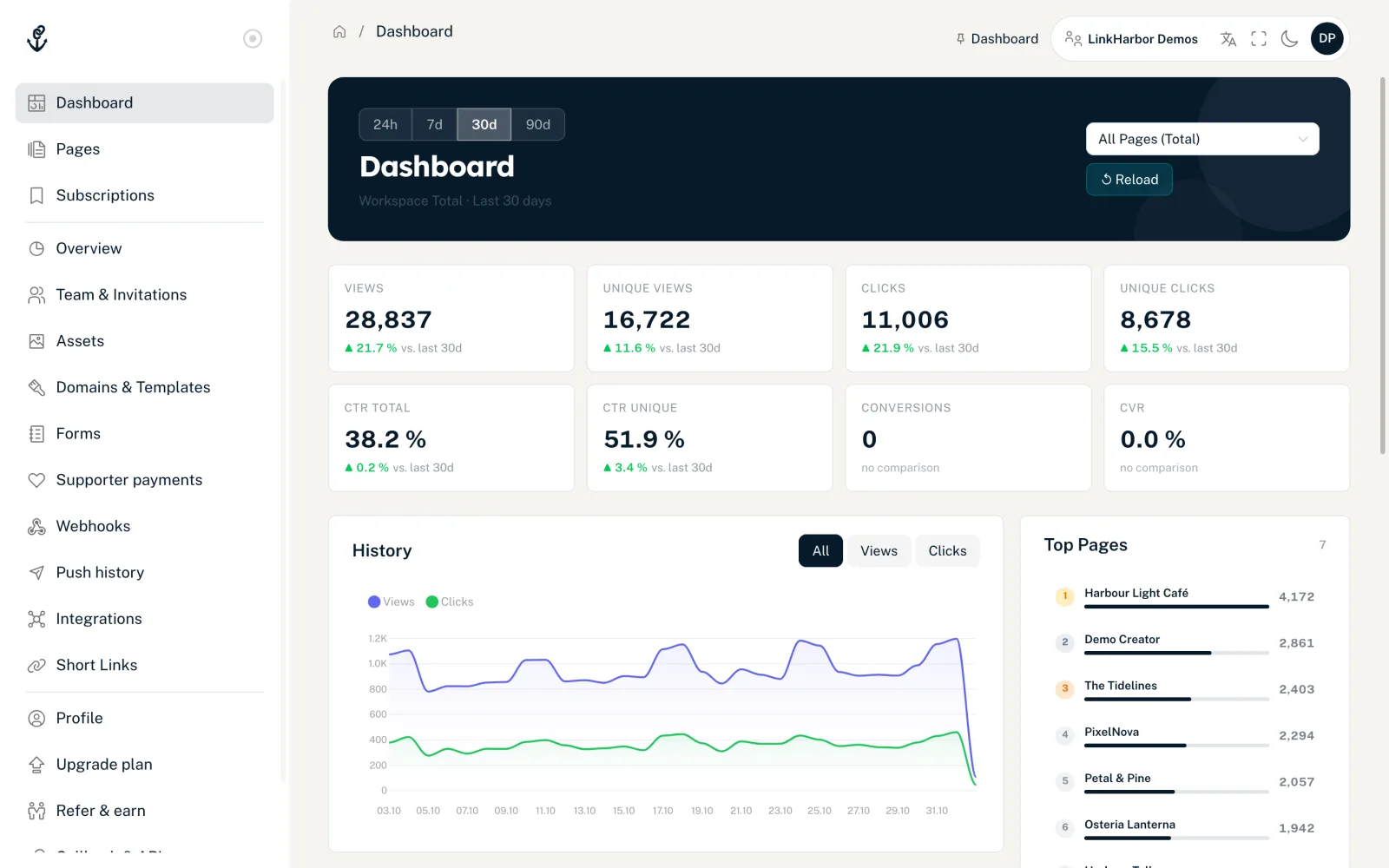
The “Dashboard” home page
After signing in, you land on the home page. At the top you choose the period (“24h”, “7d”, “30d”, “90d”) and whether you want to see “All Pages (Total)” or a single page. The tiles show views, clicks, click-through rates and conversions, each with the change compared with the previous period. History, top pages, top links and the breakdown by country, device and source are available from Creator Pro. All metrics are explained in Dashboard metrics explained.
The navigation
The navigation on the left is split into three groups. Menu items your role in the workspace may not open are hidden.
| Menu item | What you find there | Who sees it |
|---|---|---|
| Dashboard | Your workspace's metrics | All roles |
| Pages | Your pages, the Page Builder and the page editor | All roles |
| Subscriptions | Pages you follow yourself | All roles |
| Overview | Plan, usage, limits and the workspace's bot protection | All roles (bot protection from admin) |
| Team & Invitations | Members, invitations and “Transfer ownership” | All roles (inviting from admin, changing roles and transferring owner only) |
| Assets | Images, videos, audio and files | All roles (uploading from editor) |
| Domains & Templates | Custom domains and custom templates | Admin and owner |
| Forms | Forms and submissions | All roles (editing from editor) |
| Supporter payments | Payments made through the “Support” block | Admin and owner |
| Webhooks | Notifications to your servers | Admin and owner |
| Push history | Push notifications sent and the weekly limit | All roles |
| Integrations | Connected platforms and push rules | All roles (changes from admin) |
| Short Links | Short URLs with click counting | Admin and owner |
| Profile | Personal data, password, two-factor, delete account | All roles |
| Upgrade plan | Compare plans, upgrade, manage subscription | All roles (changes admin and owner only) |
| Refer & earn | Referral programme | All roles |
| Callback & API | Connected apps, API keys, callback secrets | All roles (API keys admin and owner only) |
| Logout | Ends your session | All roles |
What each role can do is described in Roles and permissions. If you open a dashboard page directly via its address and your role may not open it, the dashboard redirects you to the home page.
The top bar
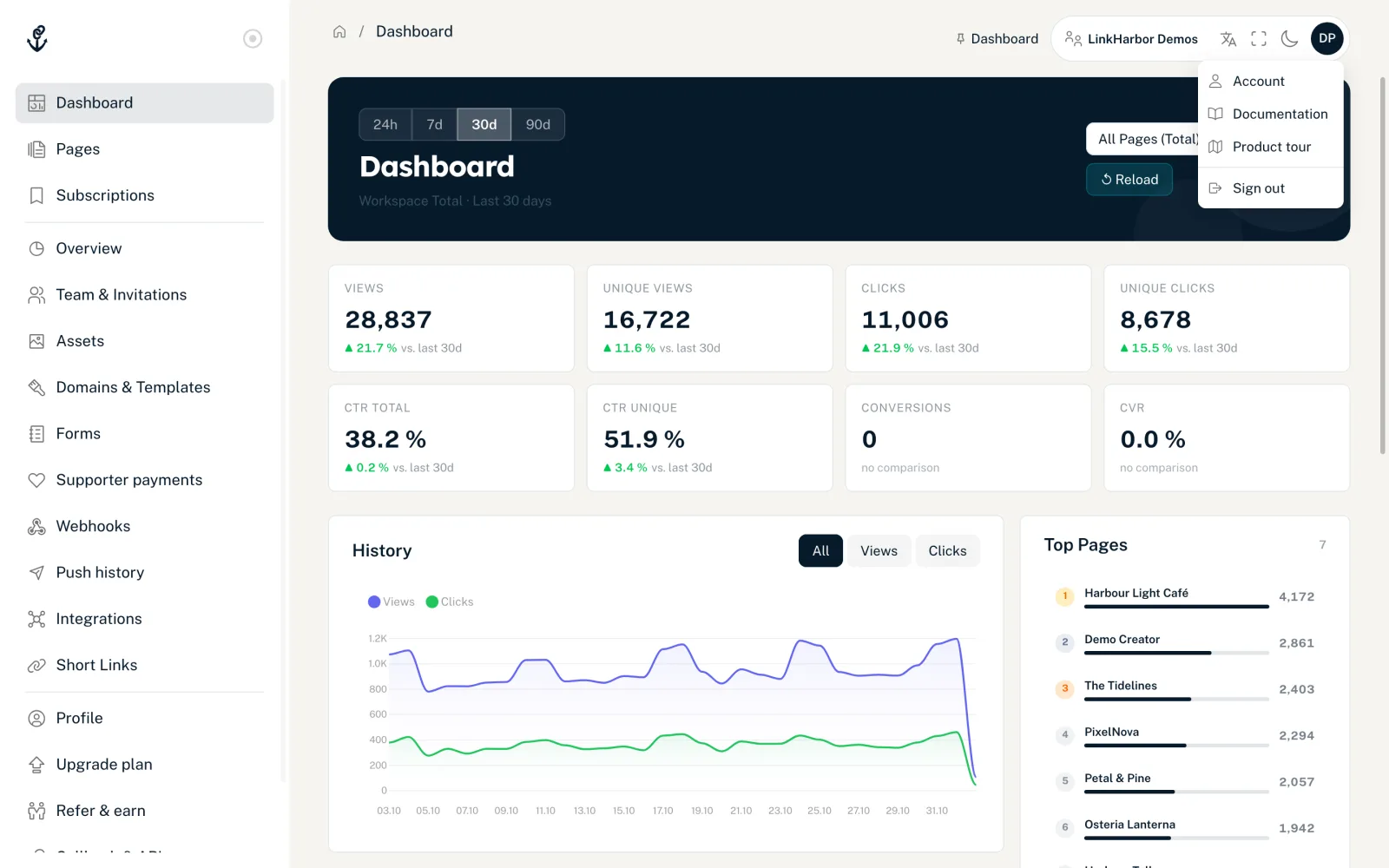
From left to right, the top bar contains:
- Logo
- Opens and closes the navigation – handy on small screens.
- Breadcrumbs
- Shows where you are, for example “Pages / 149 / Page Editor” – the number is the page ID.
- Recently visited and pinned
- The last three dashboard pages you opened in this tab, plus pages you pinned with the pin icon. The X removes an entry. This bar is only stored in your browser, not in your account.
- “Start tour”
- Starts the product tour. The hint only appears in the first 14 days after sign-up.
- “Viewer”
- Only appears if you have the viewer role in the active workspace: you can then see pages, statistics and most areas but cannot change anything.
- Workspace switcher
- Shows the name of the active workspace. If you are a member of several workspaces, a click opens the list – more on this below.
- Language
- Changes the language of the dashboard. There are 43 languages to choose from. The choice applies immediately and is saved in your account, so e-mails from LinkHarbor also arrive in this language.
- Full screen
- Hides the browser bars. Only visible on larger screens.
- Light/dark
- Switches between the light and the dark design (dark mode).
- Avatar
- Your initials. The menu contains “Account” (your profile), “Documentation” (the developer documentation, opens in a new tab), “Product tour” (starts the product tour again) and “Sign out”.
Switching between workspaces
Every account has a personal workspace. If you accept an invitation to someone else's team, their workspace is added. The workspace switcher then lists all your workspaces with name, type (“Personal” or “Team”) and your role. Clicking another workspace switches to it, shows “Switched to ‘Name’.” and opens the home page. Pages, statistics, plan and team always refer to the active workspace. More in Your workspace at a glance.
The “First steps” checklist
When you open a page in the page editor (Pages → “Settings”), the “First steps” checklist appears above the tabs with the progress “x/5 done”. It shows you what is still missing for a finished page. Every step is clickable and takes you to the right place.
| Step | Done when … |
|---|---|
| Page created | always done |
| Add links | the page has at least one link |
| Add content | the draft has content – usually already done by the template |
| Set up SEO | an SEO title is set, see SEO and social media preview |
| Publish | the page has been published at least once |
You see the checklist from the editor role upwards, and only until the page has been published a second time. The X (“Hide checklist”) hides it; once all steps are done, “All done! Your page is ready to go.” appears with the “Hide” button. Hiding applies per page and only in this browser.
You might also find this useful
Nothing found?
Tell us what you need, and our support team will help you personally.