












































How to move your links from Linktree, Beacons or another service to LinkHarbor without visitors ending up on a dead end.
You already have a link-in-bio page with another service and want to switch to LinkHarbor? There is no automatic import, but with the setup wizard or an AI assistant your new page is ready quickly. The order matters: build and test first, then swap the link in your bio.
Preparation
- Note down all the links on your current page with their title and destination address
- Save your profile picture, background image and any texts you want to keep
- Check how many links you need: Creator Free allows 5 links and 5 blocks per page, Creator Pro and above give you a lot more
- Think of a handle; if your usual name is already taken, pick a variation
The limits of all plans are in Plans compared.
Create your page
With the setup wizard
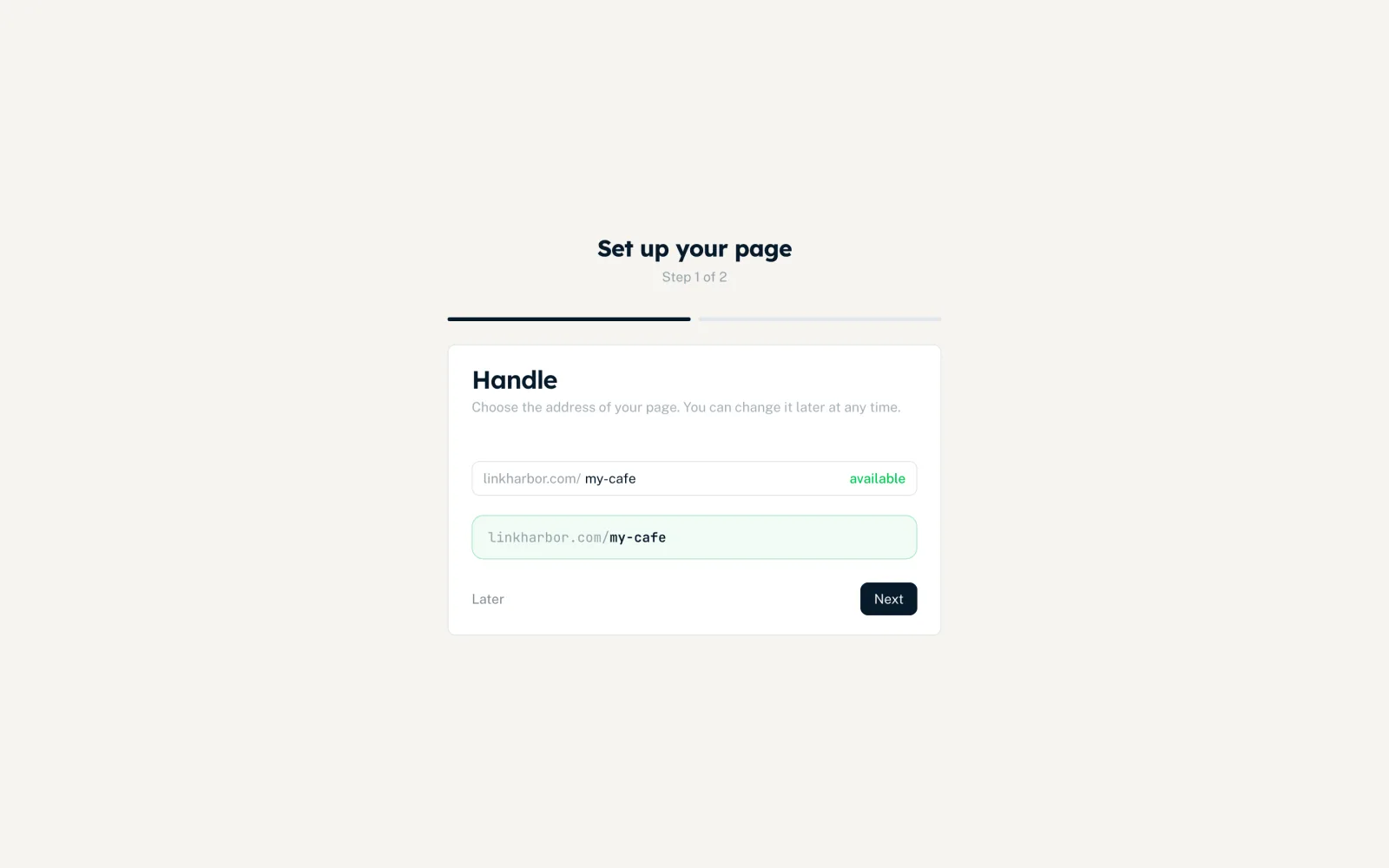
After you sign up, the wizard takes you to your first page in two steps: handle and template. The Page Builder then opens, and you add your links and social media profiles there. See The setup wizard.
Many links at once
If you have a lot of links, let an AI assistant create them. To do that, connect Claude, ChatGPT or another MCP client to LinkHarbor (this works on every plan) and give it your list of links. The assistant creates the links, you check the result and publish. See Using LinkHarbor with AI.
Developers can also create links through the API from Creator Pro.
By hand
In the Page Builder you create links in the “Links” tab. See Create and style links.
Design and add more
- Choose a template and adjust colours, background and font, see Design
- Upload a profile photo and images, see Images
- Social icons, headings and texts are available as free blocks
- Opening hours, contact, gallery, forms and more are available from Creator Pro
Before you swap the link in your bio
- Publish your page with “Publish”
- Open it with “View live ↗” and click every link once
- Test the page on your phone as well
- Enter the new address linkharbor.com/your-handle in your bios
- Replace old QR codes and printed addresses step by step
What is different at LinkHarbor
- Draft and publish
- Changes only go live after “Publish”. So you can rebuild in peace without visitors seeing work in progress. Every publish is saved as a version.
- Own statistics
- LinkHarbor counts views and clicks itself, without pixels from other providers. See How LinkHarbor counts.
- Follow and push
- Visitors can follow your page in the LinkHarbor app, and you reach them by push. See Followers and push notifications.
- No embedding
- For security reasons, pages cannot be embedded in other websites with an iframe.
You find a detailed comparison on the page LinkHarbor and Linktree compared.
You might also find this useful
Nothing found?
Tell us what you need, and our support team will help you personally.