












































The 17 templates at a glance, what happens when you switch templates and which templates are available on Creator Free.
The template is the frame of your page: it sets the structure, image slots and basic style. The actual design work happens afterwards in the Page Builder with blocks, colours, background and font. You choose a template when you create the page and can switch it at any time.
The 17 templates
Template names are not translated. 3 templates can be used on all plans, the other 14 from Creator Pro.
| Template | Plan | Image slots |
|---|---|---|
| Basic | All plans | Profile photo, header image |
| Compact | All plans | Profile photo, header image |
| Simple List | All plans | Profile photo, header image |
| Agency | From Creator Pro | Logo, header image, background image |
| Artist | From Creator Pro | Profile photo, header image, background image |
| Bold | From Creator Pro | Profile photo, header image |
| Business Card | From Creator Pro | Profile photo, header image |
| Classic | From Creator Pro | Profile photo, header image, background image |
| Creator | From Creator Pro | Profile photo, header image, background image |
| Editorial | From Creator Pro | Profile photo, header image, background image, background 1–5 |
| Kawaii | From Creator Pro | Profile photo, header image |
| Minimal | From Creator Pro | Profile photo, header image, background image |
| Portfolio | From Creator Pro | Profile photo, header image, background image |
| Social | From Creator Pro | Profile photo, background portrait, header image, background image |
| Streamer | From Creator Pro | Profile photo, header image, background image |
| Wellness | From Creator Pro | Profile photo, header image |
| Y2K | From Creator Pro | Profile photo, header image |
No template comes with its own blocks; your blocks and links stay the same with every template. The image sizes the slots need are listed in Images in the Page Builder.
Switching templates
- In the builder, open the “Theme” tab on the left
- Under “Template” you see all templates as cards. The ones you can use come first; locked ones carry a padlock and a “Pro” badge
- Click a different template. A window shows a preview, description and colours
- Confirm with “Switch template” or cancel with “Cancel”
- Then set the template's images again, see below
- Publish the page so the switch goes live
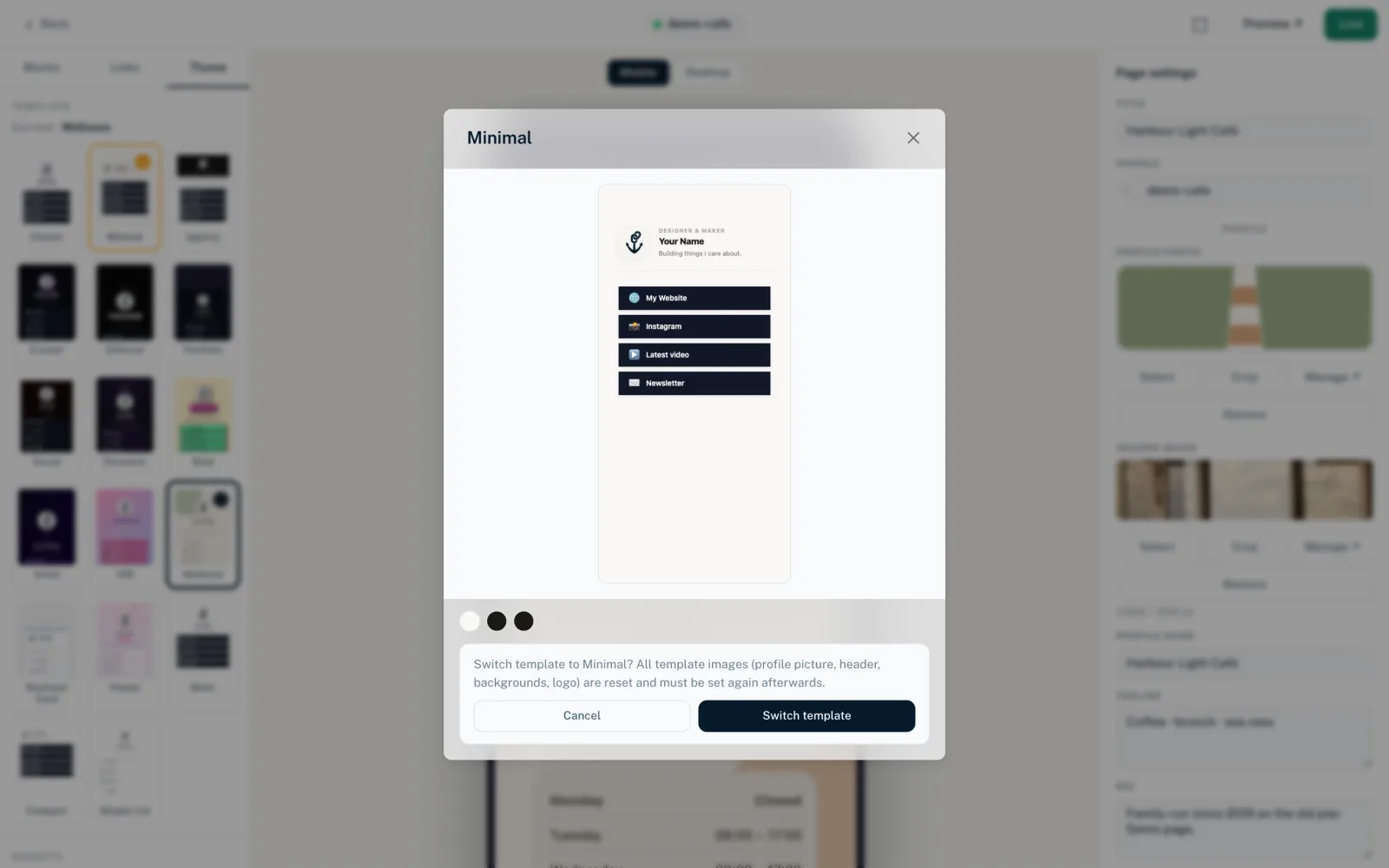
Next to “Current:” the builder shows the name of the active template, such as “Basic”. If your workspace has its own templates, the selection is split into “Built-in templates” and “Your own templates”, see below.
What happens when you switch
- All images in the template's image slots are reset: profile photo, header image, logo and background images
- Blocks, links and their settings stay unchanged
- Your settings from the Theme tab are kept: colours, background, button style, font
- Template text fields you never changed get the new template's defaults. Your own texts such as bio or profile name stay
- The switch goes into the draft. The live page only changes when you publish
Pro templates on Creator Free
If you click a locked template on Creator Free, you see “Paid plans only” with the “Upgrade now” button. You can only switch after an upgrade, see Pricing.
If a page already uses a Pro template when you move back to Creator Free, it keeps that template. If you then switch to another one, you can't go back to the Pro template without upgrading.
Fields of individual templates
Many templates have their own fields, which you find on the right under “Page settings” → “Profile” when nothing is selected. Typical fields are “Profile name”, “Bio” or “Tagline”. Some templates also have their own fields, for example:
- Streamer
- “Show as live”, “Status text”, “Accent color”, “Second accent color”.
- Editorial
- “Overlay top”, “Overlay middle”, “Overlay bottom” for the background images.
- Portfolio
- “Blur”, “Card background”, “Card border”.
- Agency
- “Company name”, “Header background”, “Header text color”.
- Social
- “Heading above the cards”.
- Bold
- “Border width”, “Button text color”.
- Y2K
- “Gradient from”, “Gradient to”.
- Artist
- “Duotone color 1”, “Duotone color 2”.
- Kawaii
- “Second background color”.
- Creator
- “Badge emoji”.
Your own templates
From Creator Pro, owners and admins can create their own HTML templates for the workspace under “Domains & Templates”. This is a tool for developers and agencies; you don't need it to design a page. Active custom templates appear when you create a page and in the Theme tab in the “Your own templates” group, the built-in ones under “Built-in templates”. You choose and switch them just like the built-in ones.
- The preview shows changes to your own template right away. The live page only picks them up when you publish the page again
- If a template is deactivated, pages that already use it keep it. Next to “Current:” it then says “(deactivated)”, and it can no longer be selected
- After a move to Creator Free, published pages stay unchanged. Switching to a custom template is then no longer possible
More in Your own templates.
You might also find this useful
Nothing found?
Tell us what you need, and our support team will help you personally.