












































Layout, preview and saving in the Page Builder: how drafts and publishing work together and where you find each setting.
The Page Builder is your design tool for a page: blocks, links, colours, font, background and publishing in one place, with a live preview in the middle. This article explains how the builder is laid out, how saving works and which settings you find in the page editor instead.
Opening the builder
- In the dashboard, open “Pages” on the left
- Click “Builder” next to the page you want to edit
- The builder opens with the “Blocks” tab on the left and the mobile preview in the middle
Members with the editor, admin or owner role can open the builder. Viewers only see a page in the “Statistics” and “Versions” tabs of the page editor. More on this in Roles and permissions.
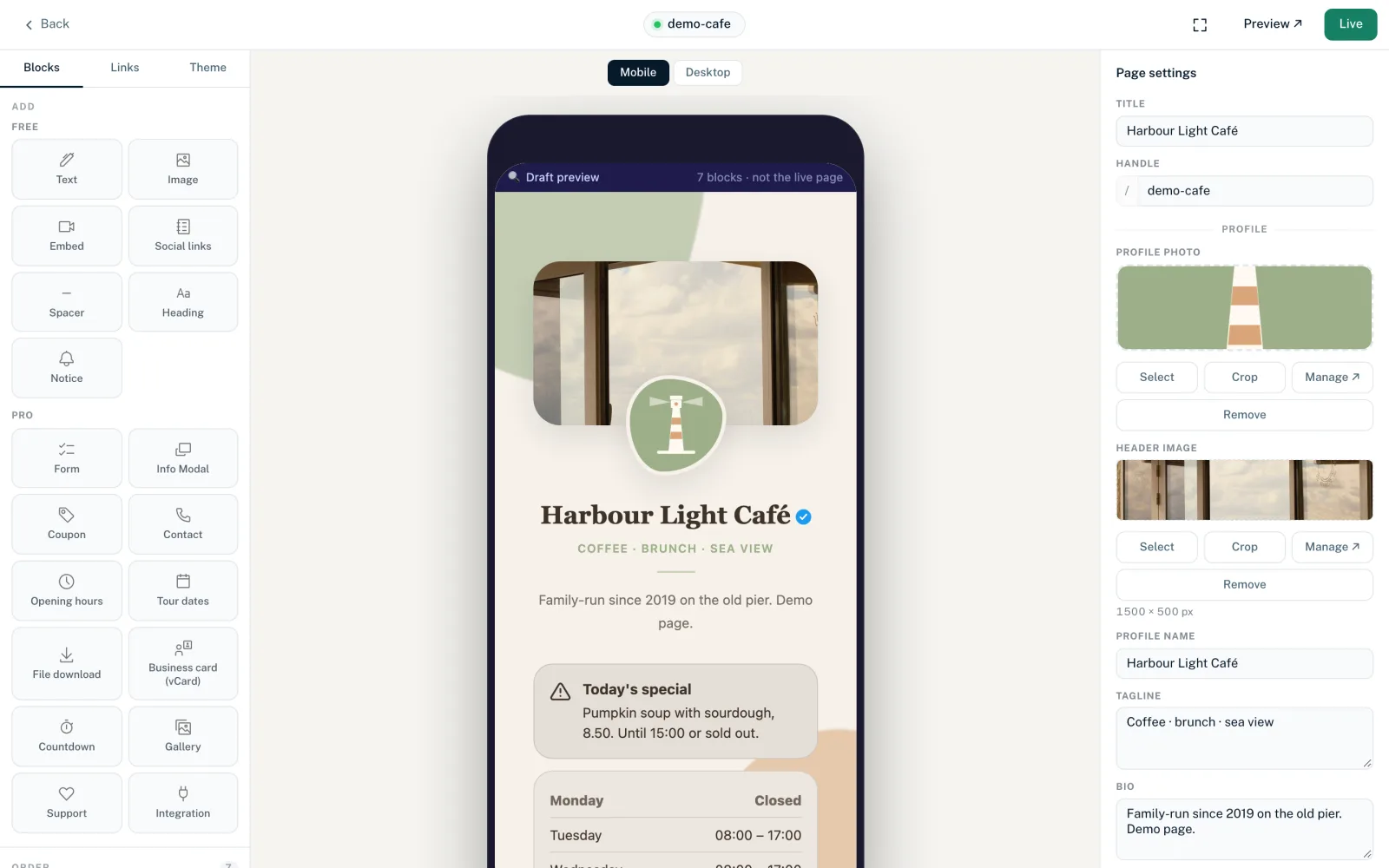
Layout: three columns
- Left column
- Three tabs: “Blocks” (add and sort blocks), “Links” (the page's link list) and “Theme” (template, presets, colours, background, button style, font and custom CSS).
- Middle: preview
- Shows your draft. “Mobile” and “Desktop” switch between a phone frame and a browser frame. “Mobile” is the default.
- Right column
- Depends on what you have selected: with nothing selected you see the “Page settings”, after clicking a link the link editor, after clicking a block the block editor. ✕ takes you back to the page settings.
The header bar
- “Back”
- Takes you back to the list of pages. If “⟳ Saving” is still showing at the top, the builder first asks “Unsaved changes. Leave?” After your last entry in a block, wait a moment before you leave the builder.
- Handle
- In the middle you see your page's handle as a link to the page. The coloured dot shows the page's status.
- Save status
- Shows the state for theme, template fields, images, title, handle, SEO and custom CSS: “⟳ Saving”, then “Saved”. “Error” means the last change was not saved; the message next to it gives the reason. Changes to blocks and links do not show up here; if something fails there, you only see the message.
- Fullscreen (icon with four corners)
- Shows the builder in fullscreen. A second click (“Exit fullscreen”) switches back.
- “Preview ↗”
- Opens the current draft in a new browser tab.
- “Publish” or “Live”
- Publishes the draft as a new version. “Live” means the draft is exactly the same as the published page. As soon as you change something that is not live yet, the button says “Publish”. After you click it, “Version … is live!” appears.
Saving: draft and publishing
There is no button in the builder for saving the draft. Almost everything is saved to your page's draft automatically. The public page only changes when you publish. Each time you do, a new version is created, which you can later bring back into the draft under “Versions” in the page editor, see Publishing and versions.
| What you change | When it is saved |
|---|---|
| Theme: colours, presets, background, button style, font | Automatically, about 2 seconds after the last change |
| Template fields on the right, e.g. “Profile name” or “Bio” | Automatically, about 2 seconds after the last change |
| Content and display of a block | Automatically, shortly after your last entry |
| Styling and layout options of a link | Automatically, shortly after your last entry |
| Link active, scheduling, geo-targeting | Immediately |
| Order of blocks and links | As soon as you let go |
| Images in the template's image slots | Immediately |
| Title, handle, SEO title, description | When you leave the field |
| “Noindex” | Immediately |
| Custom CSS | Only with the “Save CSS” button |
Title and handle are an exception: they are not part of the draft and apply immediately, without publishing. If you change the handle, your page is reachable at the new address straight away and the old address stops working. There is no redirect.
If a field in a block shows an error, such as “Required”, “Too long” or an invalid address, the builder does not save that block until you fix the field. In the Social block this reads “Fix the highlighted URLs to save this block.” If LinkHarbor rejects a change, a message tells you why, for example “You have reached the maximum number of blocks for your plan.” If a saved change does not appear on the page, see Changes are not showing on your page.
The preview
- The preview always shows your draft, not the live page. A note at the top shows the number of blocks and “not the live page”
- It reloads after every saved change; your cursor stays in the field you are typing in
- Scheduled links always appear in the preview, with the note “Preview only · goes live …” or “Preview only · ended …”
- A selected info modal is shown open in the preview for as long as it is selected
- The share dialog, QR code and follow banner only appear on the real page, not in the preview
- Pro blocks are not shown on Creator Free
Page settings in the right panel
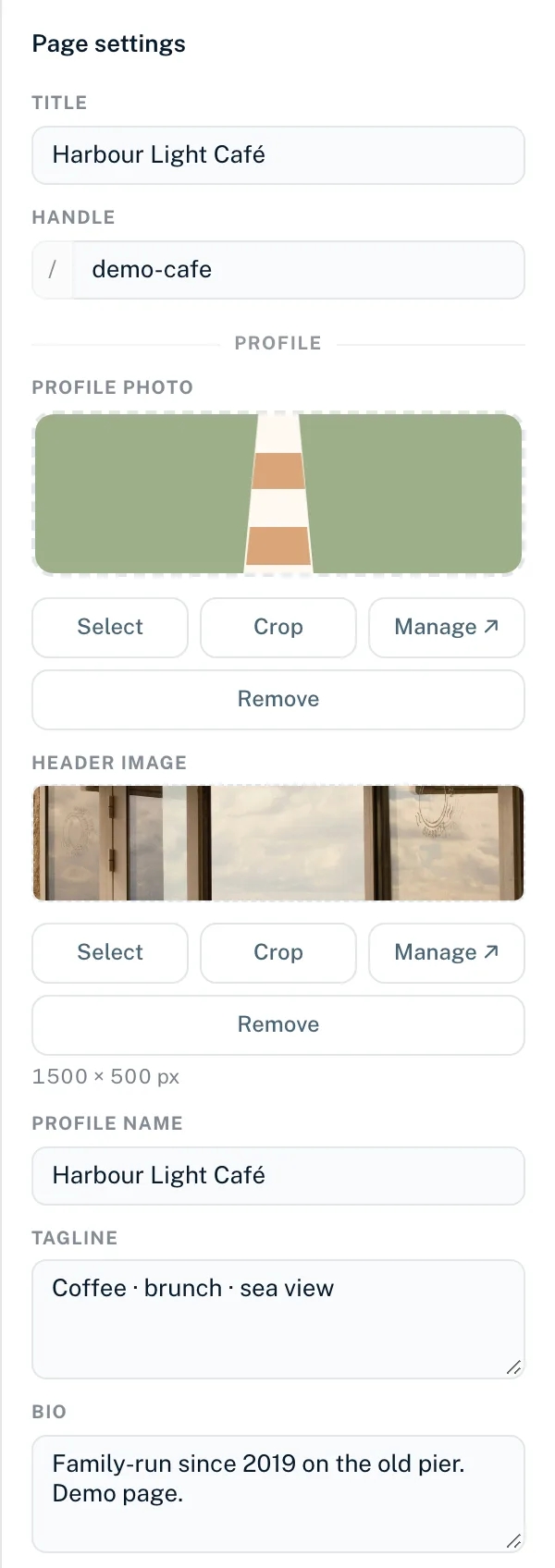
When nothing is selected, the right panel shows the page settings:
- “Title”
- Name of the page, up to 120 characters. Emptying the field restores the old title.
- “Handle”
- Your page's address after the “/”. Lowercase letters, digits and hyphens are allowed, 2 to 64 characters. Capital letters are lowercased automatically and other characters are removed as you type. If the handle is shorter than 2 characters, you see “Handle format invalid.” If it is taken, you see “This handle is already taken.” Addresses LinkHarbor uses itself (such as privacy, support, help, search, follow) are reserved on linkharbor.com: “This handle is reserved for LinkHarbor’s own pages (e.g. privacy, support). Please choose another one.”
- “Profile”
- The template's image slots (e.g. “Profile photo”, “Header image”) and the template's text fields such as “Profile name”, “Bio” or “Tagline”. Details in Images in the Page Builder.
- “SEO”
- “SEO Title” (up to 120 characters), “Description” (up to 320 characters) and the “Noindex” switch. All SEO options are in SEO and social media preview.
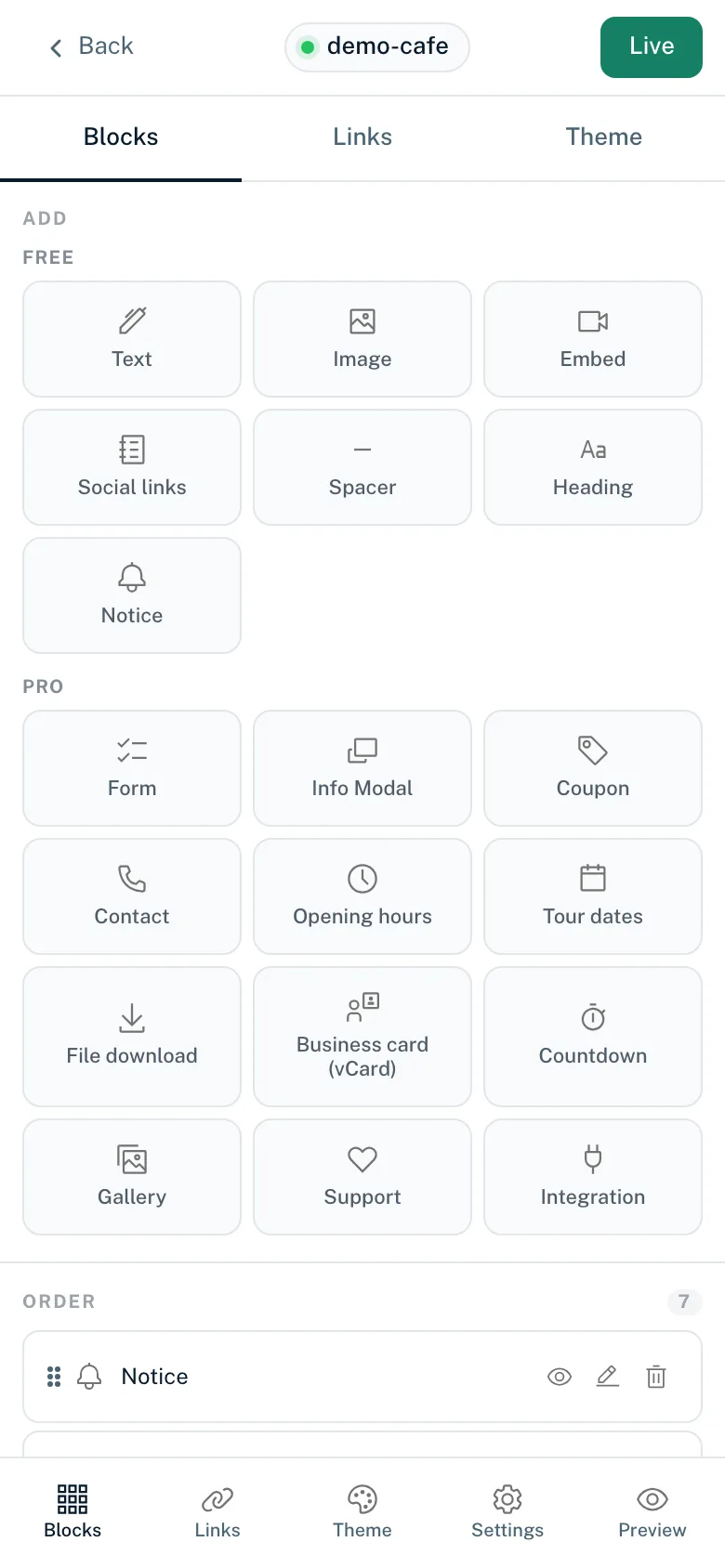
The builder on your phone
On narrow screens (up to 768 px) the builder shows one area at a time. A bar at the bottom offers “Blocks”, “Links”, “Theme”, “Settings” and “Preview”. When you select a block or link, the builder jumps to the editing panel automatically. “Preview” opens the draft in a new tab.
Builder or page editor
Besides the builder, every page has the page editor with the tabs “Settings”, “Links”, “Blocks”, “Statistics”, “SEO”, “Versions” and “Publish”. Both edit the same data. A few things only work in the page editor:
- Deleting links (“Links” tab)
- Age-gate, bot protection, device targeting and geo denylist per link
- Page visibility: public, private with an invite link, or password-protected
- Viewing versions and bringing an older version into the draft
- Bot protection as the default for the whole page
How to create a page is explained in Create a new page. The terms draft, version and handle are explained in Key terms.
You might also find this useful
Nothing found?
Tell us what you need, and our support team will help you personally.