












































How to add links, change their order, style individual links and make important ones stand out with an image and a badge.
Links are the heart of a link-in-bio page. They appear in your page's fixed Links block. Here you learn how to add, sort, switch on and off, style and highlight links. Scheduling, targeting and protection per link are explained in Rules per link.
Where you manage links
| Task | Page Builder, “Links” tab | Page editor, “Links” tab |
|---|---|---|
| Add a link | Yes | Yes |
| Change title or URL | Yes | Yes |
| Delete a link | No | Yes |
| Change the order | Yes, saved immediately | Yes, with “Save order” |
| Activate and deactivate | Yes | Yes |
| Styling, icon, link image, highlight | Yes | No |
| Scheduling and geo allowlist | Yes | Yes |
| Age-gate, bot protection, device targeting, geo denylist | No | Yes |
Editors, admins and owners can edit links. All changes to links go into the draft and go live the next time you publish.
Adding a link in the builder
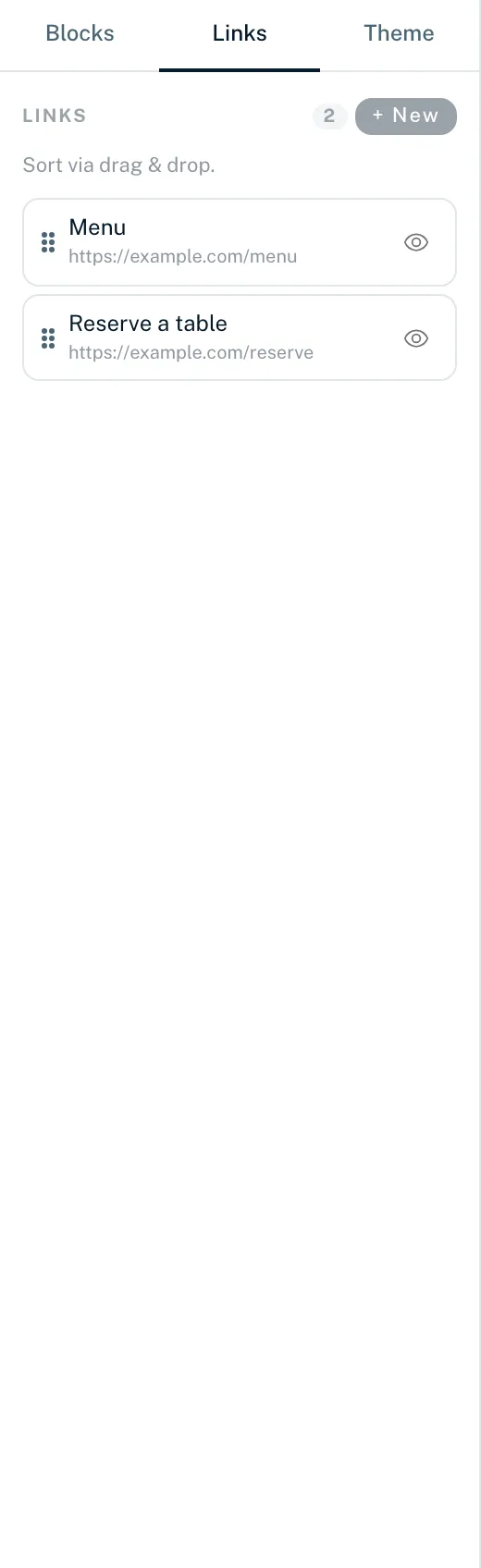
- In the builder, open the “Links” tab on the left
- Click “+ New”
- Enter a “Title” (required, up to 200 characters), e.g. “My shop”
- Enter the “URL” (required), e.g. https://example.com/shop
- Click “Create link”
The new link appears at the end of the list and is already selected, so you can style it on the right straight away.
Rules for the URL
- Only addresses starting with http:// or https://
- 8 to 2,048 characters, no spaces and no backslashes
- No login details in the address (name@host form)
- No private or local network addresses
If an address does not fit, “Create link” stays greyed out and you see “URL must start with https://” or “Invalid URL — example: https://example.com”.
Editing or deleting a link
You change a link's title and URL directly in the link editor on the right: type the new value and leave the field or press Enter, and the builder saves it. An empty title or an invalid URL is not saved. More options such as scheduling, rules or bot protection are under “All link options on the Links page”. You delete links in the page editor:
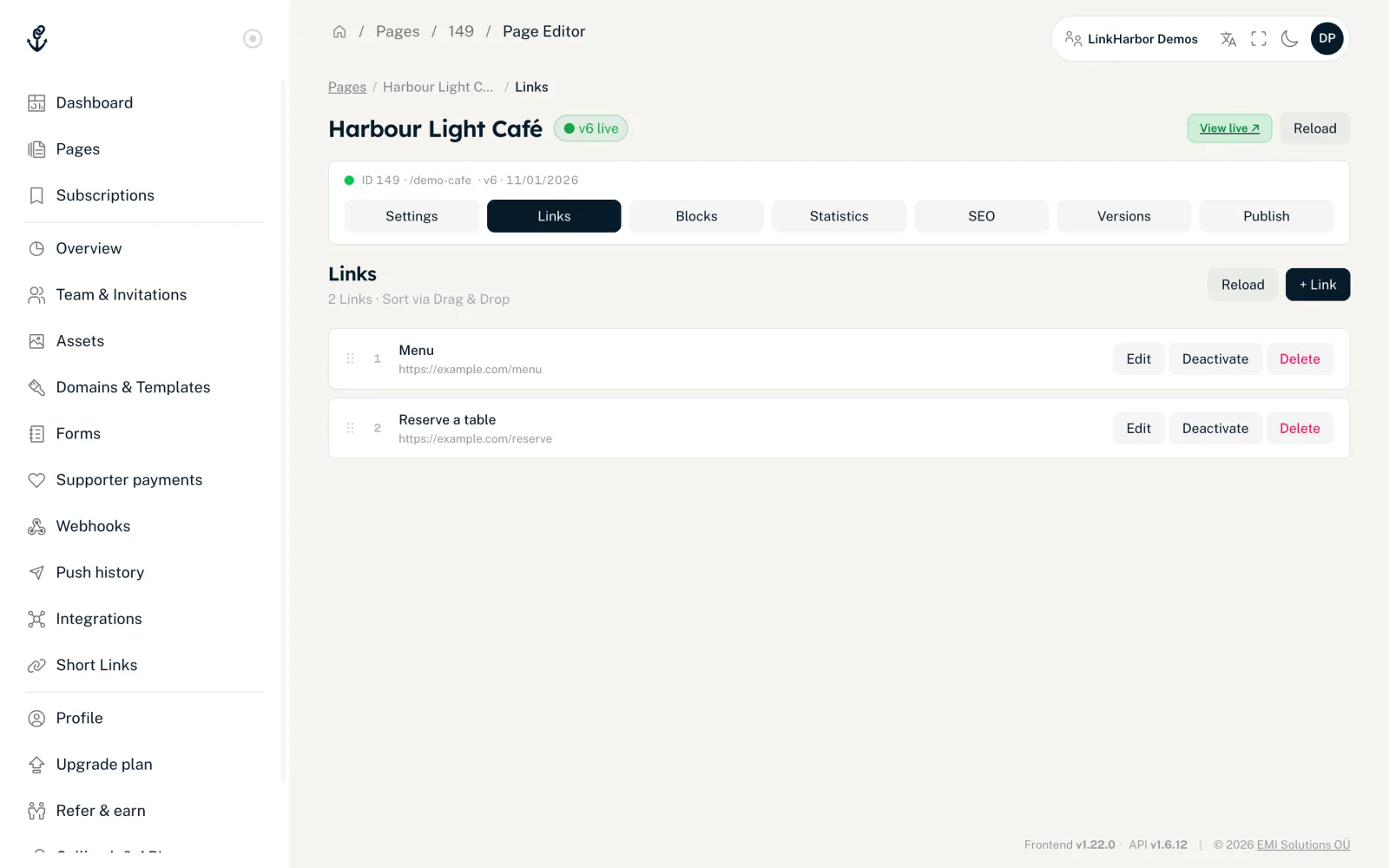
- Open the page in the page editor and switch to the “Links” tab
- To delete a link, click “Delete” next to it
Changing the order
Drag a link by its handle to where you want it. In the builder the new order is saved immediately. In the page editor a “Save order” button appears after you reorder. Only then is the order saved. If you leave the page before that, the page editor warns you.
Activating and deactivating links
With the eye icon in the list (“Deactivate” / “Activate”) or the “Active” switch in the link editor you hide a link without deleting it. Deactivated links appear greyed out in the list and with the “Inactive” badge in the page editor. After the next publish they no longer appear on the page, and opening the link directly no longer redirects either.
Styling individual links
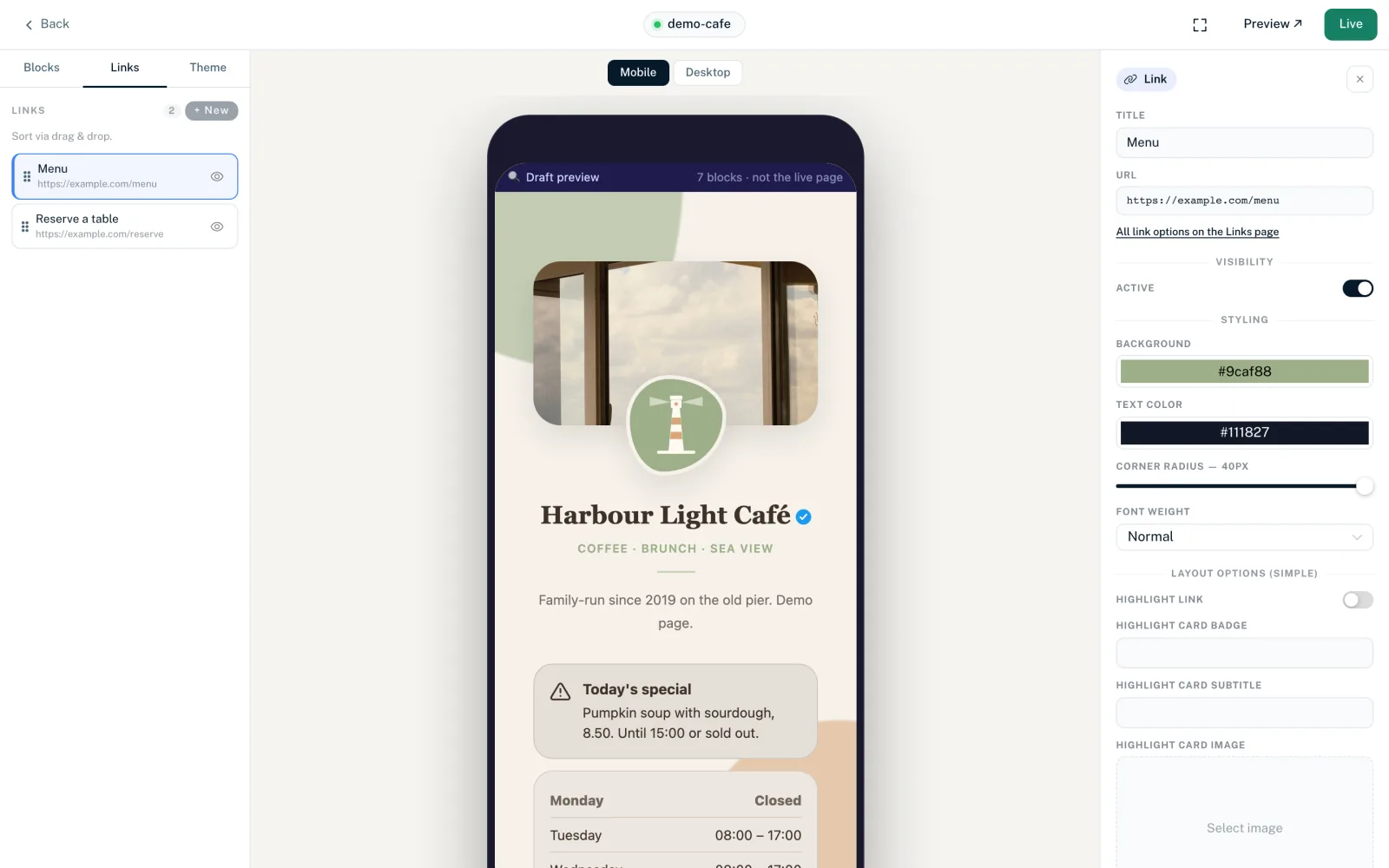
Click a link in the “Links” tab. The link editor opens on the right. In the “Styling” section you style exactly this link. These values take priority over the settings of the Links block and the theme.
- “Background”
- Colour of the link button. Without your own choice, the button colour from the theme applies.
- “Text color”
- Text colour on the button. Without your own choice, a colour that reads well on the background is picked automatically.
- “Corner radius”
- Slider from 0 to 40 px. Without your own choice, the theme's button style applies (Pill fully round, Rounded 12 px, Square 4 px).
- “Font weight”
- “Normal”, “Bold”, “Light” or “Semibold”.
How all links look together (height, gradient, border, shadow, hover effect) is set in the Links block, see The free blocks.
Icon and link image
Under “Layout options” you find fields that depend on the layout of the Links block:
| Layout of the Links block | Image per link |
|---|---|
| Simple | No icon, text buttons only |
| Middle | “Icon”: a small image next to the title |
| Maximal | “Link image”: the link is shown as an image button |
You pick images with “Select from assets” from your workspace's images; “Remove” takes them out again. Upload new images first under Workspace → “Assets”, see Assets.
Highlighting a link
You can make an important link, such as a new product or a giveaway, stand out as a card above the link list. This works in all three layouts.
- “Highlight link”
- Turns the highlight on for this link.
- “Highlight card badge”
- Short label on the card, e.g. “New”, up to 24 characters.
- “Highlight card subtitle”
- One line below the title, up to 120 characters.
- “Highlight card image” or “Link image”
- The card's image from your assets. In the Maximal layout it is the link image.
Placeholders in the destination URL
You can use placeholders in double curly braces in a link's URL. They are filled in on click, for example to tell a partner where a visitor came from:
https://shop.example.com/?ref={{LH_HANDLE}}&country={{LH_COUNTRY}}| Placeholder | Replaced with |
|---|---|
| {{LH_HANDLE}} | Your page's handle |
| {{LH_PAGE_ID}} | ID of the page |
| {{LH_LINK_ID}} | ID of the clicked link |
| {{LH_LINK_TITLE}} | Title of the clicked link |
| {{LH_COUNTRY}} | The visitor's country code, e.g. DE |
| {{LH_DEVICE_TYPE}} | Device type, e.g. mobile or desktop |
| {{LH_BROWSER}} | Browser, e.g. Safari |
| {{LH_OS}} | Operating system, e.g. iOS |
| {{LH_HOSTNAME}} | Domain the page was opened on |
| {{LH_VISITOR_ID}} | Anonymous ID of the visit |
From Creator Pro you can also pass on UTM parameters that visitors arrive with: {{utm_source}} in the destination URL is then replaced with the value from your page's address. Unknown placeholders are left empty.
Limits
| Plan | Links per page |
|---|---|
| Creator Free | 5 |
| Creator Pro | 50 |
| Creator Agency | 50 |
| Enterprise | Unlimited |
The limit applies per page, and deactivated links count too. Once it is reached, LinkHarbor rejects new links: “You have reached the maximum number of links for your plan.” After a downgrade the page only shows as many visible links as your plan allows; the rest stay saved. More in Downgrade.
You might also find this useful
Nothing found?
Tell us what you need, and our support team will help you personally.